


Search
Shift Synchronization
Setup - Social Messaging
Queues
Shift Synchronization
Read more
Example PowerShell script
Setup - General
CRM
Example PowerShell script
Read more
Statistics
How to use
Contact Center
Statistics
Read more
Supervisor
How to use
Contact Center
Supervisor
Read more
Agent
How to use
Contact Center
Agent
Read more
SocialConversationParticipant Export
API
Social Messaging
SocialConversationParticipant Export
Read more
SocialConversationInfo Export
API
Social Messaging
SocialConversationInfo Export
Read more
SocialQueue Export
API
Social Messaging
SocialQueue Export
Read more
Virtual Call Info
API
Contact Center
Virtual Call Info
Read more
Quality Assurance
API
AI Flow
Quality Assurance
Read more
Sentiment
API
AI Flow
Sentiment
Read more
Summary
API
AI Flow
Summary
Read more
Transcript
API
AI Flow
Transcript
Read more
MCP Server Setup
API
General
MCP Server Setup
Read more
Customer data
API
General
Customer data
Read more
General
How to use
Contact Center
General
Read more
Create App Registration for Email TouchPoint
Setup - Social Messaging
Email Touchpoint
Create App Registration for Email TouchPoint
Read more
Module settings
Setup - General
Insights & Analytics
Module settings
Read more
Examples
Setup - General
Permissions
Examples
Read more
Setup Access
Setup - General
Permissions
Setup Access
Read more
Configure Teams client to enable Toastar
Setup - General
CRM Calling Integration (Toastar)
Configure Teams client to enable Toastar
Read more
Enable users
Setup - General
CRM Calling Integration (Toastar)
Enable users
Read more
Webhook & Postback URL
Setup - General
CRM Calling Integration (Toastar)
Webhook & Postback URL
Read more
Add TOASTAR App to Teams
Setup - General
CRM Calling Integration (Toastar)
Add TOASTAR App to Teams
Read more
Create Teams Virtual User
Setup - General
CRM Calling Integration (Toastar)
Create Teams Virtual User
Read more
Register Azure BOT Channel
Setup - General
CRM Calling Integration (Toastar)
Register Azure BOT Channel
Read more
Example PowerShell script
Setup - General
Custom CRM Connector
Example PowerShell script
Read more
Phonebook
Setup - General
CRM Replicator
Phonebook
Read more
Webchat to Teams
Setup - Social Messaging
Examples
Webchat to Teams
Read more
WhatsApp to Teams
Setup - Social Messaging
Examples
WhatsApp to Teams
Read more
Recognize customer by email
Setup - Social Messaging
Examples
Recognize customer by email
Read more
Use webchat form to recognize customer
Setup - Social Messaging
Examples
Use webchat form to recognize customer
Read more
Start voice call (Beta)
Setup - Social Messaging
Graphical Designer
Start voice call (Beta)
Read more
CRM
Setup - Social Messaging
Graphical Designer
CRM
Read more
AddTranscript
Setup - Social Messaging
Graphical Designer
AddTranscript
Read more
Translate
Setup - Social Messaging
Graphical Designer
Translate
Read more
OpenAI
Setup - Social Messaging
Graphical Designer
OpenAI
Read more
GetFormInput
Setup - Social Messaging
Graphical Designer
GetFormInput
Read more
HttpAction
Setup - Social Messaging
Graphical Designer
HttpAction
Read more
Go to
Setup - Social Messaging
Graphical Designer
Go to
Read more
Convert Image
Setup - Social Messaging
Graphical Designer
Convert Image
Read more
SetAction
Setup - Social Messaging
Graphical Designer
SetAction
Read more
GetPageVisits
Setup - Social Messaging
Graphical Designer
GetPageVisits
Read more
Sentiment
Setup - Social Messaging
Graphical Designer
Sentiment
Read more
Powerhook
Setup - Social Messaging
Graphical Designer
Powerhook
Read more
SendEmailAction
Setup - Social Messaging
Graphical Designer
SendEmailAction
Read more
Chatbot
Setup - Social Messaging
Graphical Designer
Chatbot
Read more
Get Transcript
Setup - Social Messaging
Graphical Designer
Get Transcript
Read more
Set Participant
Setup - Social Messaging
Graphical Designer
Set Participant
Read more
Schedule
Setup - Social Messaging
Graphical Designer
Schedule
Read more
Merge
Setup - Social Messaging
Graphical Designer
Merge
Read more
Choice
Setup - Social Messaging
Graphical Designer
Choice
Read more
IF
Setup - Social Messaging
Graphical Designer
IF
Read more
WaitInput
Setup - Social Messaging
Graphical Designer
WaitInput
Read more
SendMessageTo
Setup - Social Messaging
Graphical Designer
SendMessageTo
Read more
The basics
Setup - Social Messaging
Graphical Designer
The basics
Read more
Webhooks for SMS Provider
Setup - Social Messaging
SMS TouchPoint
Webhooks for SMS Provider
Read more
Sandbox cm.com
Setup - Social Messaging
WhatsApp for Business TouchPoint
Sandbox cm.com
Read more
WhatsApp OUT
Setup - Social Messaging
WhatsApp for Business TouchPoint
WhatsApp OUT
Read more
Adding templates
Setup - Social Messaging
WhatsApp for Business TouchPoint
Adding templates
Read more
Webhooks for WhatsApp Providers
Setup - Social Messaging
WhatsApp for Business TouchPoint
Webhooks for WhatsApp Providers
Read more
Customize Layout
Setup - Social Messaging
Webchat TouchPoint
Customize Layout
Read more
Add status message
Setup - Social Messaging
Webchat TouchPoint
Add status message
Read more
Webchat Parameters
Setup - Social Messaging
Webchat TouchPoint
Webchat Parameters
Read more
Create adaptive card
Setup - Social Messaging
Microsoft Teams
Create adaptive card
Read more
Connect Teams Channel
Setup - Social Messaging
Microsoft Teams
Connect Teams Channel
Read more
Add ROGER365 app to Teams
Setup - Social Messaging
Microsoft Teams
Add ROGER365 app to Teams
Read more
AI Endpoints
Setup - Contact Center
AI Flow (Beta)
AI Endpoints
Read more
Classification Action Configurations
Setup - Contact Center
AI Flow (Beta)
Classification Action Configurations
Read more
Quality Assurance Forms
Setup - Contact Center
AI Flow (Beta)
Quality Assurance Forms
Read more
Audio Providers
Setup - Contact Center
AI Flow (Beta)
Audio Providers
Read more
Flows
Setup - Contact Center
AI Flow (Beta)
Flows
Read more
Last Conversation Data
Setup - Contact Center
Graphical Designer
Last Conversation Data
Read more
Call to SMS (Beta)
Setup - Contact Center
Graphical Designer
Call to SMS (Beta)
Read more
Store feedback
Setup - Contact Center
Graphical Designer
Store feedback
Read more
Call to WhatsApp (Beta)
Setup - Contact Center
Graphical Designer
Call to WhatsApp (Beta)
Read more
Cancel Virtual Call
Setup - Contact Center
Graphical Designer
Cancel Virtual Call
Read more
Get Virtual Call Info
Setup - Contact Center
Graphical Designer
Get Virtual Call Info
Read more
Make Call Virtual
Setup - Contact Center
Graphical Designer
Make Call Virtual
Read more
OpenAI
Setup - Contact Center
Graphical Designer
OpenAI
Read more
Last agent
Setup - Contact Center
Graphical Designer
Last agent
Read more
Text to Speech
Setup - Contact Center
Graphical Designer
Text to Speech
Read more
Speech to Text
Setup - Contact Center
Graphical Designer
Speech to Text
Read more
VoiceRecording
Setup - Contact Center
Graphical Designer
VoiceRecording
Read more
Switch
Setup - Contact Center
Graphical Designer
Switch
Read more
Subflow
Setup - Contact Center
Graphical Designer
Subflow
Read more
Set Variable
Setup - Contact Center
Graphical Designer
Set Variable
Read more
Send Webhook
Setup - Contact Center
Graphical Designer
Send Webhook
Read more
IF
Setup - Contact Center
Graphical Designer
IF
Read more
HTTPAction
Setup - Contact Center
Graphical Designer
HTTPAction
Read more
Wait Timer
Setup - Contact Center
Graphical Designer
Wait Timer
Read more
CRM
Setup - Contact Center
Graphical Designer
CRM
Read more
Cancel Task
Setup - Contact Center
Graphical Designer
Cancel Task
Read more
Cancel all Tasks
Setup - Contact Center
Graphical Designer
Cancel all Tasks
Read more
Queue
Setup - Contact Center
Graphical Designer
Queue
Read more
Get Queue Info
Setup - Contact Center
Graphical Designer
Get Queue Info
Read more
WaitForEnd
Setup - Contact Center
Graphical Designer
WaitForEnd
Read more
Set language
Setup - Contact Center
Graphical Designer
Set language
Read more
Safe Transfer
Setup - Contact Center
Graphical Designer
Safe Transfer
Read more
Schedule
Setup - Contact Center
Graphical Designer
Schedule
Read more
Contact Center
How to use
Contact Center
Read more
Setup Access & Security
Setup - General
Setup Access & Security
Read more
Schedules
Setup - Contact Center
Schedules
Read more
Resource Accounts
Setup - Contact Center
Resource Accounts
Read more
Queues
Setup - Contact Center
Queues
Read more
Callflows
Setup - Contact Center
Callflows
Read more
Audio Files
Setup - Contact Center
Audio Files
Read more
Agents
Setup - Contact Center
Agents
Read more
Logging
How to use
Logging
Read more
Audit
Setup - General
Audit
Read more
CRM
Setup - General
CRM
Read more
Languages
Setup - General
Languages
Read more
Create Tenant App
Setup - General
Create Tenant App
Read more
Getting started
Getting started
Getting started
Read more
Subscriptions
How to use
Subscriptions
Read more
Call Flows
Setup - Contact Center
Call Flows
Read more
AI Flow
API
AI Flow
Read more
Copilot Touchpoint
Setup - Social Messaging
Copilot Touchpoint
Read more
Insights & Analytics
Setup - General
Insights & Analytics
Read more
Wallboard
Setup - General
Wallboard
Read more
Permissions
Setup - General
Permissions
Read more
Logging
Setup - General
Logging
Read more
CRM Calling Integration (Toastar)
Setup - General
CRM Calling Integration (Toastar)
Read more
Custom CRM Connector
Setup - General
Custom CRM Connector
Read more
Default CRM Connectors
Setup - General
Default CRM Connectors
Read more
CRM Replicator
Setup - General
CRM Replicator
Read more
Email Configuration
Setup - General
Email Configuration
Read more
Schedules
Setup - General
Schedules
Read more
Agent Assist
Setup - General
Agent Assist
Read more
Setup Access & Security
Setup - General
Setup Access & Security
Read more
Malicious File Blocking
Setup - Social Messaging
Malicious File Blocking
Read more
Wallboard
Setup - Social Messaging
Wallboard
Read more
Reporting
Setup - Social Messaging
Reporting
Read more
Messages
Setup - Social Messaging
Messages
Read more
Examples
Setup - Social Messaging
Examples
Read more
Graphical Designer
Setup - Social Messaging
Graphical Designer
Read more
Using the library
Setup - Social Messaging
Using the library
Read more
Email Touchpoint
Setup - Social Messaging
Email Touchpoint
Read more
API TouchPoint
Setup - Social Messaging
API TouchPoint
Read more
Facebook TouchPoint
Setup - Social Messaging
Facebook TouchPoint
Read more
SMS TouchPoint
Setup - Social Messaging
SMS TouchPoint
Read more
WhatsApp for Business TouchPoint
Setup - Social Messaging
WhatsApp for Business TouchPoint
Read more
Webchat TouchPoint
Setup - Social Messaging
Webchat TouchPoint
Read more
Microsoft Teams
Setup - Social Messaging
Microsoft Teams
Read more
Queues
Setup - Social Messaging
Queues
Read more
AI Flow (Beta)
Setup - Contact Center
AI Flow (Beta)
Read more
Classification
Setup - Contact Center
Classification
Read more
Skill Based Routing
Setup - Contact Center
Skill Based Routing
Read more
Reason Codes
Setup - Contact Center
Reason Codes
Read more
Audio Prompts
Setup - Contact Center
Audio Prompts
Read more
Agent Profiles
Setup - Contact Center
Agent Profiles
Read more
Agents
Setup - Contact Center
Agents
Read more
Call Park
Setup - General
Call Park
Read more
Resource Accounts
Setup - Contact Center
Resource Accounts
Read more
Graphical Designer
Setup - Contact Center
Graphical Designer
Read more
Form Based callflow
Setup - Contact Center
Form Based callflow
Read more
Using the library
Setup - Contact Center
Using the library
Read more
Queues
Setup - Contact Center
Queues
Read more
General
Setup - Contact Center
General
Read more
Agent page functionalities
How to use
Agent page functionalities
Read more
Social Messaging
How to use
Social Messaging
Read more
Contact Center
How to use
Contact Center
Read more
Support & Assistance
Getting Started
Support & Assistance
Read more
Compliance by design
Getting Started
Compliance by design
Read more
Social Messaging
API
Social Messaging
Read more
Contact Center
API
Contact Center
Read more
Getting Started
Getting Started
Getting Started
Read more
General
API
General
Read more
No results
Try a different search query
Menu
What are you looking for?
Thank you! Your submission has been received!
Oops! Something went wrong while submitting the form.
Setup - Social Messaging
Copilot Touchpoint

Copilot Touchpoint

The Copilot TouchPoint is only available in the Enterprise subscription.

Disclaimers:

  • The ROGER365.io does not supply the Copilot Agent configuration and is not responsible for unexpected results or being flagged as a violator of Terms of Use.
  • Please be aware of the cost-aspect for utilizing your Copilot Agent configuration used in this integration – Pricing.

This integration connects the Copilot agent (created in Copilot Studio) with the ROGER365.io platform, allowing you to have Webchat or WhatsApp conversations with the Copilot agent – with an option to escalate a conversation to a human agent. Depending on its configuration, the Copilot agent can provide powerful and flexible assistance across a wide range of scenarios, adapting its capabilities to meet your specific needs.

Copilot Studio portal

Authentication

After the Copilot Agent is created, navigate to its settings.

Open the “Security” section followed by “Authentication”:
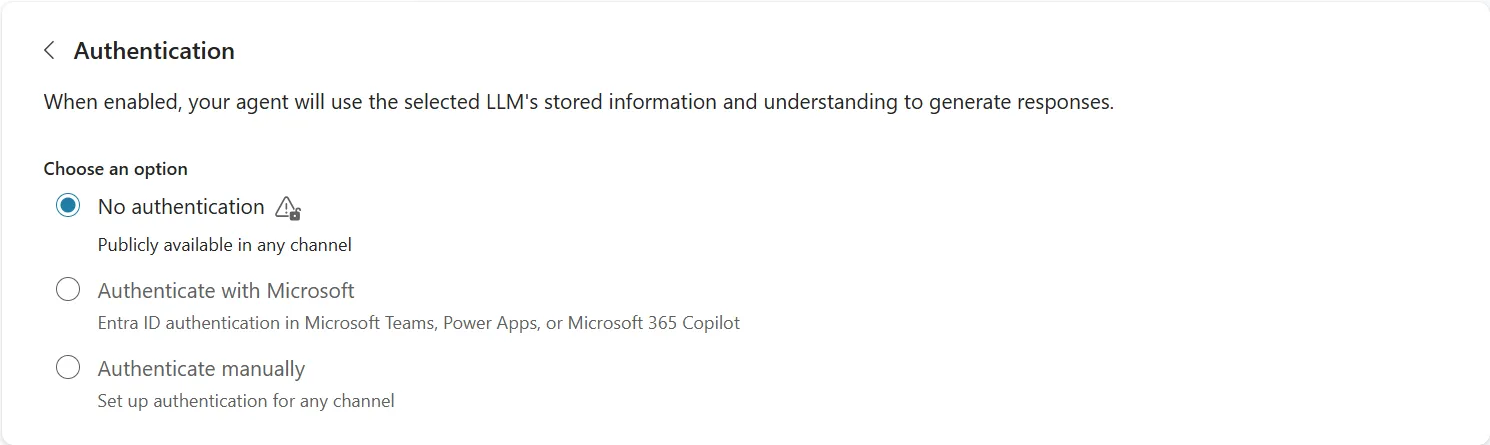
Set the authentication option to ‘No Authentication‘.

This is the only Microsoft-supported configuration that does not require end users to sign in before interacting with the agent; the alternative options, ‘Authenticate with Microsoft’ and ‘Authenticate manually’, are both built around a user sign-in flow. As the Copilot-integrated chatbox may be embedded on any website within the network, requiring individual sign-in is not practical for this use case.

“No Authentication” doesn’t mean the agent is unsecured. With ‘Require secured access’ enabled (see the Obtaining a Secret section below), clients must authenticate using a Direct Line secret (token) before reaching the agent – blocking unauthorized access even without individual user sign-in.

Administrators should also scope the agent to expose only topics and data appropriate for this access level.

Obtaining a secret (Microsoft Copilot Studio reference)

In the same “Security” section of the Copilot Agent settings, navigate to “Web channel security”:
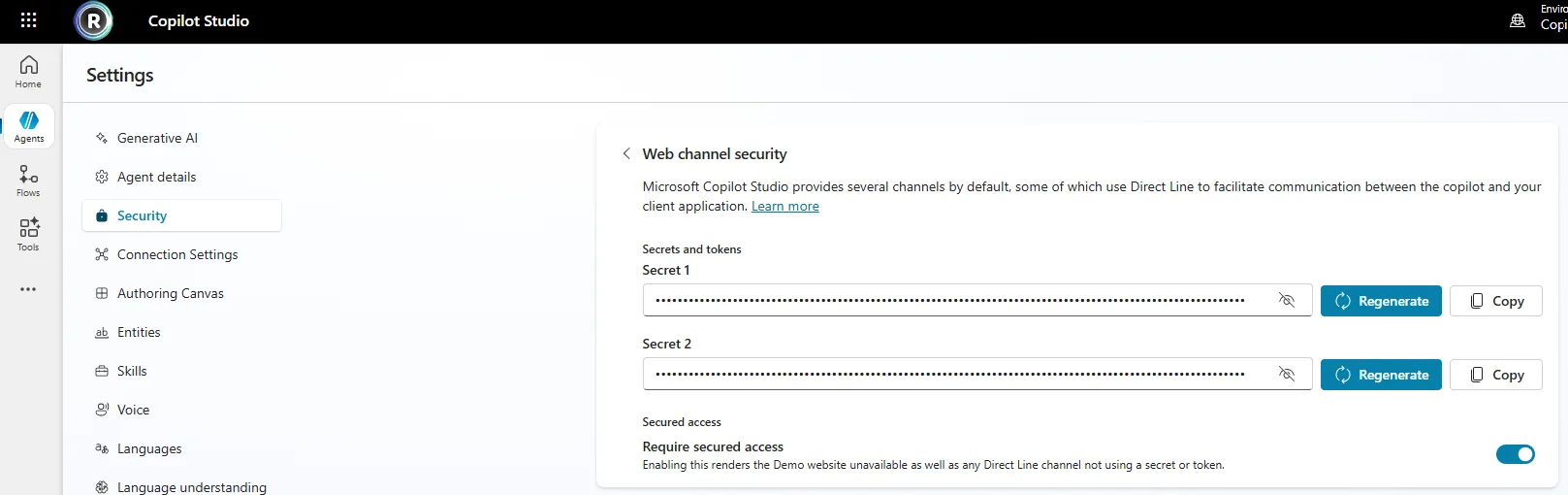
On this page, copy “Secret 1” to a safe place – this Secret will be used during the creation of the Copilot TouchPoint in the ROGER365.io admin portal.

For maximum security of the Copilot Agent configuration, it is advised to enable the “Require secured access” option (if already enabled, leave it as it is).

System Topics

By default, the Copilot Agent configuration includes a set of built-in System topics. The integration relies on the “Escalate” and “End of Conversation” System topics. Based on Copilot’s response in these topics, the messageflow on the ROGER365.io side will act accordingly.

Example of “Escalate” System topic

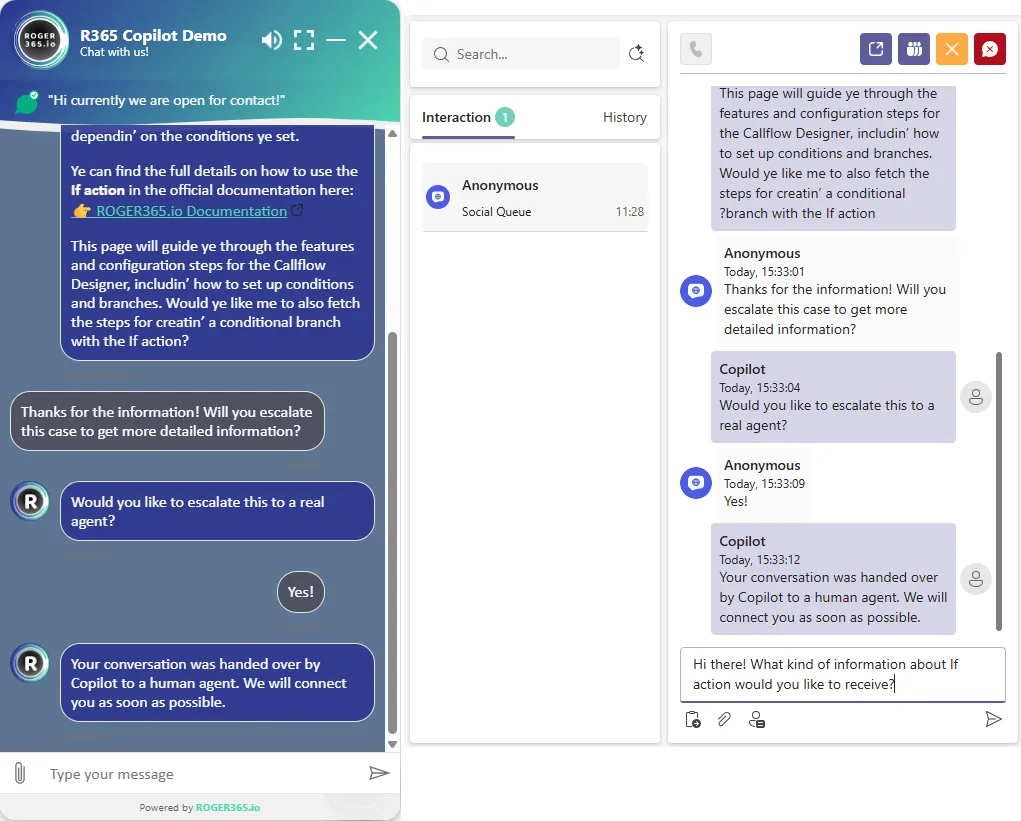
During a conversation with the Copilot Agent, a user may request to be transferred to a human agent for further support. The “Escalate” system topic handles this by asking the user for confirmation. Once confirmed, Copilot sends a predefined message that triggers the handoff to a live agent on the ROGER365.io side.
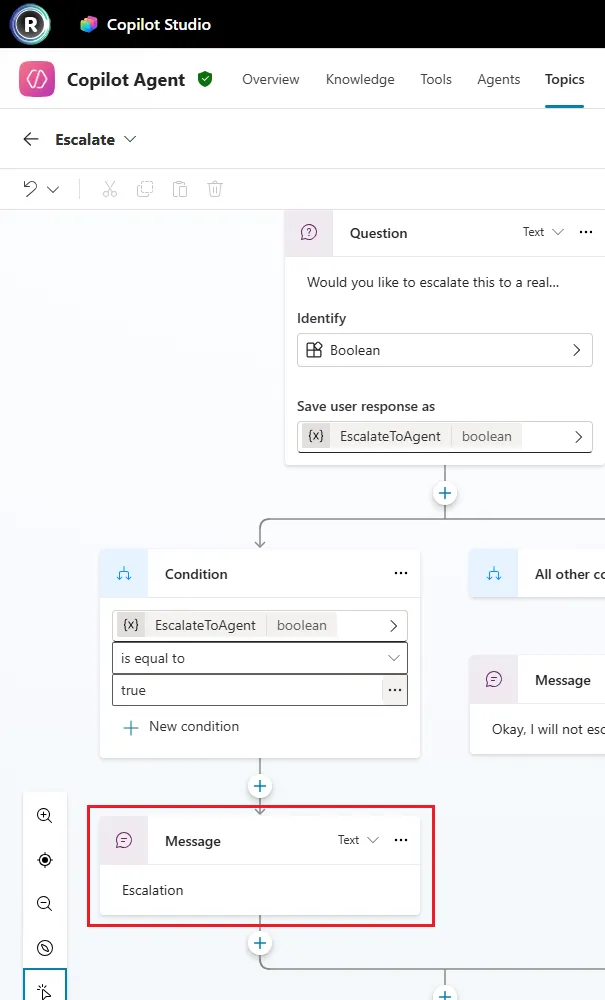
This message can be altered according to specific requirements.

Important: The configured escalation text must be saved to a clipboard, as it will be referenced during the creation of the messageflow from library – see Using the library documentation.

Example of “End of Conversation” System topic

The “End of Conversation” system topic manages the closing stage of an interaction with the Copilot Agent. Before ending, Copilot asks the user if any further assistance is needed, and upon confirmation to close, sends a farewell message that triggers the closure of the conversation on the ROGER365.io side.
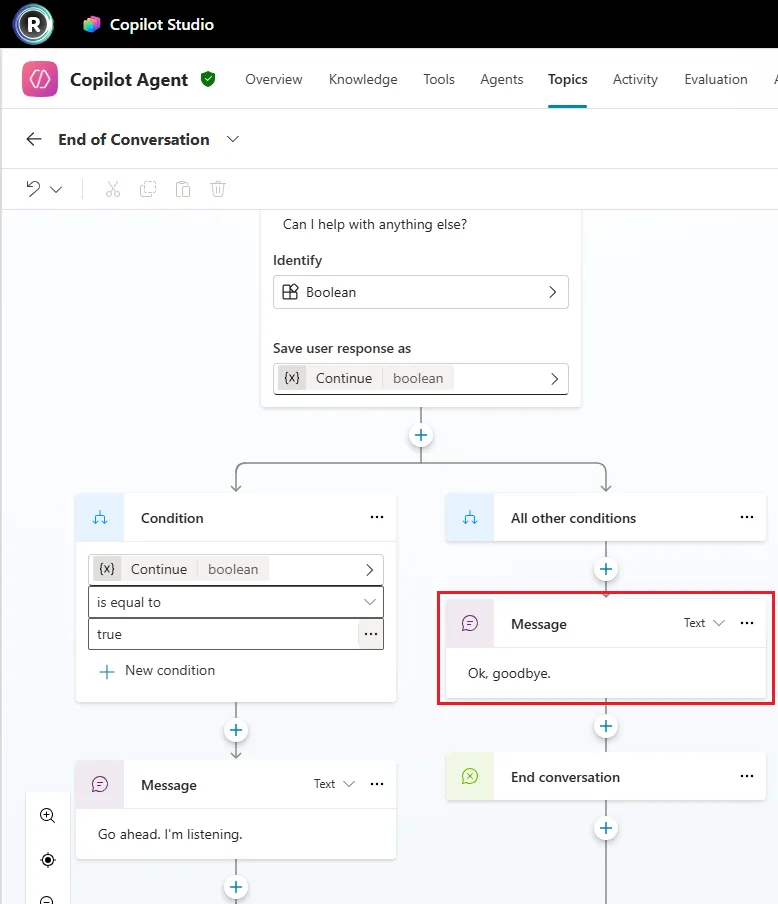
This message can be altered according to specific requirements.

Important: The configured closing text must be saved to a clipboard, as it will be referenced during the creation of the messageflow from library – see Using the library documentation.

Adding Copilot as TouchPoint

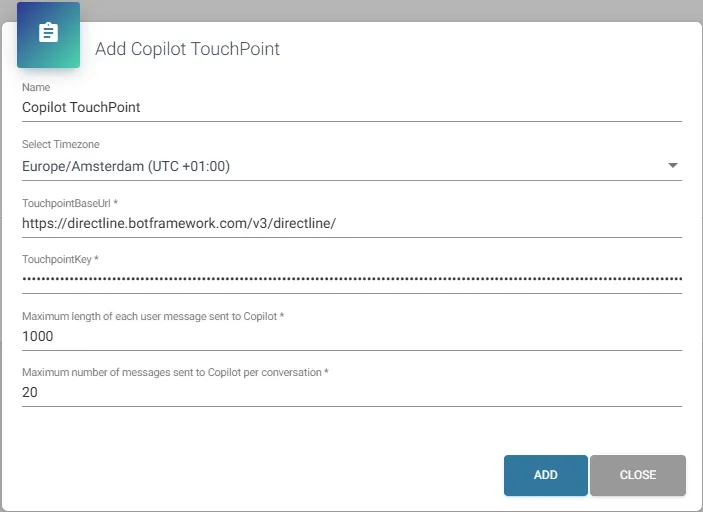
  1. Go to [Social Messaging] ➝ [Copilot Touchpoints],
  2. On the right top click [+ Add Copilot Touchpoint].
Field Description
Name Enter name for the Copilot TouchPoint configuration
Timezone Select from list appropriate for your region timezone
TouchPointBasedUrl (fixed) This is the standard, Microsoft-provided address used to connect our platform to Microsoft Copilot. It must remain as-is, there’s no alternative or configurable value here – API reference & Key concepts
TouchpointKey Secret used for authentication taken from the Copilot Studio’s “Web channel security” page of “Security” section – Obtain the secrets
Maximum length of each user message sent to Copilot Enter maximum length of user message that will be sent to the Copilot agent. Default value is 1000 characters.
Useful option to optimize performance or control cost aspect of the integration!
Note: From the interface perspective (Webchat/WhatsApp) users may be able to send messages that exceed the maximum allowed length. However, based on the configured limit (for example, 1000 characters), only the first 1000 characters will be passed to Copilot, and the rest will be discarded.
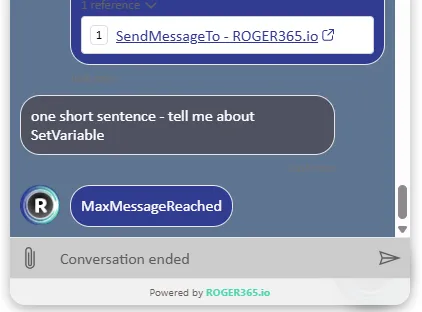
Maximum number of messages sent to Copilot per conversation Enter maximum number of sent user messages during single conversation to the Copilot agent.
Useful option to optimize performance or control cost aspect of the integration!

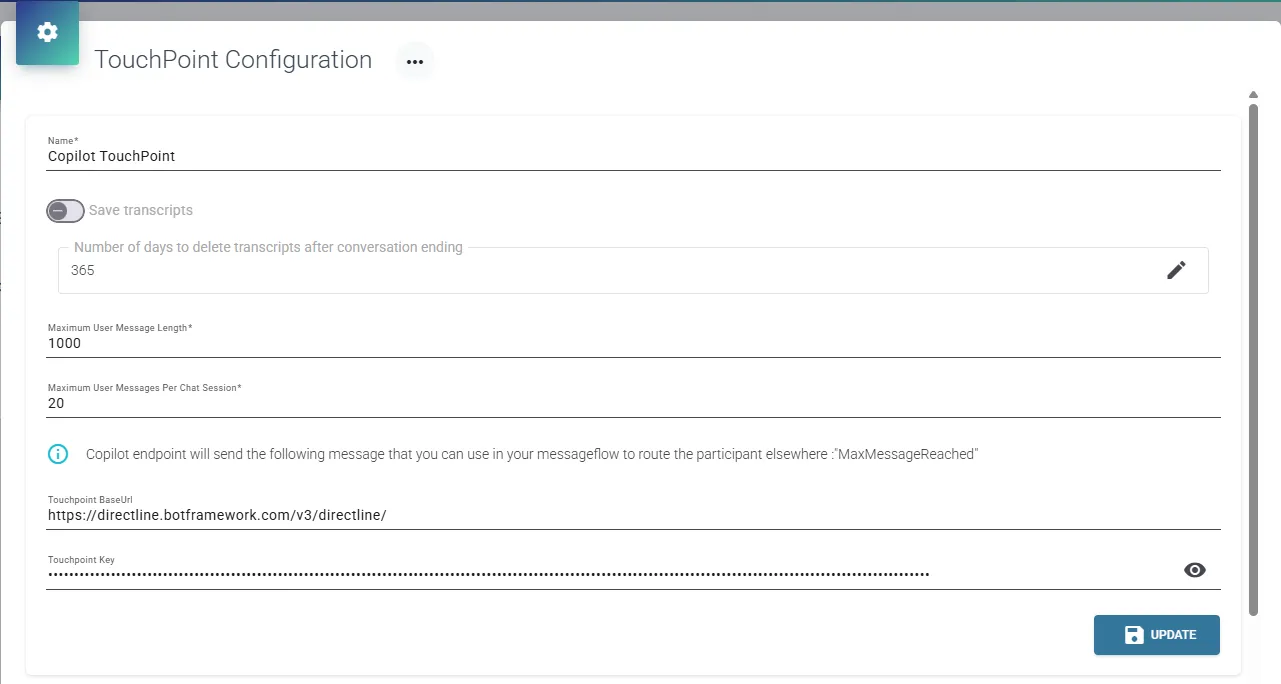
When reviewing the settings of a created Copilot TouchPoint (accessed via the “Edit” button), information is displayed about the Copilot endpoint sending a “MaxMessageReached” message. This message is tied to the maximum user messages option and can be used in the messageflow configuration for routing purposes.

Example of how it works

Webchat conversation – escalating to a human agent
Webchat conversation — closing the conversation at the user’s request
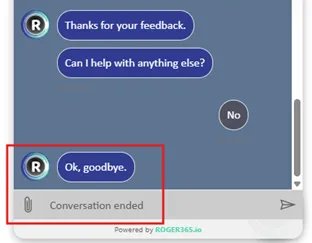
Webchat conversation – closing the conversation after reaching the maximum sent messages
On this page