


Agent

The Agent screen is the main workspace agents use to handle calls, monitor queue activity, and access their contacts. It provides a real-time overview of incoming and active calls, along with tools to manage them. You can access the ROGER365.io UnifAI agent app at app.roger365.io.
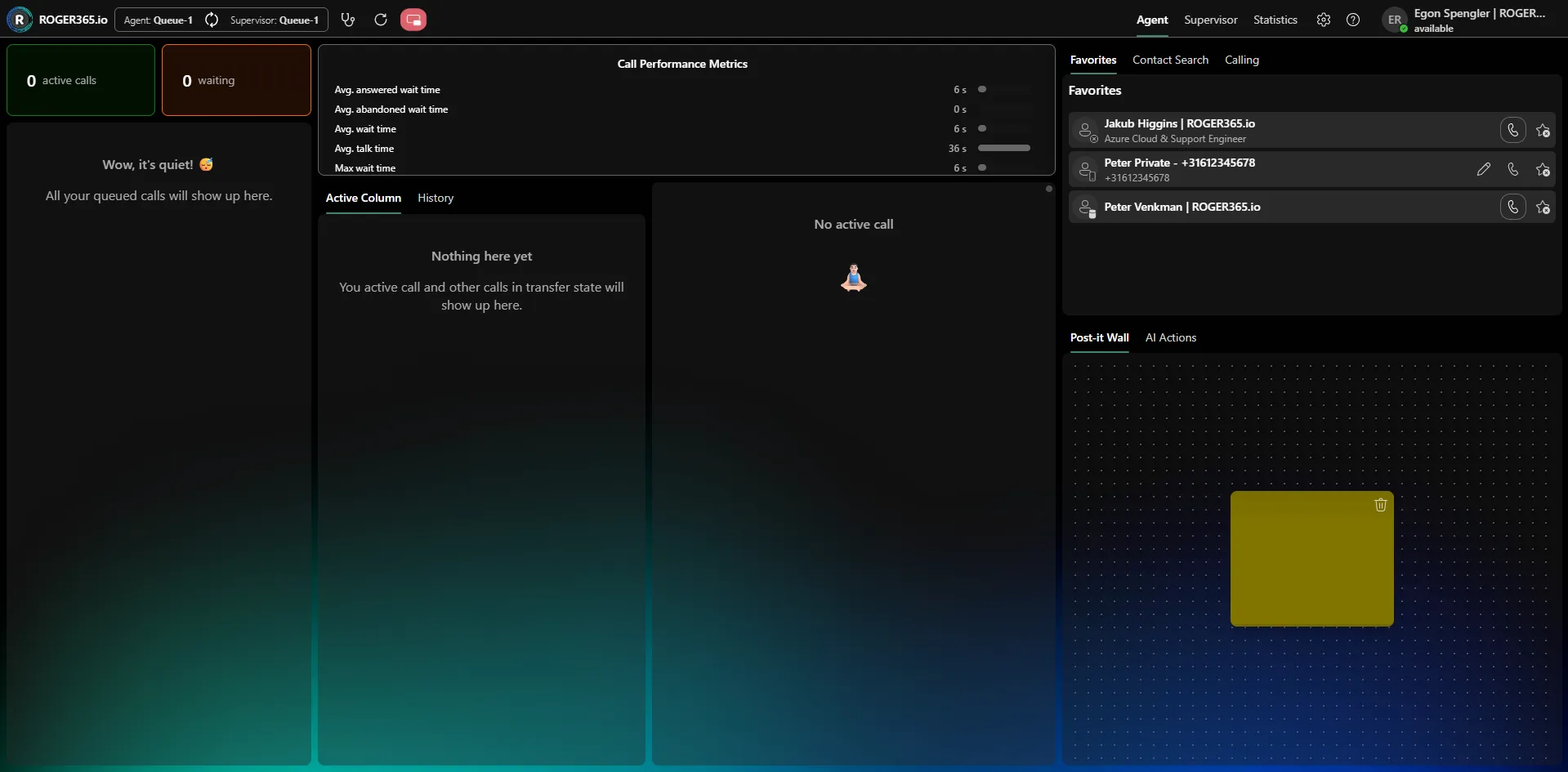
Overview of the agent screen
Top navigation bar
Along the top of the screen you'll find:
- The queue selectors, showing the queues the agent and supervisor are currently assigned to (for example, Agent: Queue-1 and Supervisor: Queue-1).
- Call controls and a refresh button for managing the workspace.
- The main views—Agent, Supervisor, and Statistics—which switch between the different areas of the application.
- A settings icon and a help icon.
- Your user profile in the top-right corner, showing your name and current presence status (for example, "available"). You can use this to set your availability.
Queue overview
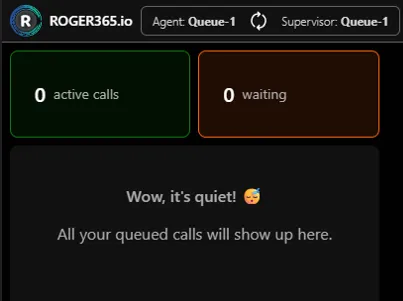
The left panel gives an at-a-glance view of queue activity:
- Active calls – The number of calls currently being handled.
- Waiting – The number of callers currently waiting in the queue.
When there are no calls, a message indicates that any queued calls will appear here.
Call Performance Metrics
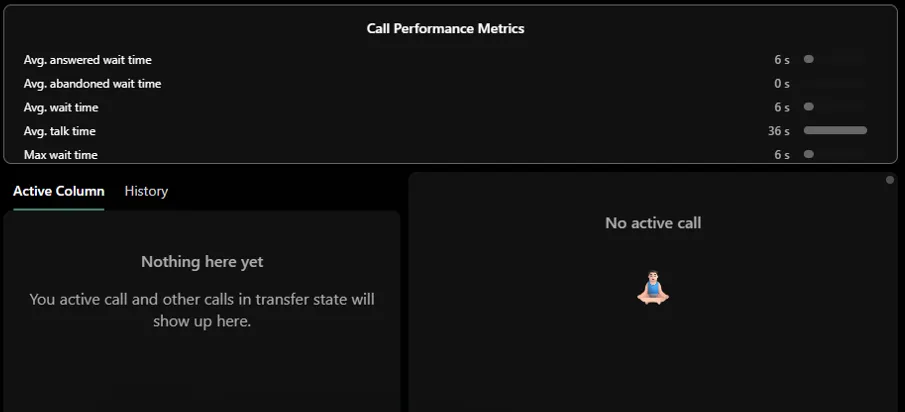
The center panel displays real-time performance metrics for the queue, including average answered wait time, average abandoned wait time, average wait time, average talk time, and maximum wait time. These help agents and supervisors monitor how calls are being handled.
Below the metrics, two tabs are available:
- Active Column – Shows your active call and any calls in a transfer state.
- History – Shows your recent call history.
The area to the right displays details of the current call, or "No active call" when you are not on a call.
Contacts and calling
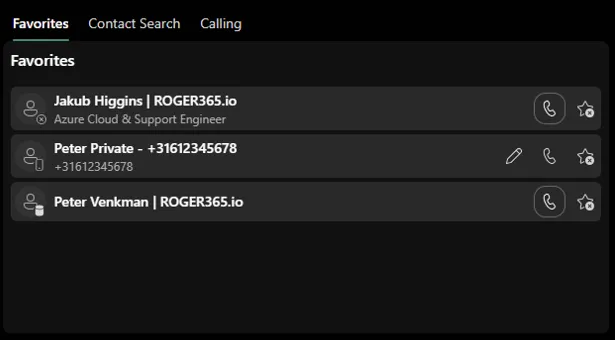
The top of the right panel provides quick access to contacts through three tabs:
- Favorites – Your saved favorite contacts for quick dialing. Each contact shows a call button and controls to edit or remove them.
- Contact Search – Search for contacts across your directory.
- Calling – Place calls directly.
Post-it Wall and AI Actions
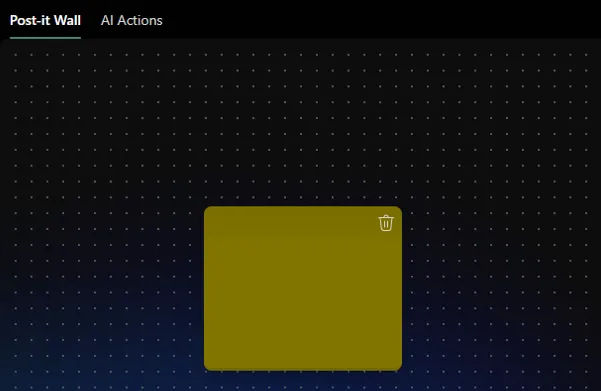
At the bottom of the right panel, two tabs are available:
- Post-it Wall – A space for adding digital sticky notes as quick reminders. You can add colored notes and remove them using the trash icon.
- AI Actions – Access AI-powered actions to assist with your work.
Signing In
- Open the app. You'll see the login page with the ROGER365 logo.
- Click Login. You'll be redirected to your organization's sign-in page (the same login you use for other Microsoft/company apps).
- After signing in, you're taken to the Agent page.
If you see "Agent not configured": your account hasn't been set up as an agent yet. Contact your administrator. You can log out from this screen.
Connecting Microsoft 365: to receive calls and see your contacts/presence, you also need to sign in to Microsoft 365. If this hasn't happened yet, you'll see a "Sign in to receive calls" button in the top bar — click it to complete this second sign-in step.
Connection status: a red "Calling Service Disconnected" chip appears in the top bar if the calling connection drops. Click it to reconnect.
Your Status
Click your agent card (top-right corner) to open a menu where you can set your status:
- Available
- Busy
- Away
- Offline
("In call" is set automatically while you're on a call — you can't select it yourself.)
If you have permission, the same menu also has Reset default layout and Log out.
Answering an Incoming Call
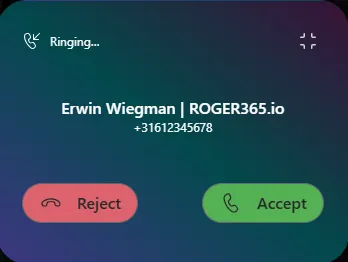
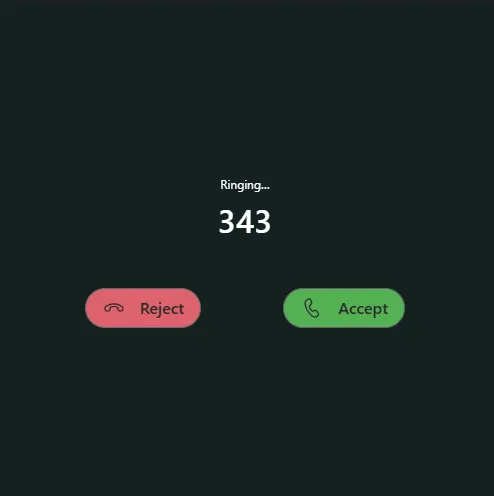
- A ringing pop-up appears showing the caller's name or number, with a red Reject and a green Accept button.
- A ringtone plays. If the browser tab isn't focused, a desktop notification also appears — click it to bring the app to the front.
- You can minimize the ringing pop-up to a small floating card and drag it anywhere on screen, then reopen it.
- Keyboard shortcuts: Ctrl+Shift+A to answer, Ctrl+Shift+D to decline.
If a call you previously transferred comes back to your queue, it shows a "Take back call" button.
During a Call
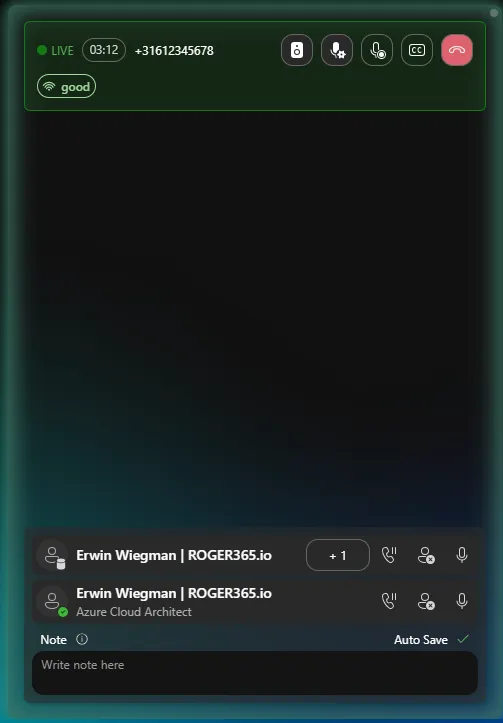
Once accepted, the call appears as your Active Interaction with a green LIVE badge and a running timer.
Call controls:
- Choose microphone / speaker
- Record the call (if enabled for you)
- Live captions/transcript (start/stop)
- Mute / unmute yourself
- Hold / resume
- End call, or during a transfer: Leave call / Cancel transfer
Other indicators you may see: a transfer-in-progress badge, an emergency-call (SOS) icon, and a color-coded call quality badge.
Participants list — everyone on the call, each with:
- Mute/unmute (external phone callers can't be muted remotely — you'll see a warning)
- Hold/resume
- Remove from call
- Select (focus on that person)
Call notes — a text box next to the participants list. It auto-saves as you type, and travels with the call if it's transferred, so the next agent has context.
Transferring or Adding People to a Call
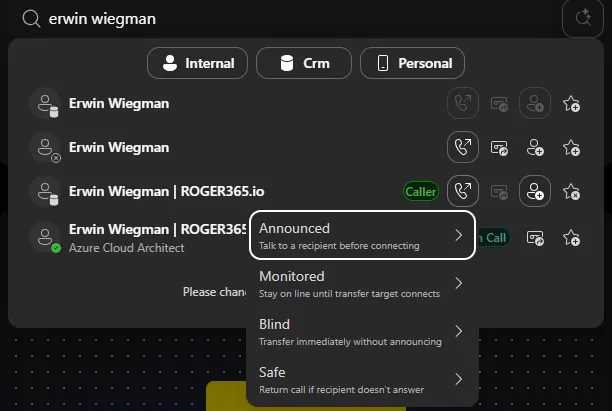
From any contact card (search results, favorites, or the participant list):
- Call — dial them (shown only when you're not already on a call)
- Transfer — choose a style:
- Announced — talk to them first, then connect (default)
- Monitored — stay on the line until they answer
- Blind — transfer immediately, no announcement
- Safe — call returns to you automatically if they don't answer
- Transfer to voicemail — send the caller to that person's Teams voicemail (Microsoft 365 contacts only, only while on a call)
- Invite / Add to call — bring a third person in as a conference, instead of transferring
- Add to favorites / Edit label — manage your personal shortcuts
Making Calls & Finding People
- Dialer — type or dial a number, then Call. If you're already on a call, the same number can instead be added to the call or transferred to.
- Contact search — search your organization's directory (requires Microsoft 365 sign-in). Results appear live as you type.
- Advanced search — click the magnifying glass next to search to filter by Name, Department, Job title, Email, Mobile phone, Business phone, or Office location. Save frequent searches as reusable pills (hold the dismiss button to remove one — this is deliberate, to avoid accidental deletes).
- Favorites — your personal starred contacts, with live presence and quick call/transfer buttons. Rename entries you've saved by phone number.
Every contact shown anywhere in the app has a colored presence dot reflecting their live Microsoft Teams status, refreshed automatically.
Queues & Your Current Calls
- Queue widget — every call currently ringing/waiting in your queue(s), including calls ringing for a colleague. Shows caller, queue, which agent it's ringing for, and wait time.
- Interaction list — your own current calls (live call plus anything mid-transfer), each with a duration and a status badge (Active, Waiting, or a transfer type). Click a card to bring it into the main call view.
- Queue selector (top bar) — pick which queue you're viewing, including an "on behalf of" queue if you're covering for someone. A red sync icon warns you if your view is out of date.
Call History
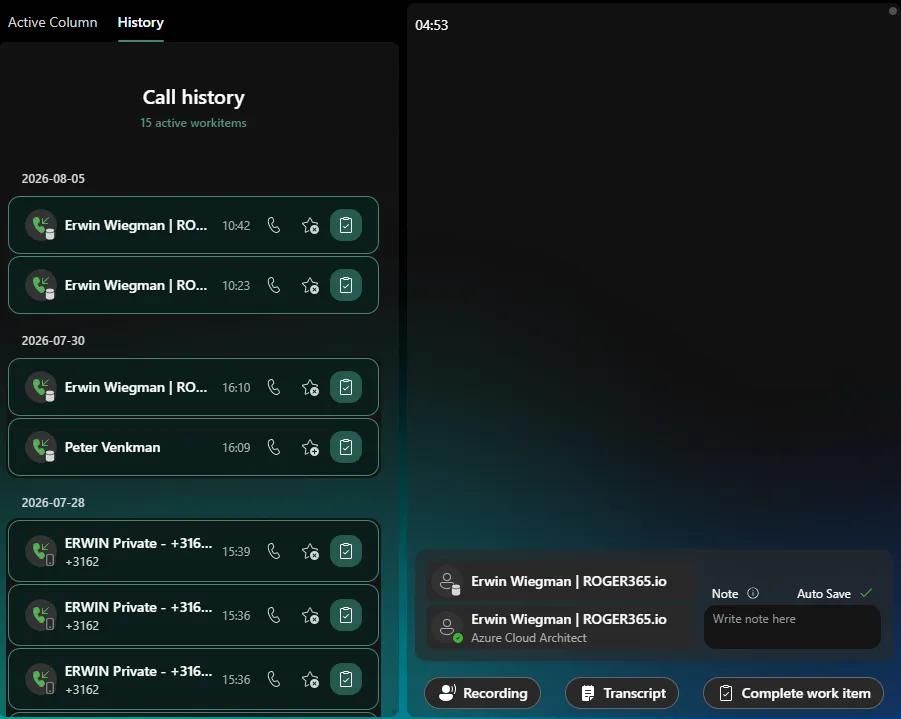
The History widget groups past calls by date (expandable list). Each call can offer:
- Summary — an AI-generated written summary (only if a transcript exists)
- Transcript — the full text transcript
- Recording — downloadable recording link(s), opens in a new tab
- Complete work item — if a call left an open work item, it's highlighted with a button to mark it done (shortcut: Ctrl+Shift+C)
Use Load more at the bottom to fetch older calls.
Settings and Customizing Layout
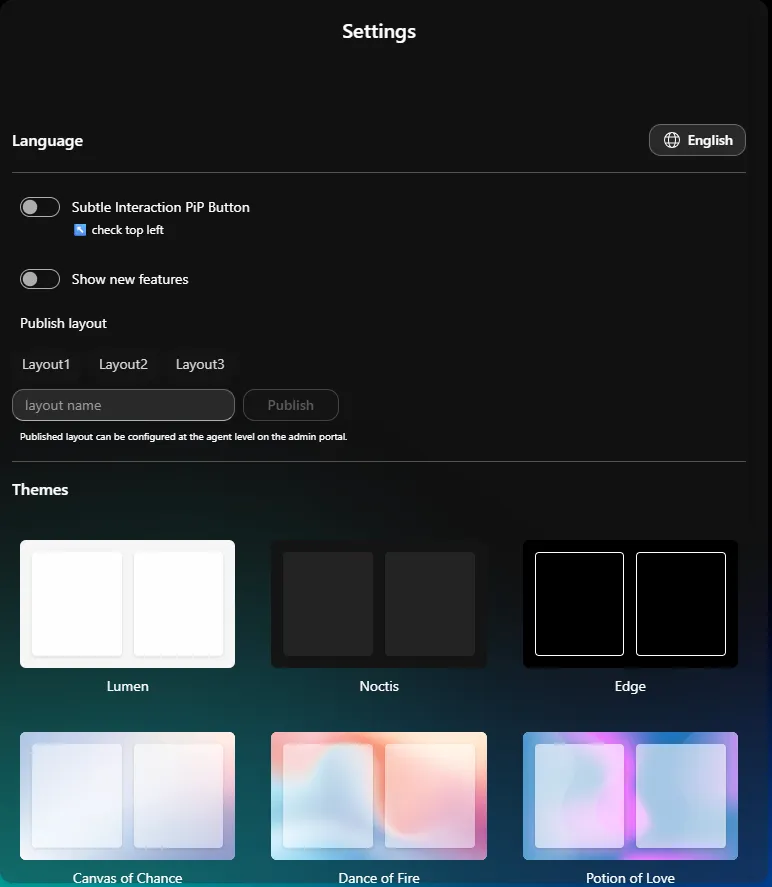
Open via the gear icon in the top bar:
- Language selector
- Whether the pop-out active call button is subtle or prominent
- Whether new-feature announcement badges appear in the top bar
- Publish layout (if you have upload rights)
- Theme — pick a visual theme/background
Customizing Your Layout
If your account allows it, hover over any widget to reveal:
- Style menu — change its appearance
- Pop out — open it in its own floating window (useful for a second monitor)
- Dock to widget bar — minimize it to a small icon on the side; click to bring it back
- Drag handle — click-and-hold to move or resize it
Use Reset default layout in your agent menu to undo your changes.
If you have upload rights, the Settings page also has Publish layout, to save your arrangement as a named layout an administrator can assign to other agents.
Picture-in-Picture
If you navigate away from the Agent page while on a call, a floating pop-out button appears. Click it to open the call in a small window that floats over everything else, so you can keep talking while working elsewhere. The main call widget will show "Check elsewhere! Call is running in Picture-in-Picture mode."
Notifications
- Toasts (small pop-ups) confirm or warn about actions — e.g. a failed transfer, or "Can't change state during call." They dismiss automatically or via a Dismiss link.
- A "Network Disconnected" banner appears if your internet connection drops.
- Desktop notifications for incoming calls appear when the app tab isn't focused.
Checking Your Setup
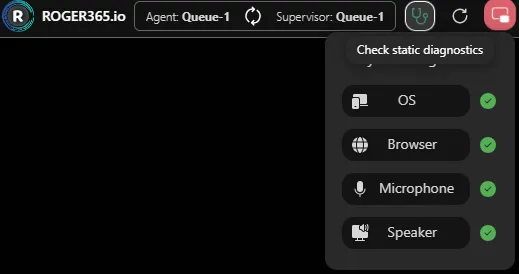
Click the stethoscope icon in the top bar to check whether your Operating System, Browser, Microphone, and Speaker are supported and working — useful to self-check before contacting IT.