


Agent Profiles

An agent profile is a reusable set of agent settings. Instead of configuring every agent individually, you define the settings once in a profile and assign that profile to a group of agents. All agents with the profile use the same settings. When you change the profile, the change applies to everyone who uses it. This keeps the configuration consistent and saves time when many agents need the same setup, for example all agents of one company or one department.
The profile contains the same settings that are available on the agent configuration form. The meaning of each setting (cherry picking, advanced search, search settings and workspace settings) is described on the Agents page.

Agent profiles overview
- Shows all agent profiles in a table with the following columns:
- Name: the name of the profile. You can sort and filter on this column.
- Region: the region the profile belongs to (see Access Control). A dash means the profile is not assigned to a region.
- Usages: the agents that currently use the profile. A profile without agents shows 0 usages.
- Total shows the number of profiles, and Rows per page sets how many are shown.
- Add New creates a new profile.
- Each row has two actions:
- Edit (pencil): change the profile.
- Delete (bin): remove the profile. A profile that is still in use by agents cannot be deleted. Remove the agents from the profile first.
- Select a row to open the details of that profile on the right.
Add agent profile
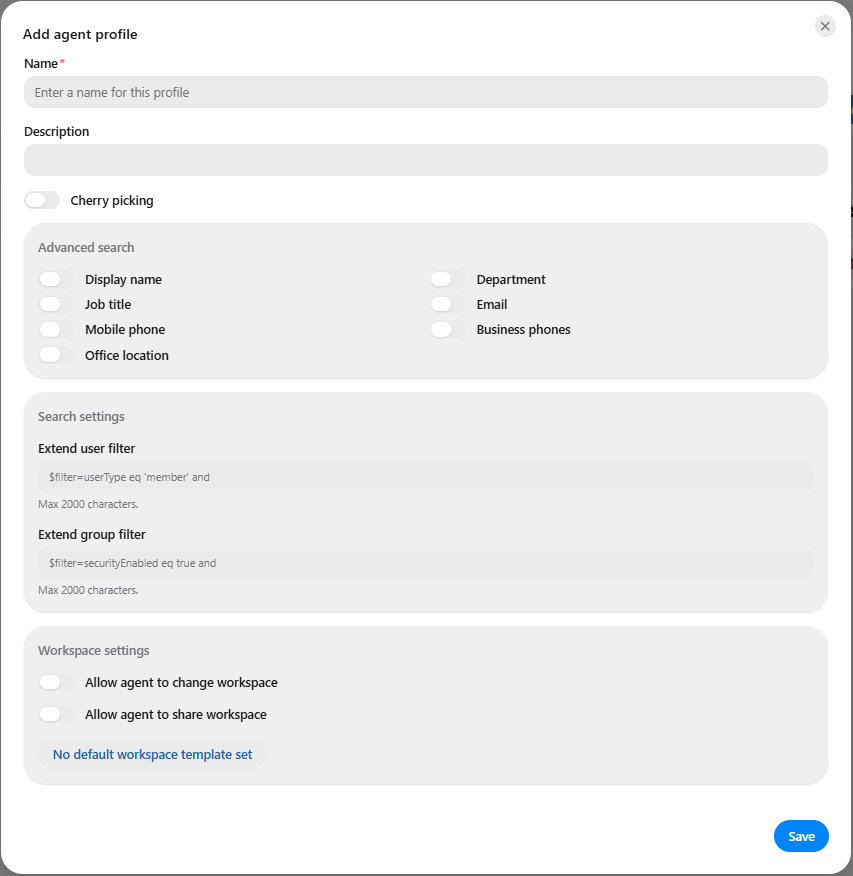
For the meaning of these settings, see the Agents page.
Profile details
Selecting a profile in the overview opens a details panel on the right. It has two parts: a read-only overview of the configured settings, and the agent management for this profile.
Agents (assigning agents to the profile)
This part shows which agents use the profile and lets you manage them.
- The number next to Agents shows how many agents are assigned to the profile.
- Assign new agents adds one or more agents to the profile. These agents then use the settings of the profile.
- Search agents by name filters the list of assigned agents.
- Each agent in the list has a bin icon. This removes the agent from the profile. The agent is not deleted from the platform.
- The same agents are shown in the Usages column of the overview.
Assign new agents to agent profile
This window lets you add agents to the selected profile. There are two ways to select agents, shown as two tabs.
Show only agents without a profile
This toggle is available on both tabs. When it is on, the list only shows agents that do not have a profile yet. Use it to find agents that still need a profile and to avoid changing agents that already use another one.
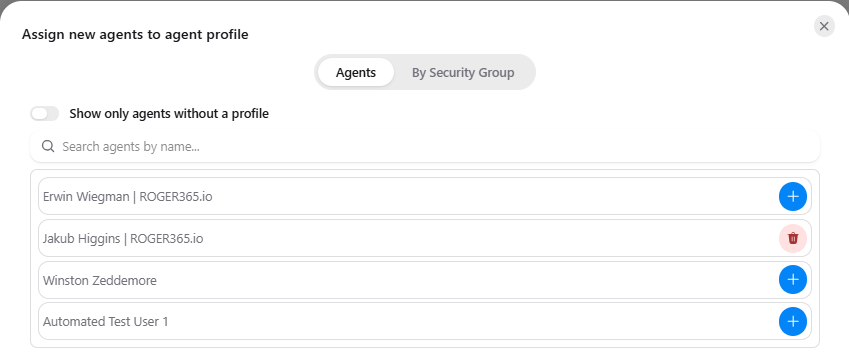
Tab 1: Agents
- Shows a list of agents. Use Search agents by name to find a specific agent.
- Each row has a button at the end:
- The blue plus (+) adds the agent to the profile.
- The red bin icon appears for agents that already use this profile. It removes the agent from the profile again.
- Use this tab to add a small number of agents one by one.
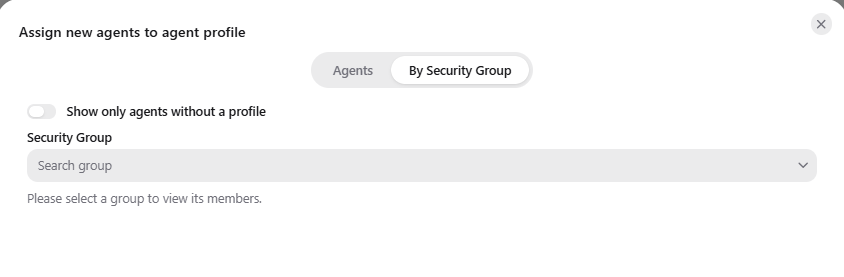
Tab 2: By Security Group
- Select a group in the Security Group field (use Search group to find it). The members of the group are then shown, so you can add them to the profile.
- Until a group is selected, the window shows Please select a group to view its members.
- Use this tab when many agents need the same profile, for example all members of the security group of a company or department.
Notes
- Agents added here use the settings of the profile.
- Removing an agent from the profile does not delete the agent from the platform.