Add status message

Status message
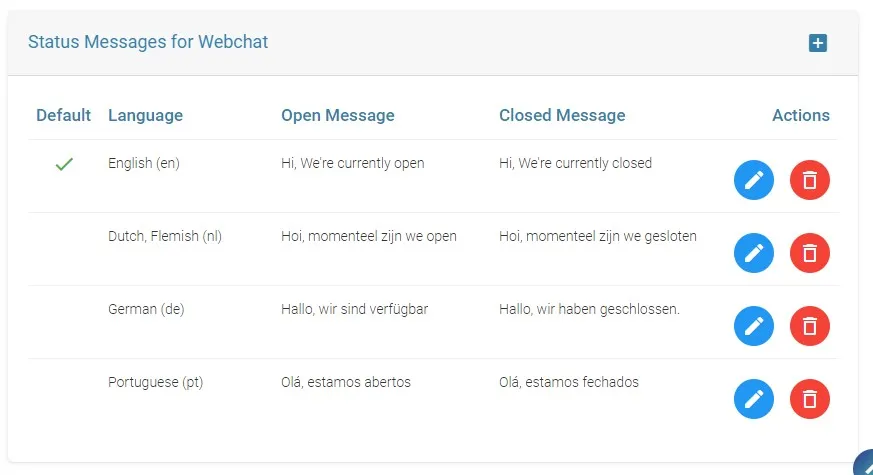
On the top of the webchat window, you can show users a status message. This can be a persistent message, which you can change on-the-fly, but also a message based on a schedule. Then you can show a message based on the schedule ‘open’ or ‘closed’.
You can configure messages in multiple languages. The language is automatically detected based on the language setting of the users’ browser. If the language cannot be detected, the default message will be displayed.
To configure the status messages:
- Open web browser and go to: https://admin.roger365.io
- Login with Microsoft 365 credentials
- Go to [Social Messaging], [TouchPoints]
- Click the edit icon right to website touchpoint (by default you have 1 Webchat TouchPoint available, but you can add more if you like)
- Select [+ Status Messages for Webchat] and select the Language
- Enter the Status Messages during closed hours en open hours.
- Click Save and Close
-> If you want to use a schedule to show an ‘open’ or ‘closed’ message, make sure you have created a schedule and assign the schedule to the Webchat TouchPoint. You can select the schedule on the Webchat configuration page under the option “Assign a schedule…”