

Supervisor

Live queue & Agent Statistics
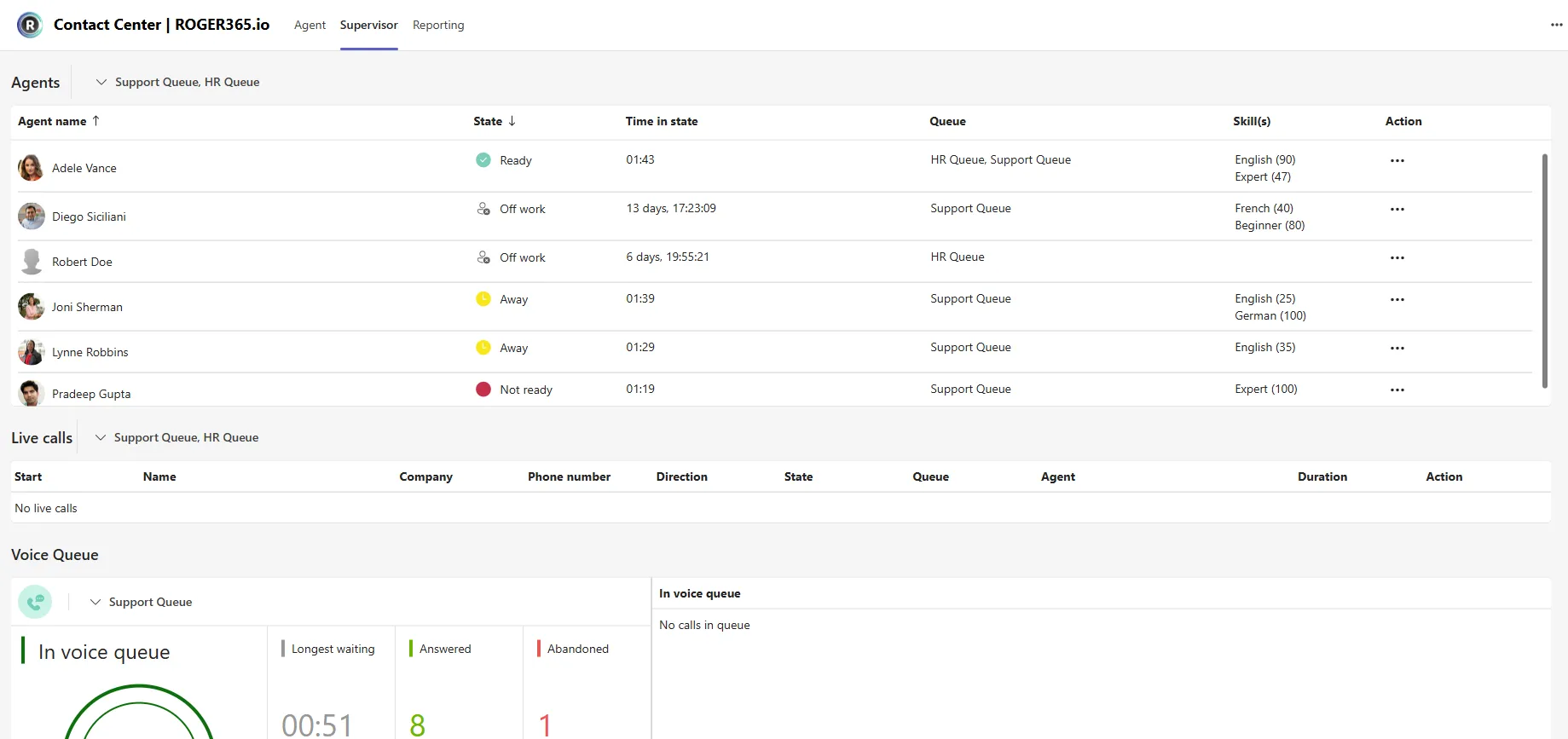
In the supervisor tab, live information is shown about all queues. This includes metrics like amount of callers, total calls answered, total calls abandonded, longest waiting etc. Also information about agents and their current status is available.
Agent Status Overview & Override
An overview of all agents shows their current status and the amount of time since the last status change. Also is visible in which queue the agent is logged into. As a supervisor you can change the status of an agent and log them into a queue.
Live Calls Overview
All live calls which are routed through the Contact Center application are visible. This also includes name, company and with which agent there are connected.
Live Chats Overview
All live conversations connected via Social Queues and routed through the Contact Center applications are visible. This includes information such as the Start time, user name, Company, Phone number, and so on.
Monitor & Join
A supervisor can monitor or join active calls. With monitoring the supervisor becomes a participant in the call, but the microphone is muted. Joining the call means the supervisor can speak with the agent and caller.
Agent Actions
Each widget on the Supervisor page has action controls that let you manage calls, agents, and chats in real time. Which actions are available depends on your Supervisor rights in the given queue.
Voice Queue: Right-click a call waiting in the queue and select Force Terminate to end that call record.
Agents: Use the ⋯ menu in the Action column to:
- State: change the agent's state (e.g. Not ready).
- Queues: log the agent in to or out of a queue.
- Skill(s): add, update or remove an agent's skills.
Live calls: The Action icons let you join an active call. From left to right:
- Monitor: listen to the call silently.
- Whisper: speak to the agent only; the customer can't hear you.
- Join: enter the call as a participant.
Live chats: Select Open to go directly to the Teams channel where the conversation is taking place.
Queue Service Level
The Supervisor tab provides visibility into the configured Queue Service Level for specific queues. This feature is particularly valuable for large organizations, offering insights into the effectiveness of call handling across different queues. The Supervisor page displays the Service Level (in percentage) for both Voice and Social Queues.
Drag & Drop
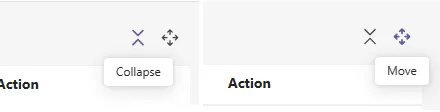
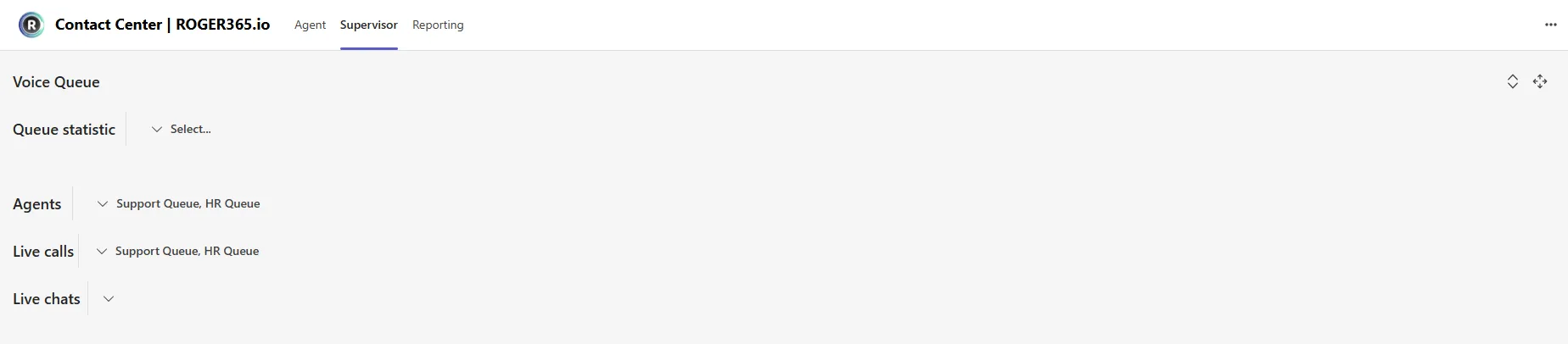
Each section of the Supervisor tab can be moved around or collapsed on agent’s demand. This feature is useful for the agents who prefer to have most important information on top of the tab and/or collapse not needed ones.
To “Collapse” or “Move” certain section, an agent should press, or press and hold highlighted buttons at the far-right side of specific section: