


Callflows

The Callflows page is where you manage the call flows used on your platform. A call flow defines how incoming calls are handled and routed—for example, playing a welcome message, directing callers through an attendant, or placing them in a queue. You can find this page under the Contact Center section in the left-hand menu.

Understanding the page
The counter at the top shows the total number of call flows currently configured (in this example, 3). Each call flow is listed in a table with the following columns:
- Name – The name of the call flow (for example, "Basic Attendant Callflow").
- Actions – The controls for managing each call flow.
Working with call flows
To create a new call flow, click the Add New button in the top-right corner.
To edit an existing call flow, click the blue pencil icon in the Actions column for that row. To delete a call flow, click the red trash icon in the same row.
Form based Callflow
The form-based call flow lets you build a call flow by filling in a set of fields that define how incoming calls are handled. Click Add New on the Callflows page to open the Create Callflow dialog, then complete the fields below.
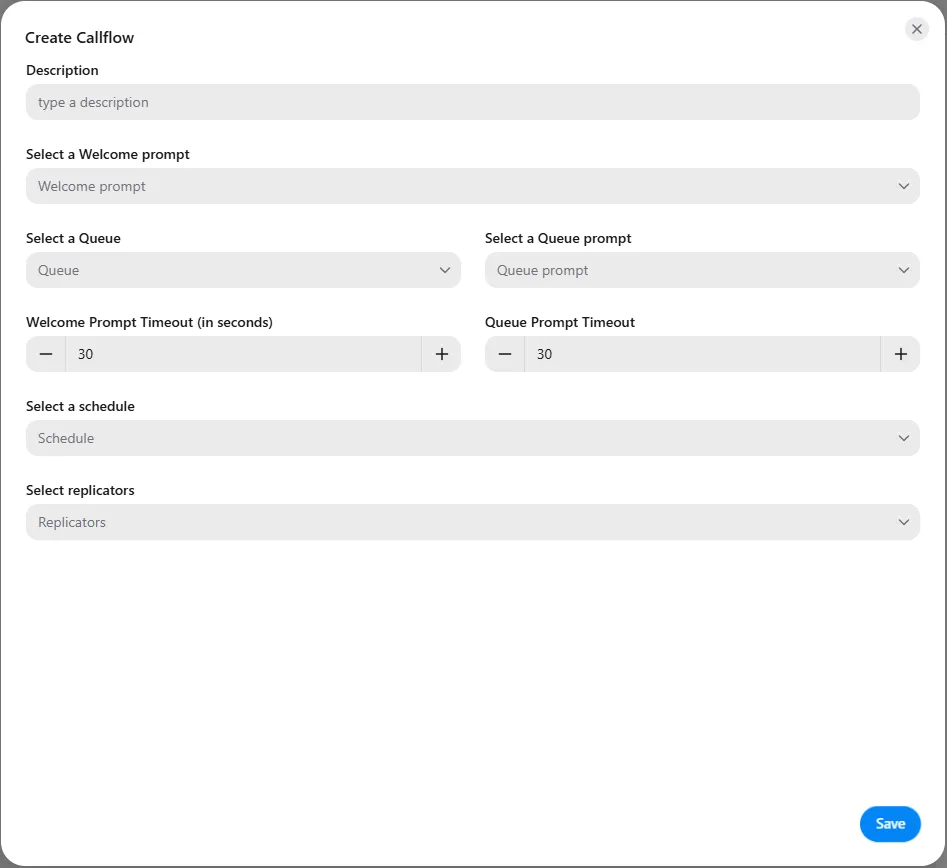
- Description – Enter a description for the call flow to identify its purpose.
- Select a Welcome prompt – Choose the audio prompt that plays to callers when they first reach the call flow.
- Select a Queue – Choose the queue that callers are placed into.
- Select a Queue prompt – Choose the audio prompt that plays to callers while they are waiting in the queue.
- Welcome Prompt Timeout (in seconds) – Set how long the welcome prompt phase lasts before the call proceeds. Use the plus and minus buttons to adjust the value (the default is 30 seconds).
- Queue Prompt Timeout – Set how long the queue prompt phase lasts. Use the plus and minus buttons to adjust the value (the default is 30 seconds).
- Select a schedule – Choose the schedule that determines the call flow's operating hours, such as business hours and holidays.
- Select replicators – Choose the CRM replicators for CRM recognition to apply to this call flow.
When you have completed the fields, click Save in the bottom-right corner to create the call flow.