Adding templates

Templates are predefined messages which you can sent to a WhatsApp user to send a notification (like ‘your item has been shipped’) or to trigger a user to send a message back. An example of a template message looks like this:
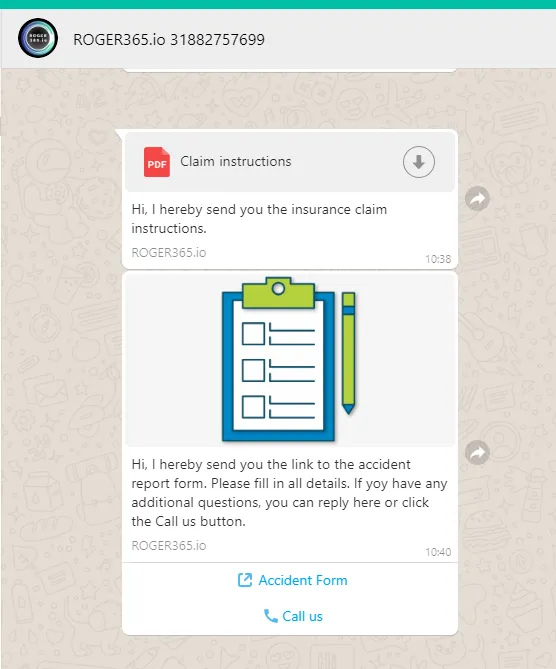
Hi, we would like to update you about {{1}}. Can you send me a message back, so we can continue our conversation?In this example you can send the text above, with adding the subject at the {{1}} placeholder. Multiple templates in multiple languages can be added. You can also insert Rich media headers like icons or a document, or add buttons in the message as shown in the screenshot on the right.
The customer care window ends 24 hours after the last message is sent by the end-user. After 24 hours, you will only be able to send a notification via Message Templates. Each time the customer sends you a message, whether this is the conversation initiating message or another reply in the conversation, the 24hour customer care window will restart. So, from the last message your customer has sent you, you have 24 hours to send custom messages, free of charge unless you exceed your package.
Creating a template
Login at your WhatsApp for Business provider (for example cm.com) and create a template.
After creating the template it will be submitted to WhatsApp for approval. Once approved, you’ll get a ‘Facebook Namespace’. This will be the unique identifier which you have to use in the next step. You can create a single template in multiple languages, the namespace will be the same.
To add the template to ROGER365.io follow these steps:
- Open web browser and go to: https://admin.roger365.io
- Go to [Social Messaging], [TouchPoints]
- Click the edit icon right to the Whatsapp TouchPoint
- Go to the section named [Manage templates]
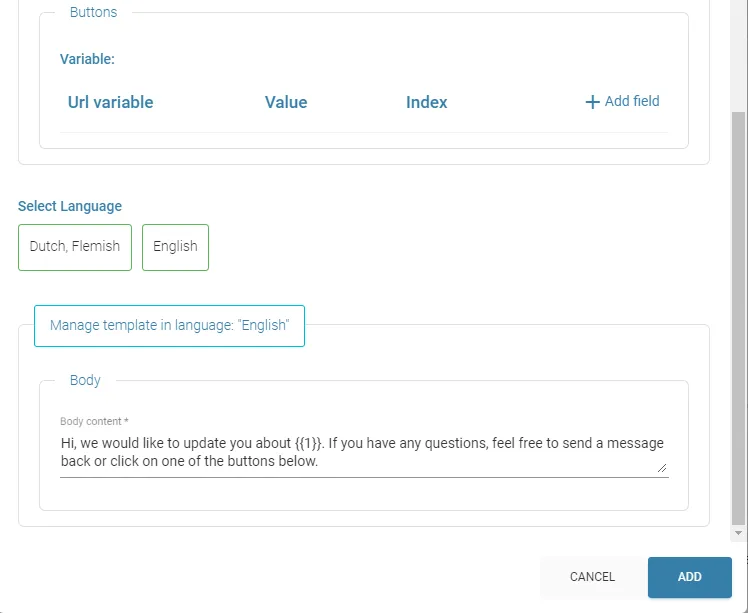
- Add the languages you would like to support
- Click ‘+’ in the titlebar of [Manage templates]
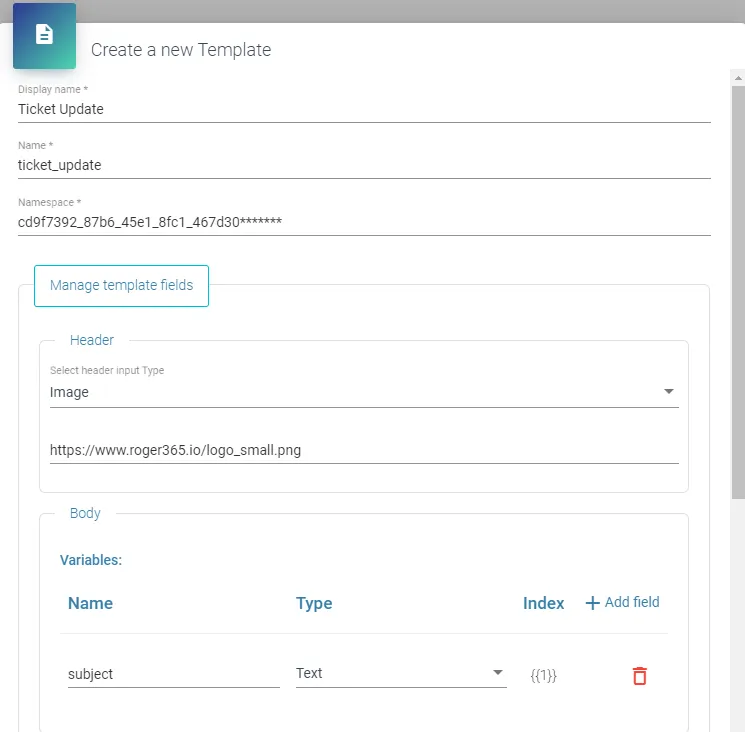
- Fill in a [Display name] for the template
- Fill in the [Name] exactly like in the portal of your WhatsApp Provider (like cm.com)
- Copy/Paste the [Namespace] which you obtained at your WhatsApp provider
- If you configured a header then select the type of header from the list and the required fields.
- Create the variable fields which you’ve created in the body, with the correct Type and Index
- If you’ve added buttons with a variable, then create the variables
- Finally insert the body text including any references to variables, for each selected language.
- Click [Add] to finish
This is an example of a configured template: