


Email Configuration

Disclaimer: Before proceeding, please make sure you have good knowledge about your own Microsoft Office 365 and Entra ID situation before continuing.
Email configuration admin page gives possibility to include your own email address (for instance Shared Mailbox) into ROGER365 system. This feature uses App Registration which is able to authenticate and send emails from configured email address. Main benefits of this feature are control over sent emails and their limits, making it default option for sending callback requests (Email type) or include it in Contact Center/Social Messaging actions.
Create Email App Registration
To enable the Email integration, you must first create an App Registration in the Azure Portal: Use Automated method – Download PowerShell Script (preferred way, execute as Global Admin)
General steps (manual method):
- Create an App Registration in Entra ID environment for Email integration (with API permissions: Mail.ReadWrite – Application, Mail.Send – Application, MailboxSettings.ReadWrite – Application, User.Read – Delegated).
- Create a Secret for the App Registration.
- Configure an application access policy and limit the scope of application permissions according to your environment’s situation – Microsoft documentation.
Disregarding point 3 will cause the Email App Registration to have an access to every mailbox within tenant which brings potential security risk.
Create Email Configuration
After successfully creating the App Registration for the Email, you can configure Email configuration, press “+Add” at “Email” admin page:
- Description: Provide a description (name) for your Email configuration.
- MailboxUserId: Enter email address for your Email integration (most of the time email address of shared mailbox).
- ClientId: Provide application (client) ID of Email App Registration from your Azure environment.
- ClientSecret: Provide secret of Email App Registration from your Azure environment.
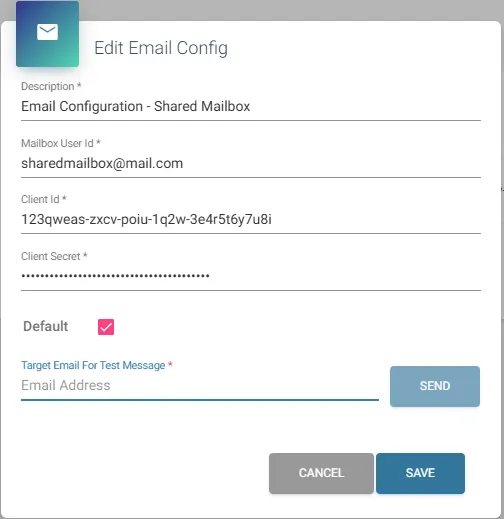
- Default: Setting Email configuration as Default will make every email (including Callback request of Email type) sent via ROGER365 platform to be sent via configured email address (Mailbox UserId).
- Target Email for Test Message: Provide target email address to test whether Email configuration properly sends an email
If Email configuration is not set as Default, Callback request of Email type will not be possible.