


Call Park

Call Park function allows you to park (“hold”) current active call for yourself or another agent configured in Call Park’s group. Here you can create your call park group into which you can assign an agents who should have enabled this functionality. Description how to use this feature is described in this documentation page about The Basics.
Click '+Add Call Park' to create a new group, provide a name for the Call Park group, and assign the desired agents.
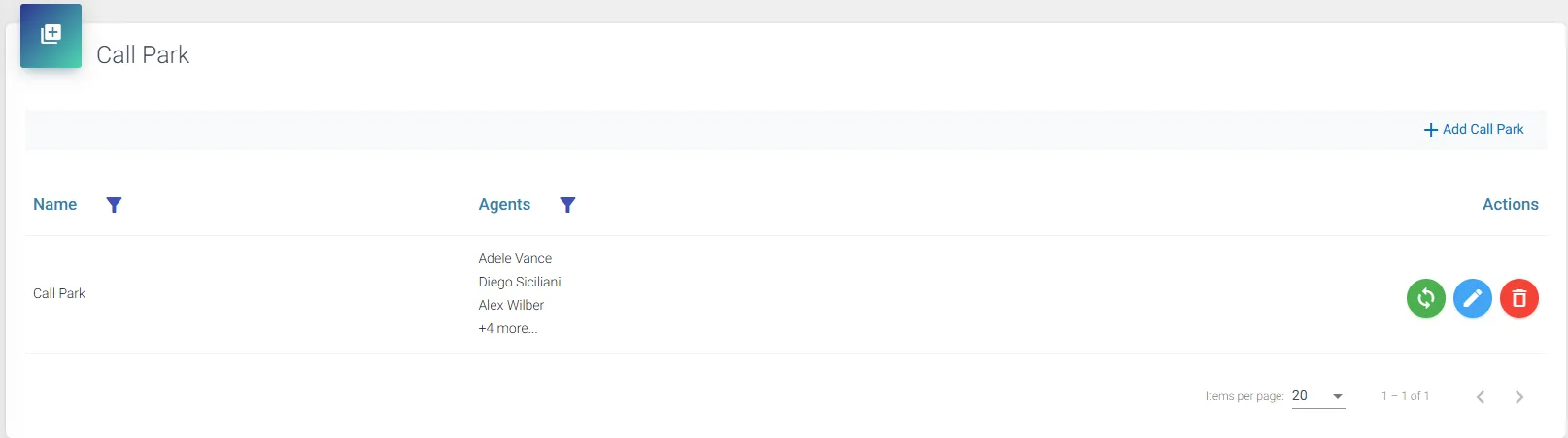
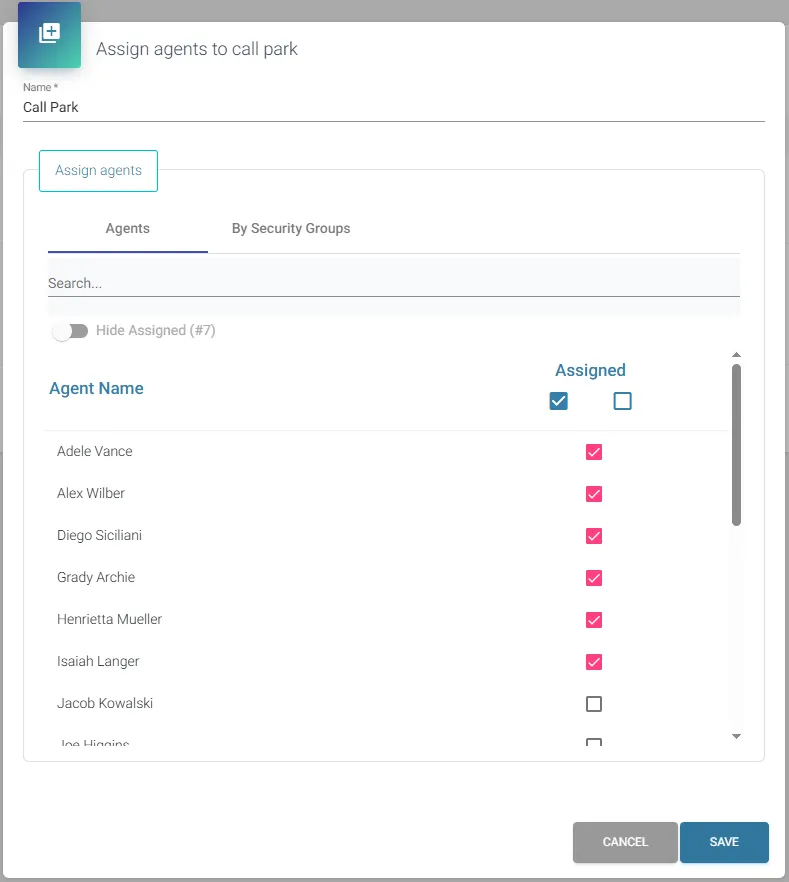
Click 'Save' to apply the Call Park configuration.
Automatic synchronization of agents into the Call Park group can be configured using Azure Entra ID Security Groups. Before proceeding, ensure that the 'Enable User Synchronization' feature is activated on the General admin page.
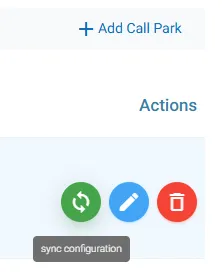
Click the green 'Sync Configuration' icon:
Next, enable the sync form by selecting the 'Enabled' switch, save the form, and proceed to select the Security Group containing the relevant agent users.
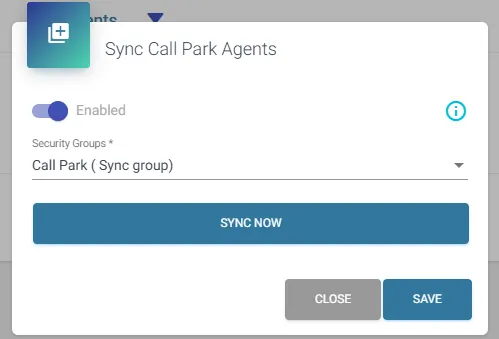
Based on the membership of the selected Security Group, the ROGER365.io platform will automatically add or remove agents from the Call Park group accordingly. Synchronization runs nightly at midnight.
Before un-parking a call, ensure your Teams status is NOT set to 'Do Not Disturb' or any status that automatically rejects incoming calls. Do not set your ROGER status to 'Available' while on an active call (doing so may cause the agent to receive an additional call before the current one has ended).