


Agent Profiles

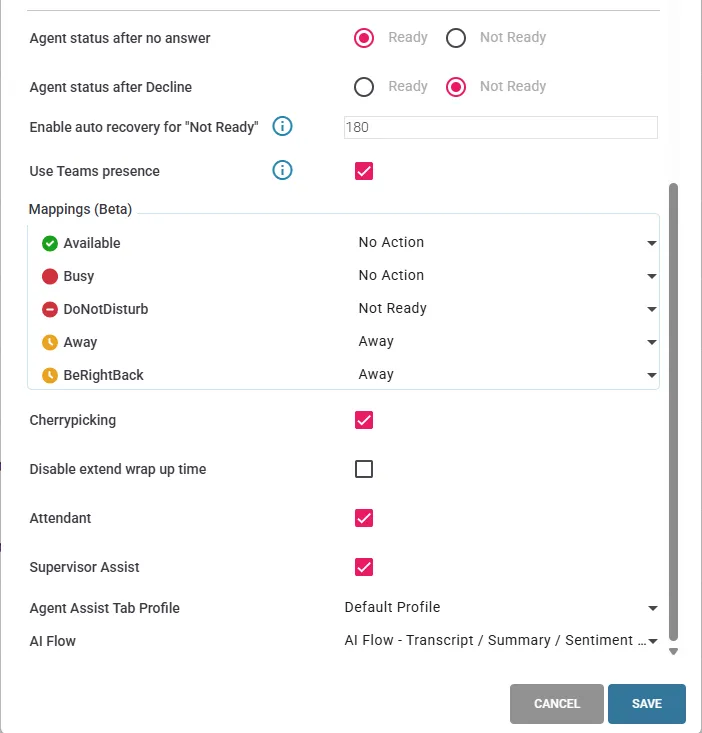
Agent Profiles page allows portal admins to create Profiles (presets) with specified agent configuration. Useful option for huge enterprises where manual creation of each agent is simply too time consuming. Agent Profile can be assigned for existing agents (using this admin page) or for non-agent who will be added to the solution (at Agents page).
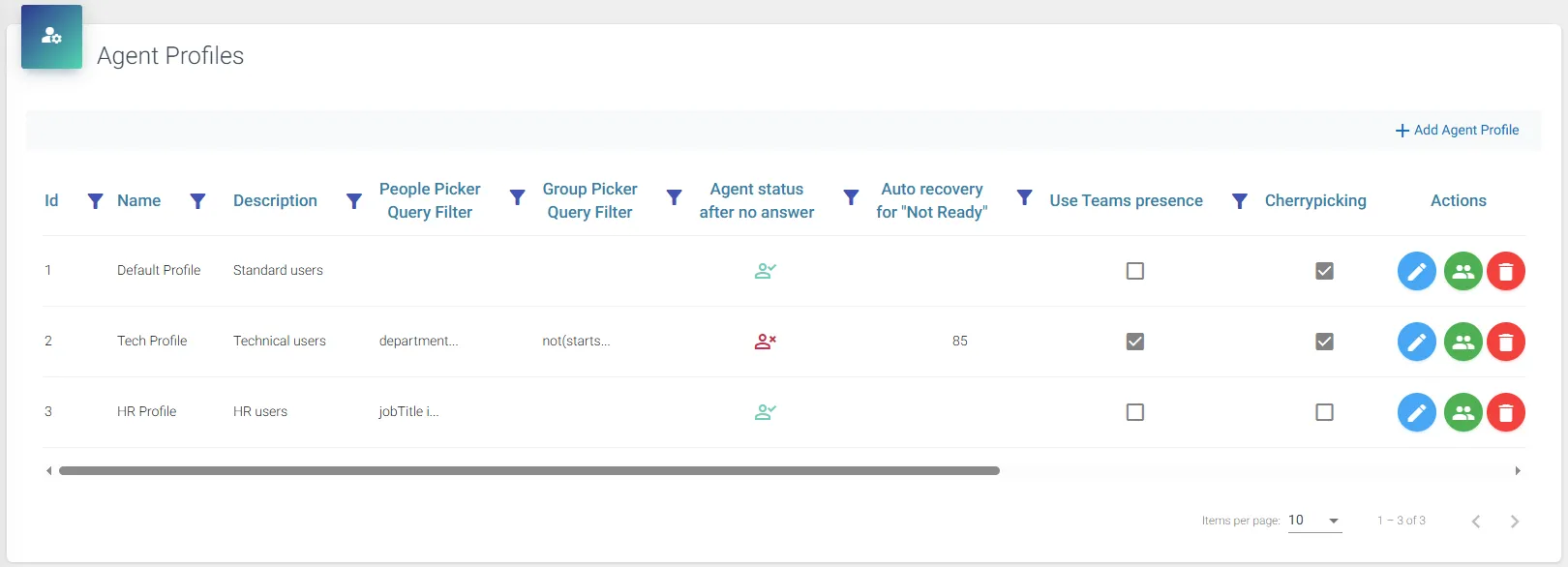
To create Agent Profile, press “+ Add Agent Profile” to open configuration window where you can define basic Agent settings.
To assign existing agents to created Profile, press green button “Assign Agent Profile” which will open a list of configured in the platform agents. Bigger organizations should benefit from “By Security Group” list which shows only configured in the platform agents within specific group.
Note: At the end of list you may see “Load More…” button to load remaining users. There might be situation where this button needs to be clicked couple of times!
Optionally, you can set up People Picker and/or Group Picker query filters to filter the returned users and/or groups from your search results.
The Microsoft Graph API supports various OData query operators like eq (equals), ne (not equals), startswith, endswith, and, and or, enabling complex filtering. Additionally, portal admins may enable Advanced Graph search feature by checking boxes “DisplayName”, “Department”, “JobTitle” etc. This feature allows for more accurate searching for desired contact – example usage of Advanced search feature can be found at Agents page.
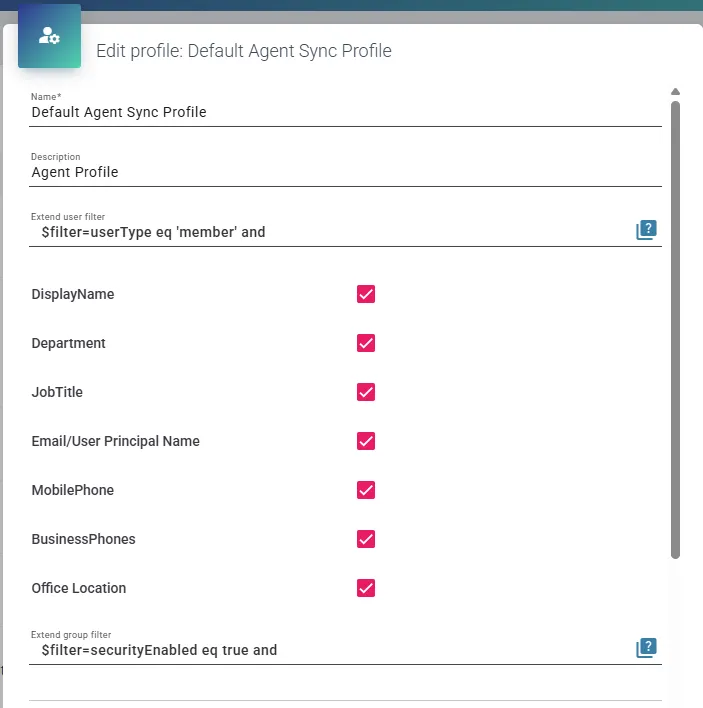
Extend graph user/group filter
For more details on supported operators and use cases, refer to the Microsoft Graph filter documentation.
You can use the Validator feature (the icon on the far right side of the Extend filter field) to check that the provided filter is valid and won’t cause any issues. In order to use it, you need to update your Attendant Console App Registration using Automated PowerShell script (check documentation page).
Microsoft Graph API has limit of its URL length at around 2k characters.