Phonebook

Phonebook
With the phonebook feature you can search your CRM Replicators for contacts and call, email or chat them directly from Teams. To use the feature you must have a business or enterprise subscription.
The following components are needed:
- Add the ROGER365 app to your Teams environment
- Create a CRM Replicator with your CRM system
- Configure the phonebook settings at the CRM Replicator (see underneath)
- Social Messaging – Create and configure Toastar for Teams Profile (check documentation page)
Configure phonebook settings
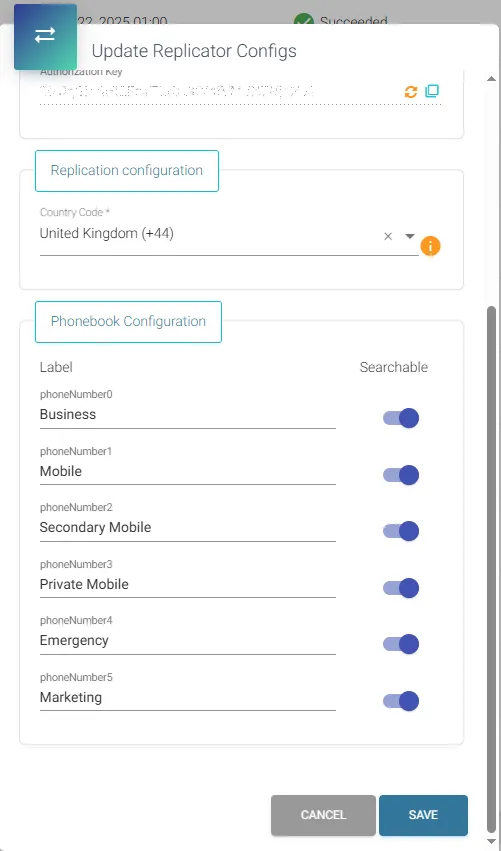
When you have succesfully created a CRM Replicator, click on the ‘edit’ icon next to the CRM Replicator. On the bottom you find the Phonebook Configuration. Here you can change the default labels of the replicated phonenumbers, these will show up in the search results and at the CRM contacts. If you enable the checkbox ‘searchable’ then this number is also used to lookup a contact for incoming phonecalls (Toastar / CRM Calling feature).
Contact Center
Now, searching for the CRM contact which is part of your replicator will make the labels for phoneNumber fields to be shown:
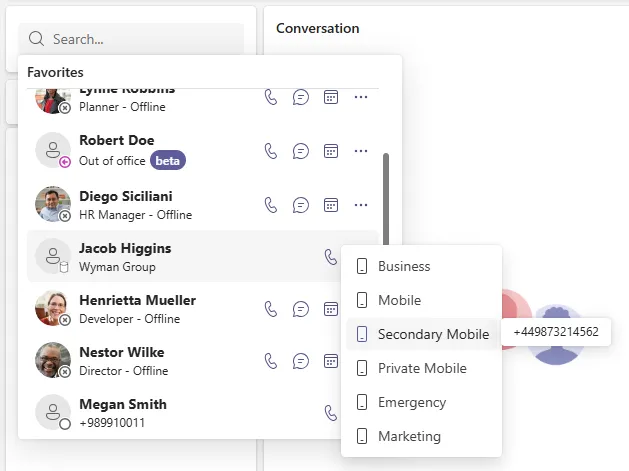
When searching for CRM contacts, the search will by default return results that begin with the text you enter. If you add an asterisk (*) as a wildcard, you can broaden the search to match your text anywhere within a result.
Place the asterisk at the beginning to include anything that comes before your search term, or at the end to include anything that comes after it.
Social Messaging
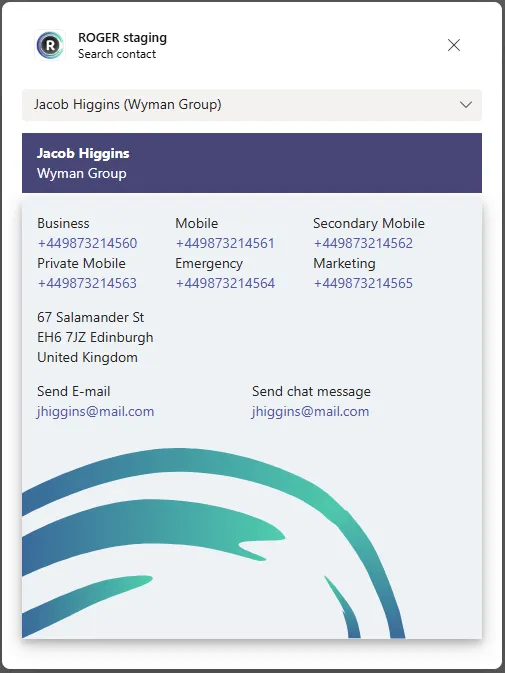
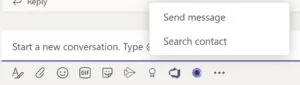
When you now click the ROGER icon in Teams, you can select ‘Search contact’.
Then you can search for a contact, company name or phonenumber. You can also use a wildcard like *smith or *12345