


Search
Reject
Transfer
Merge
Play Audio Prompt
DTMF
Disconnect
The basics
Shift Synchronization
Power Frame
Create App Registration for Attendant Console
Callback request
Force terminate
Supervisor Assist
Redirect
Virtual wait
Conference call
Outbound DTMF
Cancel consultative transfer
Call Park
Features
Smart Chatbot
Microsoft Power Automate
Phonebook
Sentiment Analytics
TouchPoint
Agent
Reporting
Supervisor
Agent
Obtaining a WhatsApp number
What to do next?
Signup & Enrollment
Summary Export
ReplicatorConfig
ReplicatorJobStatus
TouchPoints
Chatbot Languages
Chatbot Knowledgebases
Tenant Information
Subscription
Conversation Packs
Conversations
Messages
Toastar Users
Toastar Conversations
Teams
WhatsAppConsent
API TouchPoint
Campaign API
Transcript
FeedbackExport
Outbound Call Campaign
Webhooks
Agent EventLog
Agent workEntry
Call Stream Change
Execution Results
Request
Queues
Calls
Agent Export
CallParticipants
API Documentation
ToastarForTeams
Callback Requests
Conversation API
Classification API
General Prerequisites
Contact Center
Setup Access & Security
Schedules
Resource Accounts
Queues
Callflows
Audio Files
Agents
Logging
Audit
CRM
Languages
Create Tenant App
Getting started
Subscriptions
Call Flows
AI Flow
Copilot Touchpoint
Insights & Analytics
Wallboard
Permissions
Logging
CRM Calling Integration (Toastar)
Custom CRM Connector
Default CRM Connectors
CRM Replicator
Email Configuration
Schedules
Agent Assist
Setup Access & Security
Malicious File Blocking
Wallboard
Reporting
Messages
Examples
Graphical Designer
Using the library
Email Touchpoint
API TouchPoint
Facebook TouchPoint
SMS TouchPoint
WhatsApp for Business TouchPoint
Webchat TouchPoint
Microsoft Teams
Queues
AI Flow (Beta)
Classification
Skill Based Routing
Reason Codes
Audio Prompts
Agent Profiles
Agents
Call Park
Resource Accounts
Graphical Designer
Form Based callflow
Using the library
Queues
General
Agent page functionalities
Social Messaging
Contact Center
Support & Assistance
Compliance by design
Social Messaging
Contact Center
Getting Started
General
No results
Try a different search query
Graphical Designer

With the Callflow Designer you can graphically design your calling scenario. By adding components you can create several advanced routing flows.
Designer
The top “Tool bar” contains general actions like [Save], also the flowchart variables are set here. The left panel has the available actions, the middle “flow area” is the zone were the flow is built and the right “properties” panel is used to fill in data to specify the actions.
You can drag items from the toolbar on the left and create links between actions. Every actions has it’s own properties, which you can configure on the right.
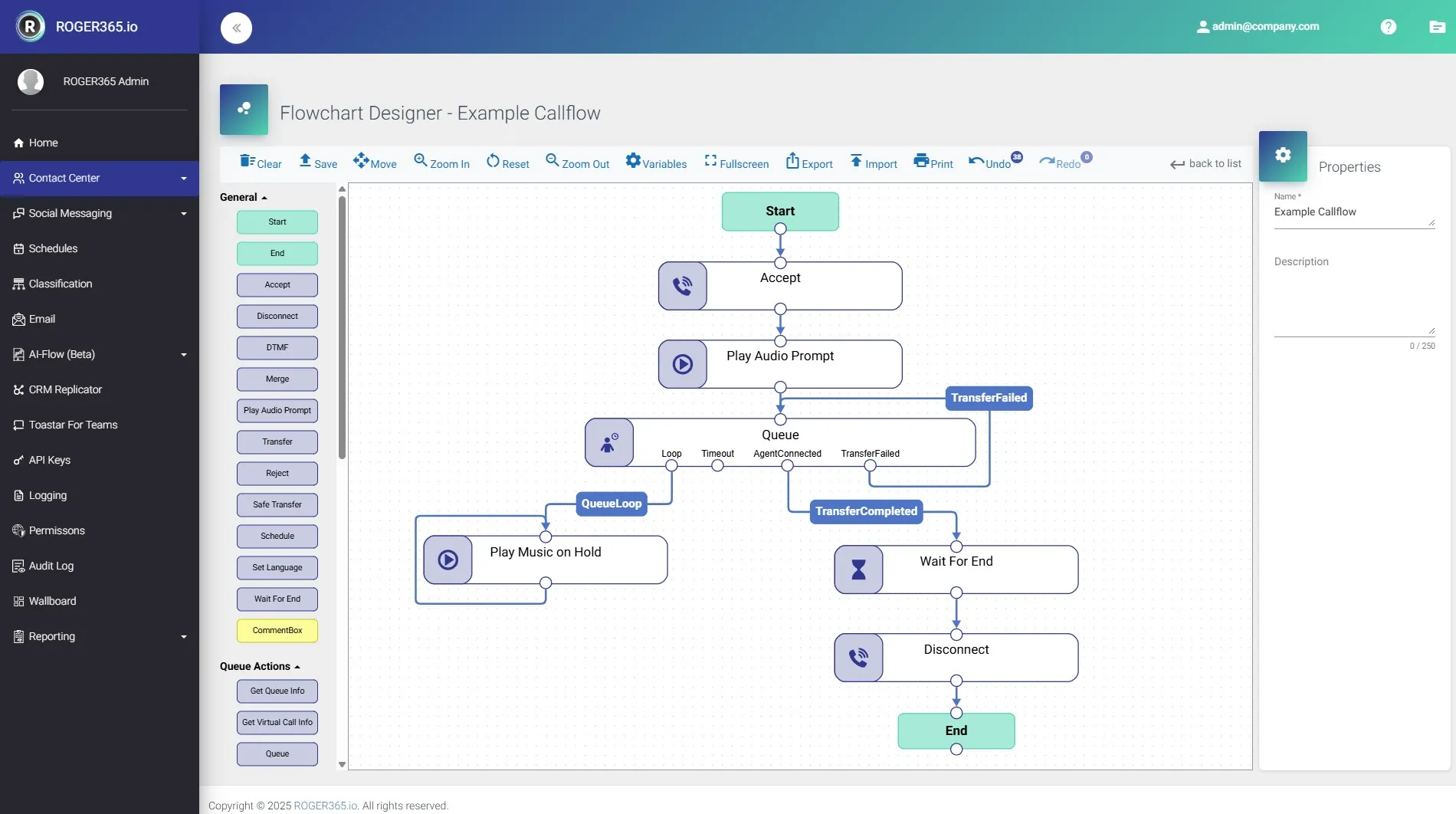
Graphical Designer offers useful options like:
- Export/Import – This option allows to export/import configuration of the flow. You can decide whether you want to export it with expressions or not. Useful option for making templates and showing them to customers, other engineers.
- Print – This option allows to print configuration of the flow. Upon pressing the button, new page will be open where you can decide how you want to print the flow, or save it as PDF file.
- Copy & Paste – The Graphical Designer offers copy and paste functionality. This allows you to copy highlighted actions and paste them within the same flow (actions cannot be copied and pasted between different flows). Once the actions are highlighted, use the “CTRL + C” shortcut to copy and “CTRL + V” to paste, or hold the “CTRL” key while dragging the highlighted block. Be sure to rename the copied actions, as all details are duplicated.
- Undo & Redo – It is possible to Undo/Redo your changes up to 50 actions. If you edit your flow after undoing couple of changes, you will lose Redo option.