WhatsApp OUT

With the WhatsApp OUT functionality you can send ad-hoc WhatsApp messages to a user instead of only replying on an incoming WhatsApp messsage from a user. You can only send pre-defined template messages (WhatsApp charges you for sending a template). Directly after sending a message, a new conversation is created in the MS Teams channel. When the WhatsApp user responds to the template message, you can continue the conversation.
How you can use this feature is decribed here.
Getting a OPT IN
In order to initiate a WhatsApp message to a person, you must first receive opt-in permission confirming that they wish to receive future messages from you on WhatsApp. The opt-in must (a) clearly state that the person is opting in to receive messages from you over WhatsApp and (b) clearly state your business’ name. You may only initiate chats if you are sending a transactional notification, and only via approved Message Templates (as defined in Facebook’s documentation), subject to applicable pricing. Any Message Templates must comply with their terms and policies, and only be used for their designated purpose.
The ROGER365.io platform offers a solution to track the opt-in of a contact. When you try to send a WhatsApp message to a user, you’ll be notified if your have an opt-in of that user. You, as a business, are responsible to ask the user for permission. You can choose yourself how you ask this permission, as long as it complies with the regulations from WhatsApp (Facebook).
The ROGER365.io provides an API which you can use to add and delete opt-in confirmations from customers. Here you can find the description how to use it
Configure Message Flow
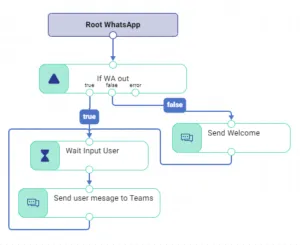
When you send a whatsapp out message, the system will send the contents of the templated message back, as if it was retrieved from the enduser. That way flows will be able to detect a message was send and a conversation in the Teams channel can be created. When using features like ‘autoreply’, additional steps must be taken to avoid the generated message will trigger additional messages to the whatsapp user.
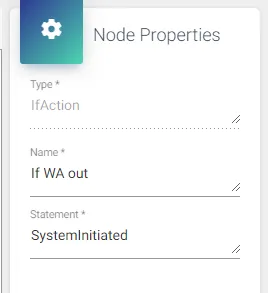
Therefore, after the Root node of whatsapp, add an IF-statement, with SystemInitiated. If true, the message should be handled as the generated message; skip all auto reply features and move to the steps where the message is send to the Teams channel:
Configure Templates
You can only send ‘templated’ messages if you initiate a conversation with a WhatsApp user. You can find the description how to create/add templates here.
Enable WhatsApp OUT
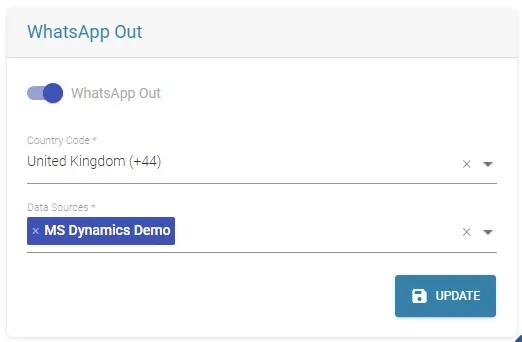
Before you can use WhatsApp OUT, you have to configure a few settings. The country code is used to do the correct number formatting if you manual enter a number, and you can select a data source which is used to search your CRM for contacts.
- Open web browser and go to: https://admin.roger365.io
- Login with Microsoft 365 credentials
- Go to [Social Messaging], [TouchPoints]
- Click the edit button next to the WhatsApp TouchPoint
- Go to the section named ‘WhatsApp Out’
- Select your (default) country code
- Select the Data Sources for contact lookup
- Click [Update] to save