Shift Synchronization

The Shift Synchronization feature integrates Microsoft Teams' Shifts with the Formal Agents of Social Queues on the ROGER365.io platform.
When the Shift Sync feature is enabled, and an Agent in a Social Queue is matched to a corresponding Microsoft Teams user with a defined Shifts schedule, Microsoft Shifts becomes the primary source for managing that agent’s availability during their scheduled shift times.This means that when the agent is On Shift, their availability is controlled by Microsoft Shifts and not by manual status changes in ROGER365.io.
Synchronization of the Shifts runs each 10 minutes.
Prerequisites:
- Create a Team in Microsoft Teams (or use an existing Team where you have Owner permissions).
- In Microsoft Shifts, create a Scheduling Group and define Shift records for the assigned users - Microsoft reference.
NOTE: Remember to share the created Shift records with the assigned users! - Authorize the Shift Synchronization Application on the General admin page.
How to enable Shift Sync?
After confirming that all prerequisites have been met, in ROGER365.io admin portal navigate to "Queues" page (under Social Messaging section) and open settings of desired Social Queue where Shift Sync feature has to be enabled.
Scrolling down through Queue's configuration items will expose Shift Sync section:
.webp)
- Switch “Enabled” toggle
- Select created Team
- Select Scheduling Group (each Team can have multiple scheduling groups)
- The optional "Enable Verbose logging" switch enables detailed logging that can help the ROGER365.io support team investigate potential issues with the Shift Synchronization feature.
Save Queue's configuration to apply Shift feature, afterwards open Queue settings again and press "Sync Now" to make it effective.
Once synchronization is complete, you will be able to see which agents are managed by Microsoft Shifts:
.webp)
Formal Agents who are not part of the Scheduling Group will not be managed by Shifts.
Behavior in Contact Center application
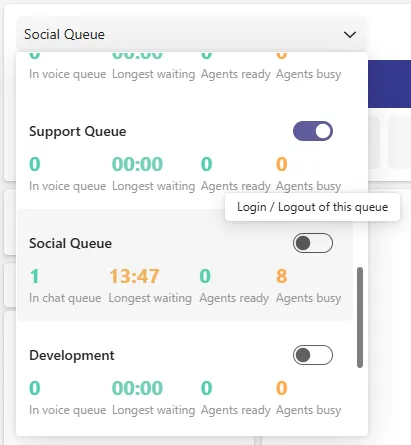
When an agent’s shift starts, they are automatically signed in to the Social Queue that has the Shift Sync feature enabled. Neither Agents nor Supervisors can manually log out from the Queue while their Shift is active (On-Shift flag).
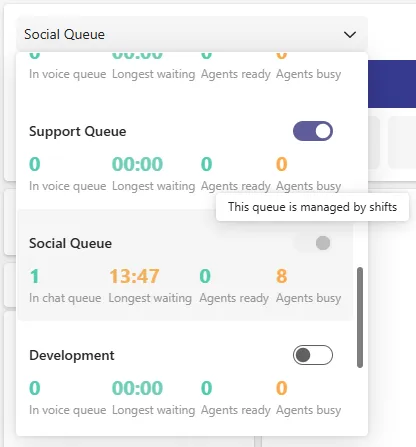
After shift ends, the On-Shift flag is disabled, causing the agent to be automatically logged-out from the Queue. Once logged out, agents regain the ability to manually manage their Formal status: