


Connect Teams Channel

Connect Microsoft Teams channel to the ROGER365 Teams TouchPoint
You can watch the steps described underneath in this tutorial video
NOTE:The admin portal menu has recently been updated and the video underneath doesn’t reflect all new changes
- Login into https://admin.roger365.io with your Microsoft 365 account
- Go to [Social Messaging], [Microsoft Teams] and choose +Add Teams Endpoint
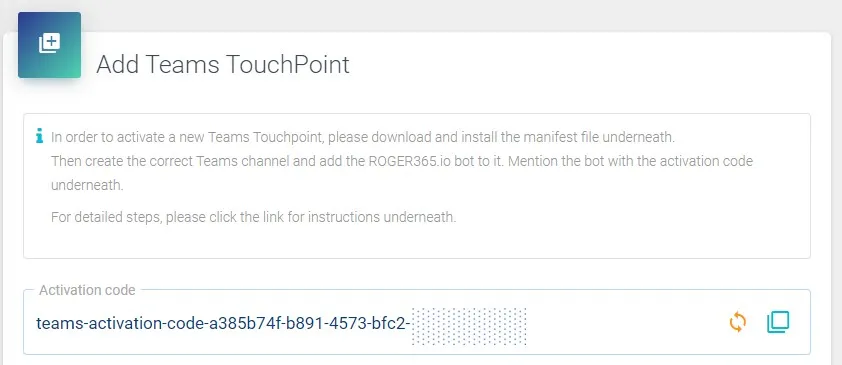
Copy the Activation code to the clipboard by clicking the green square icon

In Microsoft Teams select the created channel and type [@ROGER] followed by a space (make sure ROGER changes into blue) and paste the Activation code and press [ENTER]. ROGER will answer you that the channel is connected succesfully and gives you the name of the TouchPoint.
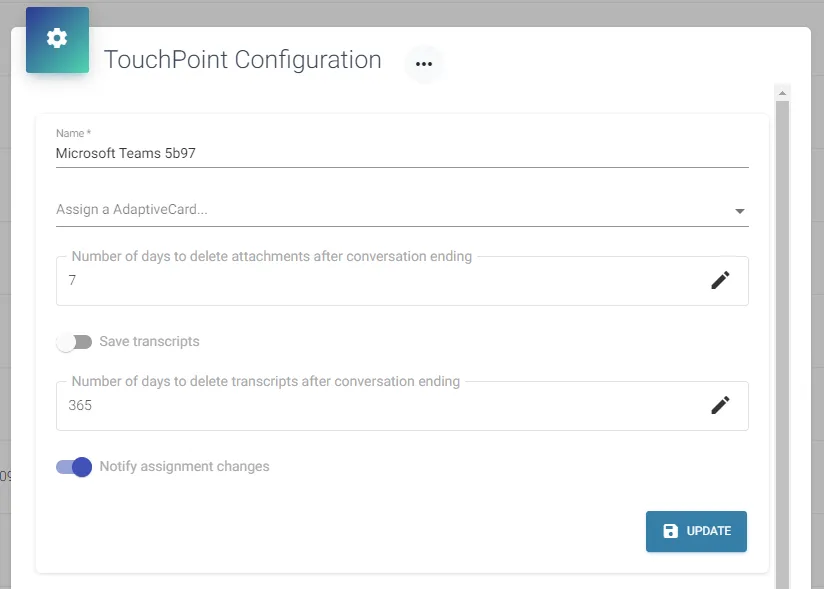
Now go back to the ROGER365 .io admin portal to [Social Messaging], [Microsoft Teams] and choose the new created Teams channel
Give the new channel a friendly name by selecting the blue edit icon from the Actions column
Click [Update] to confirm