Search
Power Frame
Create App Registration for Attendant Console
Callback request
Force terminate
Supervisor Assist
Redirect
Virtual wait
Conference call
Outbound DTMF
Cancel consultative transfer
Call Park
Features
Smart Chatbot
Microsoft Power Automate
Phonebook
Sentiment Analytics
TouchPoint
Agent
Reporting
Supervisor
Agent
Obtaining a WhatsApp number
What to do next?
Signup & Enrollment
Summary Export
ReplicatorConfig
ReplicatorJobStatus
TouchPoints
Chatbot Languages
Chatbot Knowledgebases
Tenant Information
Subscription
Conversation Packs
Conversations
Messages
Toastar Users
Toastar Conversations
Teams
WhatsAppConsent
API TouchPoint
Campaign API
Transcript
FeedbackExport
Outbound Call Campaign
Webhooks
Agent EventLog
Agent workEntry
Call Stream Change
Execution Results
Request
Queues
Calls
Agent Export
CallParticipants
API Documentation
ToastarForTeams
Callback Requests
Conversation API
Classification API
General Prerequisites
Contact Center
Setup Access & Security
Schedules
Resource Accounts
Queues
Callflows
Audio Files
Agents
Logging
Audit
CRM
Languages
Create Tenant App
Getting started
Subscriptions
Call Flows
AI Flow
Copilot Touchpoint
Insights & Analytics
Wallboard
Permissions
Logging
CRM Calling Integration (Toastar)
Custom CRM Connector
Default CRM Connectors
CRM Replicator
Email Configuration
Schedules
Agent Assist
Setup Access & Security
Malicious File Blocking
Wallboard
Reporting
Messages
Examples
Graphical Designer
Using the library
Email Touchpoint
API TouchPoint
Facebook TouchPoint
SMS TouchPoint
WhatsApp for Business TouchPoint
Webchat TouchPoint
Microsoft Teams
Queues
AI Flow (Beta)
Classification
Skill Based Routing
Reason Codes
Audio Prompts
Agent Profiles
Agents
Call Park
Resource Accounts
Graphical Designer
Form Based callflow
Using the library
Queues
General
Agent page functionalities
Social Messaging
Contact Center
Support & Assistance
Compliance by design
Social Messaging
Contact Center
Getting Started
General
No results
Try a different search query
Add ROGER365 app to Teams

Add ROGER365.io App to Microsoft Teams
There are two options to add the ROGER App to the Microsoft Teams client: 1) Distribute it globally in your tenant to all users via the Microsoft 365 Admin portal or 2) install it locally in the Microsoft Teams client. In case of the 2nd option this must be allowed by the Microsoft 365 Administrator.
You can watch the steps described underneath in this tutorial video
Option 1: Install locally
- Login into https://admin.roger365.io with you Microsoft 365 account
- Go to [Microsoft Teams] and choose [Add Teams Channel]
- Download the ROGER.ZIP manifest file
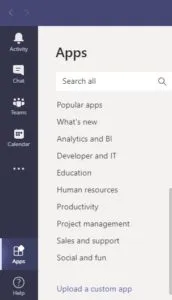
- In the Microsoft Teams client, click on the [Apps] icon. You can find it at the left bottom of the navigation bar
- Select the option [Upload a custom app] (If you don’t see this option, then this must be allowed by the Microsoft 365 Administrator) and select the ROGER.zip file
- Then (important!) don’t click Add, but select the arrow to see the pulldown menu and select ‘Add to Team’. Select the Team or channel which you would like to use for ROGER365
Option 2: Install globally
- Login into https://admin.roger365.io with you Microsoft 365 account
- Go to [Microsoft Teams] and choose [Add Teams TouchPoint]
- Download the ROGER.ZIP manifest file
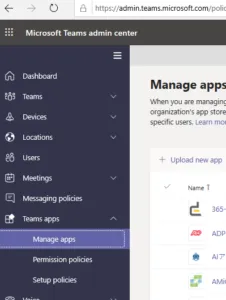
- As a global Microsoft Teams go to the Microsoft Teams admin center:
- Choose [Teams Apps] > [Manage apps]
- Choose upload new app and choose select file.
- In the pop up browse and select the ROGER.ZIP file you and acknowledge the screen to get the upload started.
- Then go to your Microsoft Teams client, click on the [Apps] icon. You can find it at the left bottom of the navigation bar
- Search for the ROGER app and click it
- Then (important!) don’t click Add, but select the arrow to see the pulldown menu and select ‘Add to Team’. Select the Team or channel which you would like to use for ROGER365
After a successful upload it could take op to 24 hours before the app is visible in the Teams Apps. You can also logout/login into Teams to have the ROGER app directly available.
Updating the app
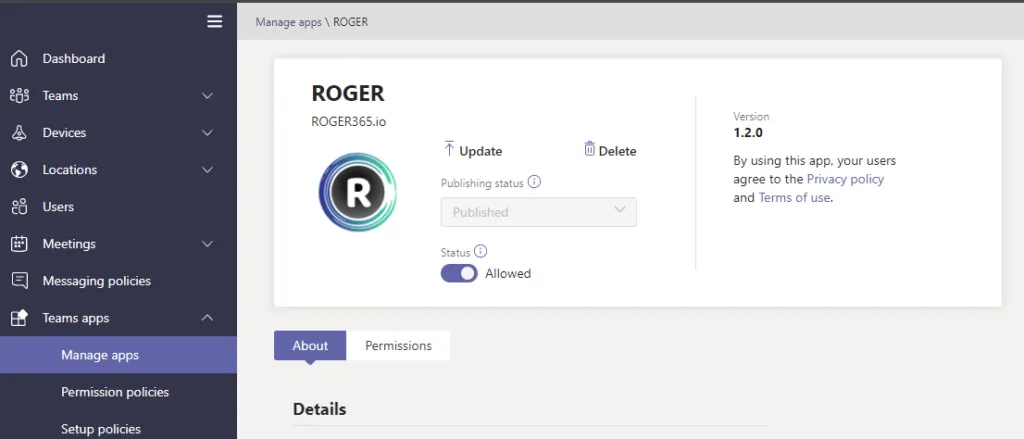
If you have to update the ROGER app, go to the Teams admin portal, find the ROGER app and click update.