


Example PowerShell script

We have created a Powershell example which uploads a CSV file to a custom replicator. In the example you have to fill in your connection URL and Authorization key in the Powershell script. In the attached CSV file you can add your own CRM data. Make sure you keep the correct columns in the example.
Click here to download the example ZIP
Step 1: Get connection URL and Authorization key
First you have to create a Custom CRM Replicator. How to do this, you can find here. In the configuration of the custom CRM replicator you can find the [connection url] and the [authorization key]. Copy these two values, you’ll need this in the next step.
Step 2: Change Powershell script
After you’ve downloaded the ZIP file above, extract in a directory (for example c:\temp\) you’ll get two files:
- SampleUploadCSV.ps1, this is the PowerShell script
- SampleUploadCSV.csv, this contains a few example contacts
Open the file ‘SampleUploadCSV.ps1’ in Notepad or another script editor. Paste the Connection Url at:
$Url = “<paste your url here>”
and paste the Authorization Key at:
$AuthorizationKey = “<paste your key here>”
Save the file
Step 3: Fill the CSV file
In the file “SampleUploadCSV.csv” we have added a few dummy contacts. You can replace this list with an export of your own contacts, make sure to keep the columns and columns names. Keep in mind to define labels in the ROGER365.io admin portal for the CRM action buttons, in case ActionLink0-3 properties has been configured.
Step 4: Run the PowerShell script
Follow these steps to run the script and upload the contacts:
- Open a command box
- Go to the directory where you’ve extraced the files
- Type: “Powershell” and press [Enter]
- Type: “.\SampleUploadCSV.ps1” and press [Enter]
.\SampleUploadCSV.ps1If the command was executed successfull you’ll see this:
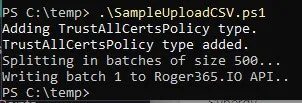
-> If you get this errormessage after executing the powershell script:
.\SampleUploadCSV.ps1 : File C:\temp\SampleUploadCSV\SampleUploadCSV.ps1 cannot be loaded. The file
C:\temp\SampleUploadCSV\SampleUploadCSV.ps1 is not digitally signed. You cannot run this script on the current system.
For more information about running scripts and setting execution policy, see about_Execution_Policies at
https:/go.microsoft.com/fwlink/?LinkID=135170.
At line:1 char:1
+ .\SampleUploadCSV.ps1
+ ~~~~~~~~~~~~~~~~~~~~~
+ CategoryInfo : SecurityError: (:) [], PSSecurityException
+ FullyQualifiedErrorId : UnauthorizedAccess
then you can first execute this command:
Set-ExecutionPolicy -Scope Process -ExecutionPolicy Bypassand answer [Y] to allow the script to run.
If then the script has ran succesfully you’ll see that the contacts are uploaded to the platform:
