TouchPoint

SMS
Text messaging, or SMS, is still very often used by a lot of users. The biggest advantage is that you can send it to every mobile phone, no need to install an app like WhatsApp or Facebook. The downside is that rich media messages, like sending images, are not available. Sending emoticons although are available.
Obtaining a SMS number
To start using the SMS TouchPoint you need a subscription from a SMS service provider (like cm.com) They will assign you a number and the necessary keys. With these keys you can Add a SMS TouchPoint in the ROGER365.io portal.
WhatsApp for Business
Using WhatsApp as one of your communications channels is getting very popular. Especially since WhatsApp offers a business subscription. In order to smoothly handle incoming WhatsApp conversations we’ve added WhatsApp for Business as one of our available TouchPoints.
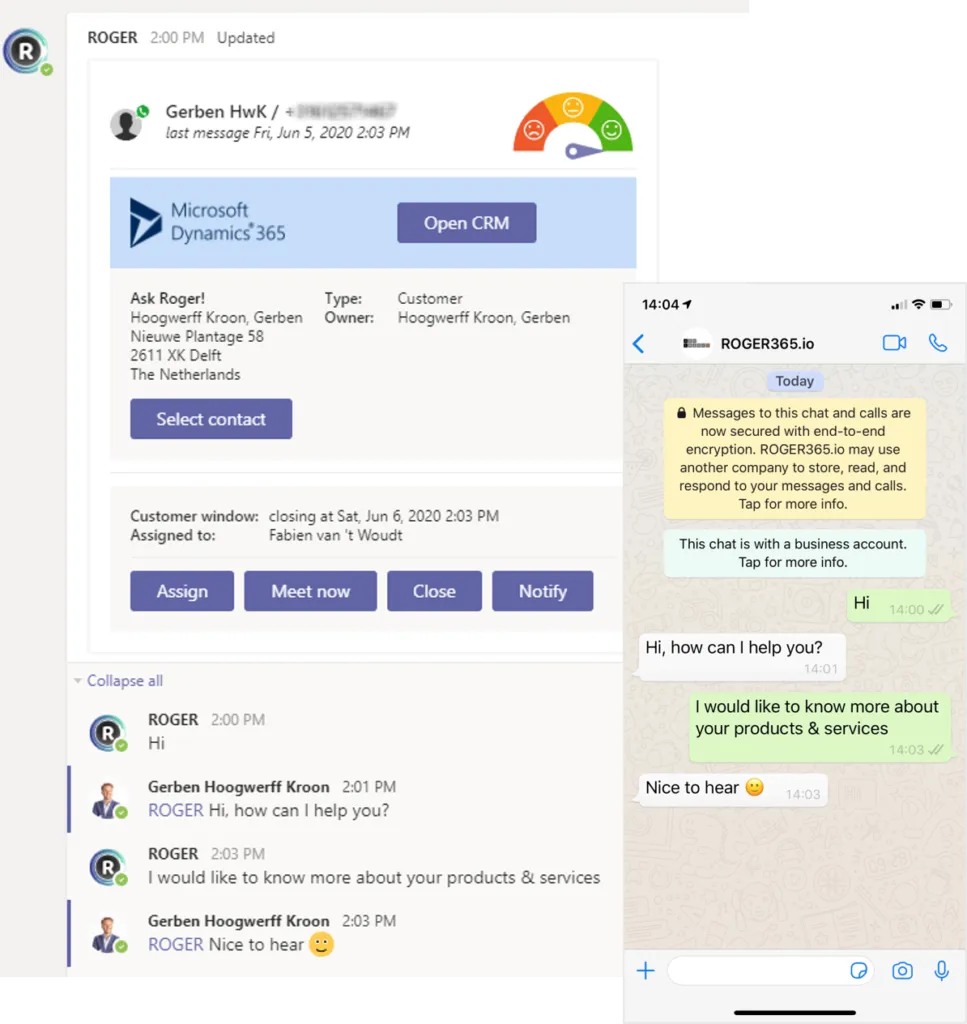
Users can send a WhatsApp message to your company number, which we will route to a channel in Microsoft Teams. If you would like to see the CRM data of the user, then just connect your CRM system like Microsoft Dynamics 365, TOPdesk or others to our platform.
Features
Here’s an overview of the available features. Some are not available yet by WhatsApp. If this changes in the future, we will add them to the platform.
Sending/Receiving Images and documents
From WhatsApp a user can send images/video’s and attachments to the Teams user. The other way around is limited: you can send emoticons and inline photo’s to WhatsApp. Inline means pasting a photo into the textbar. Using the attach icon in Microsoft Teams is currently not supported. As an alternative you could send a hyperlink to a OneDrive files, or another online filesharing solution.
To send a photo inline from the Microsoft Teams channel to the WhatsApp for Business touchpoint, please follow these steps:
- Mention the ROGER bot with “@” in the Reply section under the initial WhatsApp user message in your Microsoft Teams channel.
- Immediately after mentioning the bot, paste the image (Important: do not use any spaces and enters!).
- Send the message.
Template example: “@ROGER<image>”
Notes: From your clipboard, paste the copied photo by pressing CTRL+V. You cannot send videos using the inline method.
Initiate WhatsApp Conversation (WhatsApp Out)
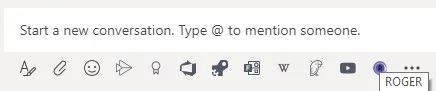
It’s also possible to initiate a WhatsApp conversations with someone. If enabled, you can click the ROGER icon in the icon bar when you click the ‘New Conversation’ icon in a channel in Teams. If a WhatsApp number is configured with that channel, that number will be automatically selected as the ‘sending’ number. If you initiate the conversation from another channel, then you are given the option to select the correct TouchPoint.
You can search the CRM database for the mobile number of a contact, or enter a number manually. After selecting a number, the ‘opt-in’ status is shown. To send a WhatsApp message to a user, WhatsApp requires that the user has given you permission to send messages. You are responsible to ask and register the opt-in from the user. We have an API available to register the OPT-IN permissions.
You can only send pre-defined template messages (WhatsApp charges you for sending a template). Directly after sending a message, a new conversation is created in the MS Teams channel. When the WhatsApp user responds to the template message, you can continue the conversation.
Smart Chatbot Integration
If you would like to automate the conversation with the user, you can integrate our Smart Chatbot solution into your WhatsApp TouchPoint. When a user initiates a conversation first the chatbot can try to help the customer and answer frequently asked questions. When the user chooses to escalate to a live agent, the conversation is routed to a Microsoft Teams channel. The transcript of the conversation with the chatbot will be presented to the agent.
Webchat
Webchat is one of the TouchPoints you can add to your website. Just add a few lines of code to the body of your website, and you’re ready to go! Your website visitors can easily start a conversation with you, and of course this conversation is routed to a Microsoft Teams channel.
Look and feel
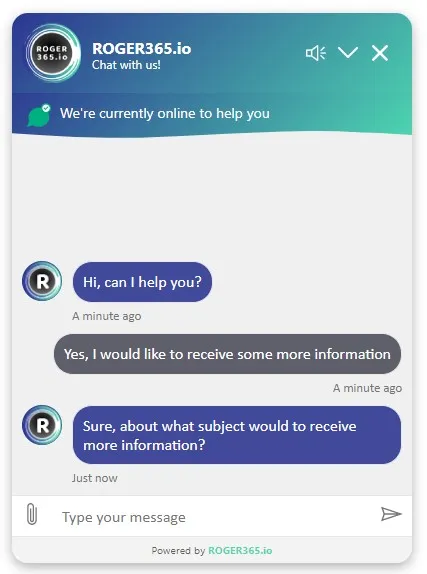
In this screenshot you see the default layout of our webchat module. The styling and heading of the webchat module can be adapted to your own company branding.
Status Message
You can set a default status message like ‘We’re currently online’ which users will see. This can be based on a schedule so you can show a different message when you’re unavailable. We support multiple languages and show the right message based on the users’ browser.
Notifications
When a user sends a message they often browse to another tab or application. When a response is received the user will receive a sound notification. When the webchat is minimized the sound is also played and the user sees an ‘unread’ messages notification.
Attachments
When a user wants to share an attachment, then this can be easily done trough the webchat interface. The attachment is then send to the active conversation in Microsoft Teams.
Microsoft Teams
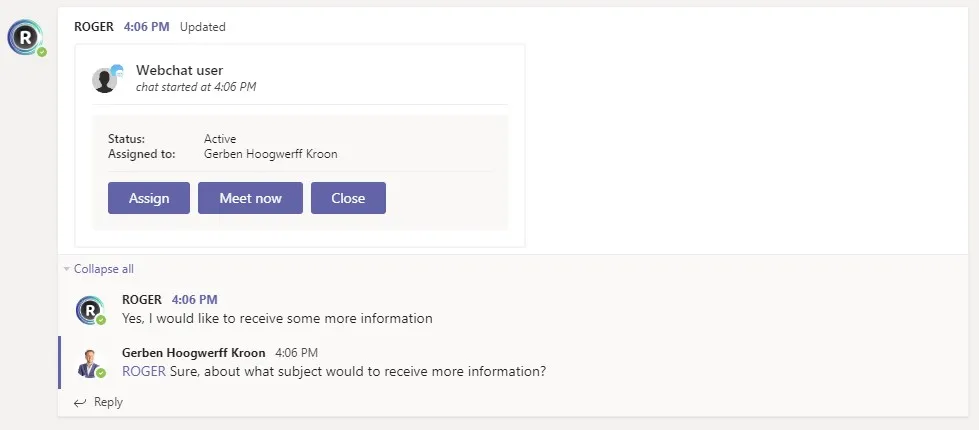
The webchat conversation is send to the right channel in Microsoft Teams. From here the conversation can we assigned to the person who will handle the session. Also the conversation will be displayed on the Wallboard. When it’s better to have a more personal way of communicating the conversation can be transformed in to a voice and/or video call via the Meet Now button.
After the conversation is finished, the session can be closed.