Features

Reporting
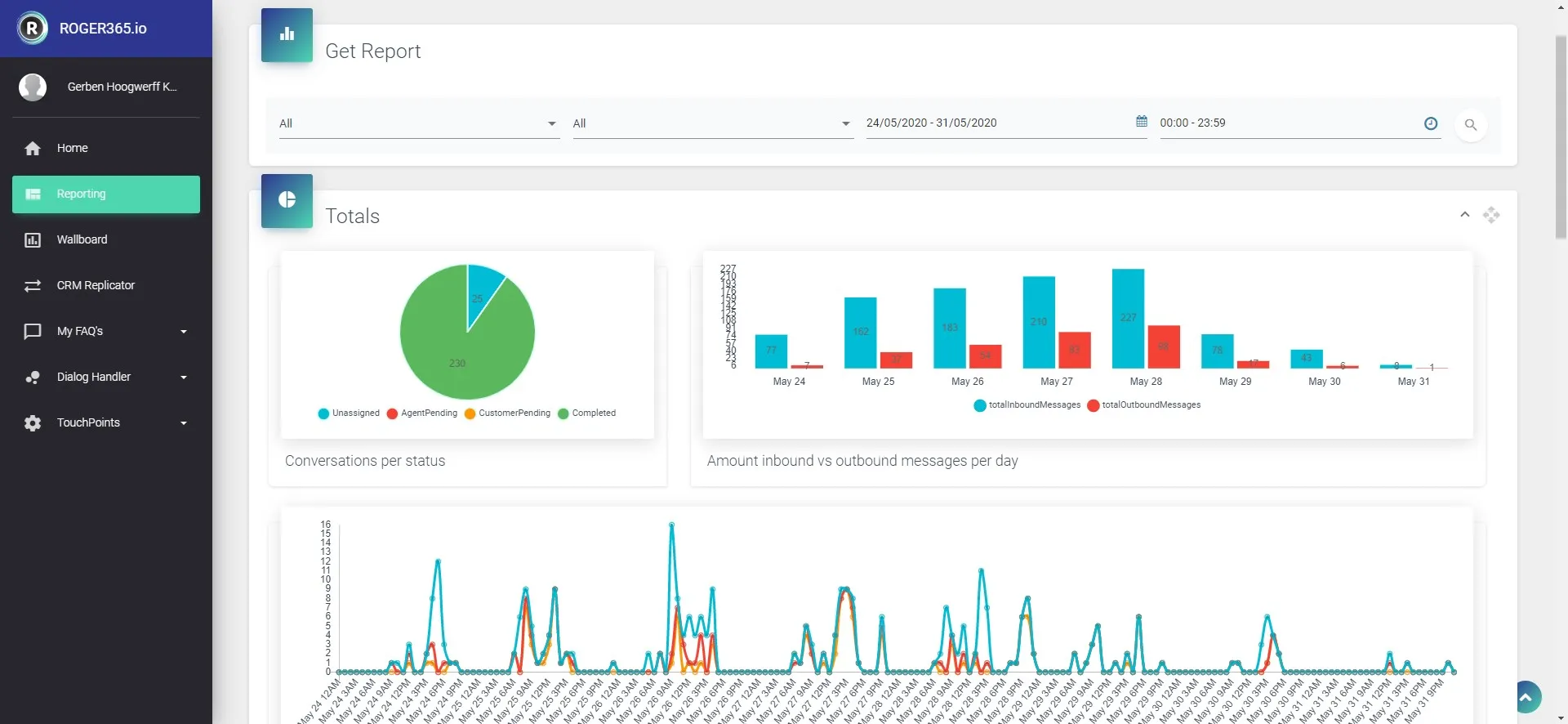
The following report information is by default available trough the administrator portal. A selection per TouchPoint is possible or you can choose a combined overall report. Various types of information is available:
- Average response time
- Average time unassigned
- Average messages per conversation
- Conversation per status – number of assigned/ unassigned conversations, agent or customer pending or completed
- Amount inbound vs outbound messages per day
- Conversation totals
- Agent Totals
- SLA Per Agent
When more information is needed the Microsoft Power BI connector can be used to create your own detailled report.
Wallboard
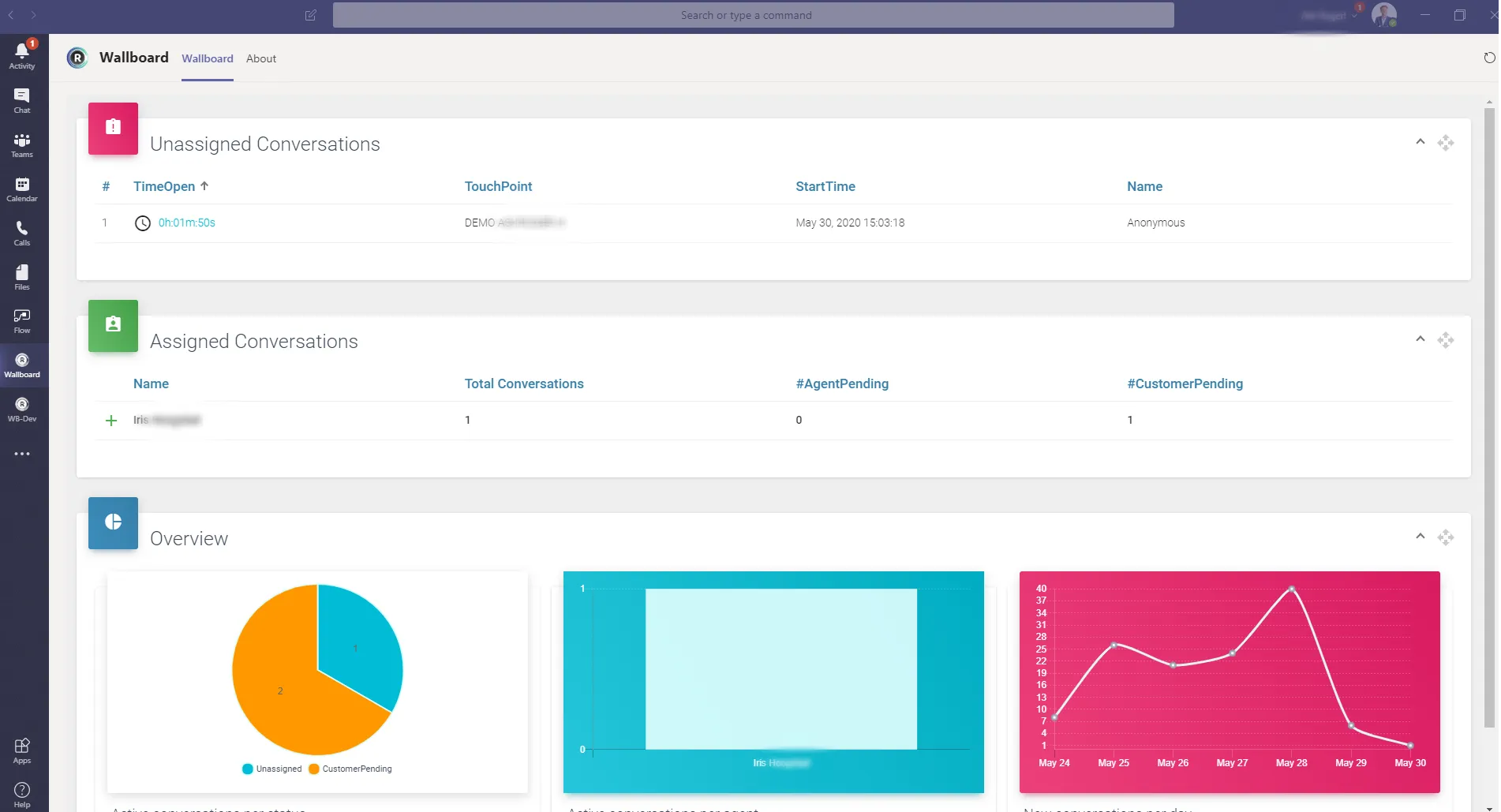
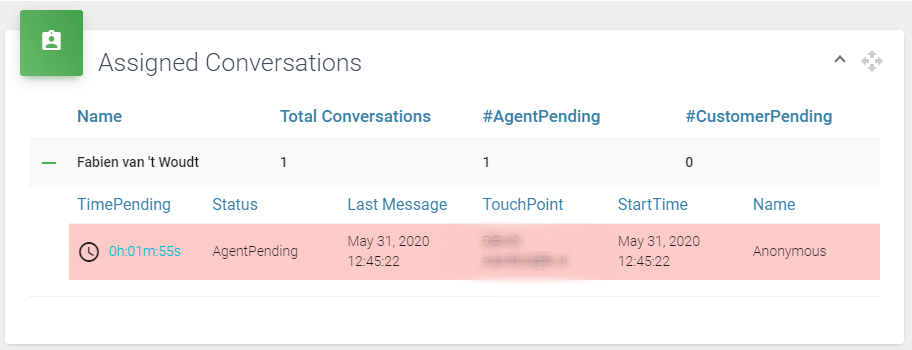
To keep track of all active conversations we have a Wallboard for you available. It shows you in realtime new incoming conversations, to who a conversations is assigned and what the status is. You can access the wallboard from the Administrator Portal, or by installing our Wallboard App in Microsoft Teams.
You can access a conversation directly from the Wallboard by clicking on it.
Workflow & Dialog handler
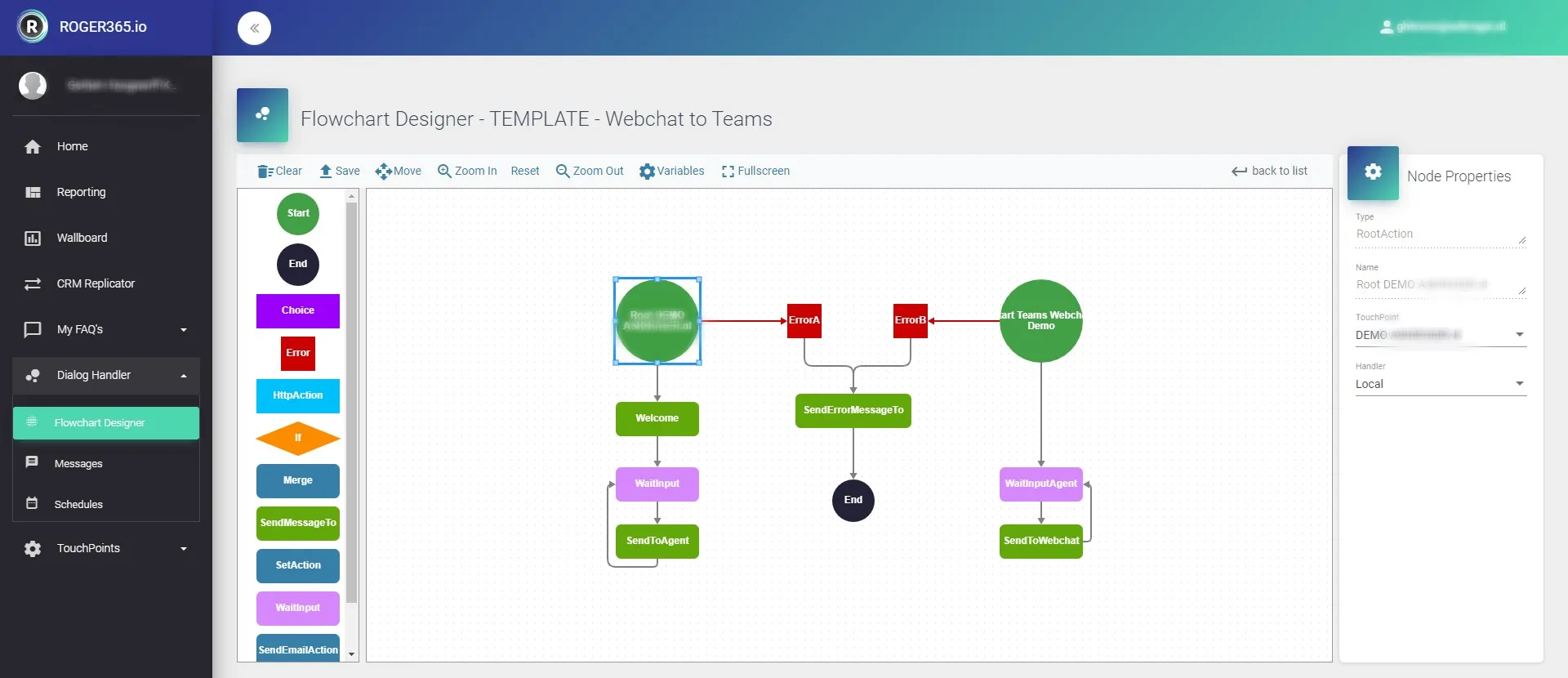
With the very advanced Dialogue Handler you are in complete control what happens with incoming conversations. You can change the flow at any time by just dragging and dropping the right components. Several predefined template are available for you to use as an example, or of course one of our partners can help you.
Administrator Portal
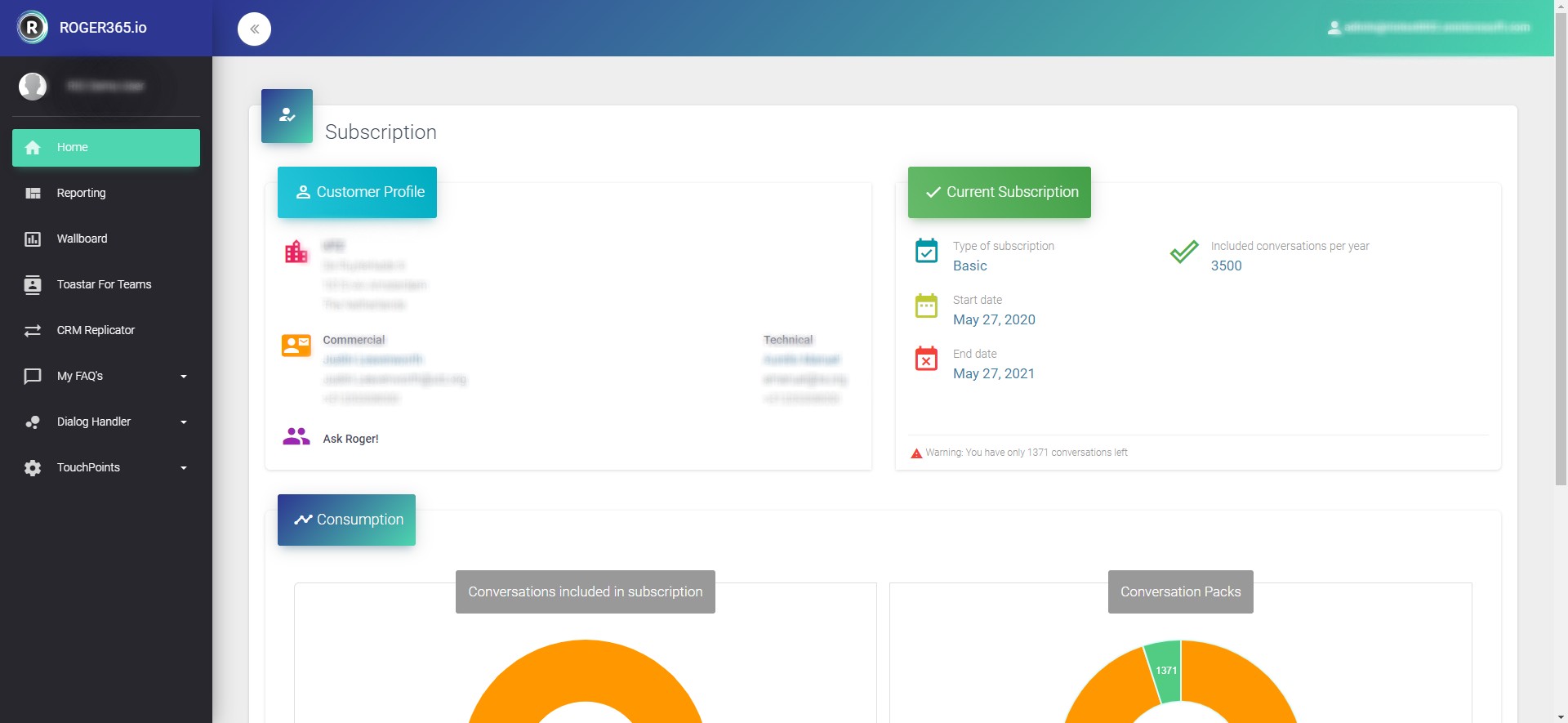
Via the administrator portal you can manage all the functionalities of the ROGER365.io platform. You can change/add your TouchPoints or how your incoming conversations are handled. In the portal you can also view a detailled report of your usage. Also more advance tasks can be done here, like connecting your CRM system.
When you are using a chatbot to answer frequently asked questions, in the portal you can manage the database of questions. When the chatbot is used by customers you can evaluate which questions are being asked so you can improve and train the chatbot to become better every day.
You can use Single Sign On to access the portal so no need to remember an extra login
Assign Agent
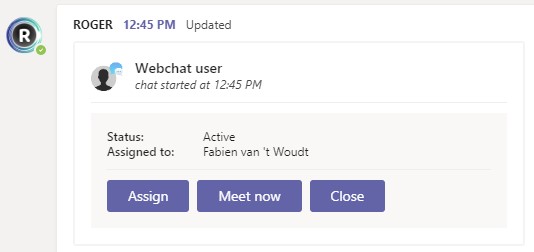
A big advantage of using Microsoft Teams to handle conversations is dat everybody can collaborate, but how do you know who will be handling the conversation? That’s were the Assign Agent feature comes in. When a new conversation arrives it will have the ‘unassigned’ status. The agent who will handle the conversation can click the Assign button, or you can assign the conversation to another team member. A notification will be send to the agent that a conversation has been assigned.
Once a conversation has been assigned, it will be used in the reporting module and on the wallboard.
Meet Now - Escalate to Voice/Video
Sometimes a chat conversation can be difficult, for example when you want to explain or show certain things. Wouldn’t it be cool to upscale your chat to a live voice and/or video conversation? With the Meet Now feature this is very easy.
During a chat conversation, just push the Meet Now button. The ROGER365.io platform will create an instant meetingroom which both parties can join. When both parties click the link, they join the meeting. If the webchat user doesn’t have the Microsoft Teams application installed, then he/she will join using their webbrowser. For mobile users it’s mandatory to install the app via the appstore. They don’t have to signup for an account, installing the app is enough.
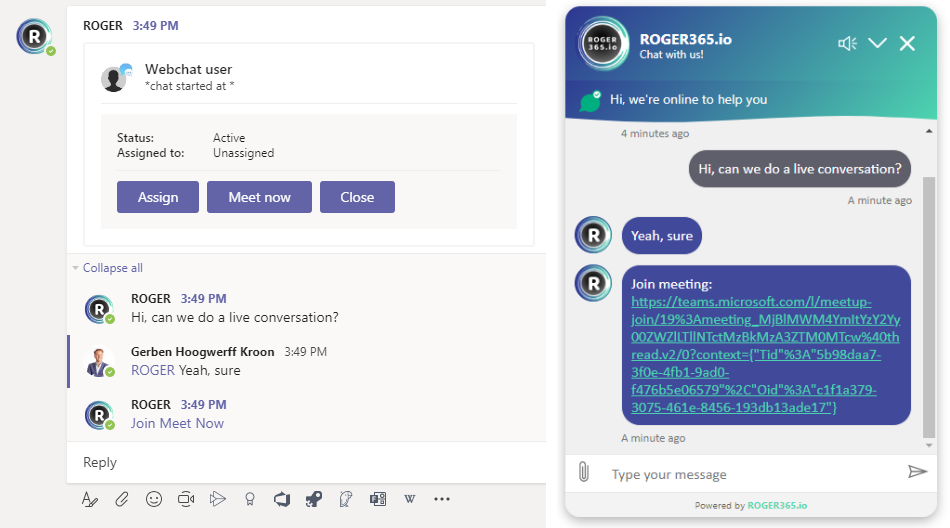
From Teams a Meet Now meeting is initiated. The webchat user receives a link to the meeting

Enhanced Scheduling + Callback notification
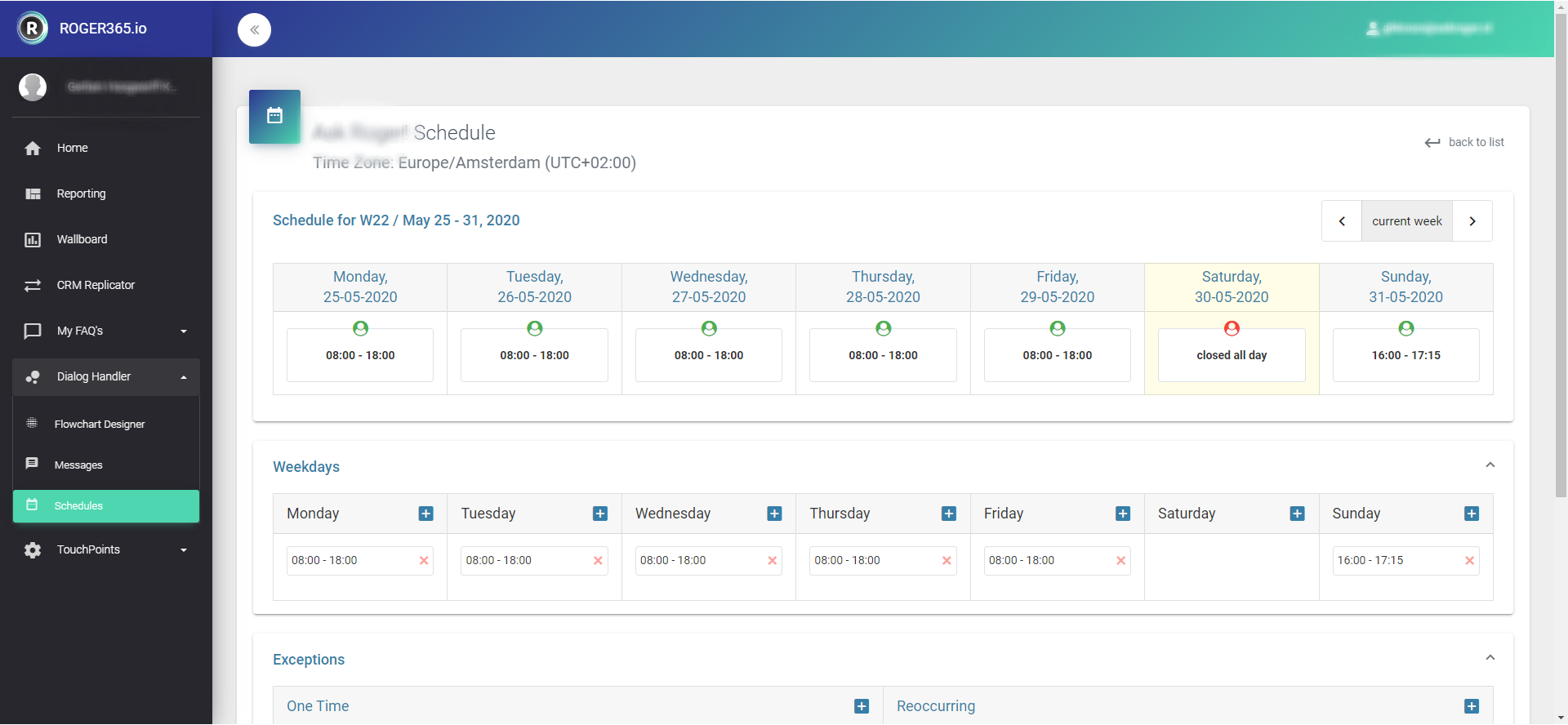
When you want to handle incoming conversations differently for example during out of office hours, you can add an enhanced schedular to your TouchPoint. You can create normal week schedule and add (recurring) exceptions for example holidays.
For example: during office hours your chatbot handles frequently asked questions and if it can’t help your customer completely, the conversation can be escalated to a Microsoft Teams channel. But when your office is closed, you might want to handle this conversation differently. Maybe by asking the customer for his phone number so you can call him/her back the next day. This callback information can be posted in a Teams channel or send to you by email.