


Search
Shift Synchronization
Setup - Social Messaging
Queues
Shift Synchronization
Read more
SocialConversationInfo Export
API
Social Messaging
SocialConversationInfo Export
Read more
SocialQueue Export
API
Social Messaging
SocialQueue Export
Read more
Virtual Call Info
API
Contact Center
Virtual Call Info
Read more
Quality Assurance
API
AI Flow
Quality Assurance
Read more
Sentiment
API
AI Flow
Sentiment
Read more
Summary
API
AI Flow
Summary
Read more
Transcript
API
AI Flow
Transcript
Read more
MCP Server Setup
API
General
MCP Server Setup
Read more
Customer data
API
General
Customer data
Read more
General
How to use
Contact Center
General
Read more
Create App Registration for Email TouchPoint
Setup - Social Messaging
Email Touchpoint
Create App Registration for Email TouchPoint
Read more
Module settings
Setup - General
Insights & Analytics
Module settings
Read more
Examples
Setup - General
Permissions
Examples
Read more
Setup Access
Setup - General
Permissions
Setup Access
Read more
Configure Teams client to enable Toastar
Setup - General
CRM Calling Integration (Toastar)
Configure Teams client to enable Toastar
Read more
Enable users
Setup - General
CRM Calling Integration (Toastar)
Enable users
Read more
Webhook & Postback URL
Setup - General
CRM Calling Integration (Toastar)
Webhook & Postback URL
Read more
Add TOASTAR App to Teams
Setup - General
CRM Calling Integration (Toastar)
Add TOASTAR App to Teams
Read more
Create Teams Virtual User
Setup - General
CRM Calling Integration (Toastar)
Create Teams Virtual User
Read more
Register Azure BOT Channel
Setup - General
CRM Calling Integration (Toastar)
Register Azure BOT Channel
Read more
Example PowerShell script
Setup - General
Custom CRM Connector
Example PowerShell script
Read more
Phonebook
Setup - General
CRM Replicator
Phonebook
Read more
Webchat to Teams
Setup - Social Messaging
Examples
Webchat to Teams
Read more
WhatsApp to Teams
Setup - Social Messaging
Examples
WhatsApp to Teams
Read more
Recognize customer by email
Setup - Social Messaging
Examples
Recognize customer by email
Read more
Use webchat form to recognize customer
Setup - Social Messaging
Examples
Use webchat form to recognize customer
Read more
Start voice call (Beta)
Setup - Social Messaging
Graphical Designer
Start voice call (Beta)
Read more
CRM
Setup - Social Messaging
Graphical Designer
CRM
Read more
AddTranscript
Setup - Social Messaging
Graphical Designer
AddTranscript
Read more
Translate
Setup - Social Messaging
Graphical Designer
Translate
Read more
OpenAI
Setup - Social Messaging
Graphical Designer
OpenAI
Read more
GetFormInput
Setup - Social Messaging
Graphical Designer
GetFormInput
Read more
HttpAction
Setup - Social Messaging
Graphical Designer
HttpAction
Read more
Convert Image
Setup - Social Messaging
Graphical Designer
Convert Image
Read more
SetAction
Setup - Social Messaging
Graphical Designer
SetAction
Read more
GetPageVisits
Setup - Social Messaging
Graphical Designer
GetPageVisits
Read more
Sentiment
Setup - Social Messaging
Graphical Designer
Sentiment
Read more
Powerhook
Setup - Social Messaging
Graphical Designer
Powerhook
Read more
SendEmailAction
Setup - Social Messaging
Graphical Designer
SendEmailAction
Read more
Chatbot
Setup - Social Messaging
Graphical Designer
Chatbot
Read more
Get Transcript
Setup - Social Messaging
Graphical Designer
Get Transcript
Read more
Set Participant
Setup - Social Messaging
Graphical Designer
Set Participant
Read more
Schedule
Setup - Social Messaging
Graphical Designer
Schedule
Read more
Merge
Setup - Social Messaging
Graphical Designer
Merge
Read more
Choice
Setup - Social Messaging
Graphical Designer
Choice
Read more
IF
Setup - Social Messaging
Graphical Designer
IF
Read more
WaitInput
Setup - Social Messaging
Graphical Designer
WaitInput
Read more
The basics
Setup - Social Messaging
Graphical Designer
The basics
Read more
Webhooks for SMS Provider
Setup - Social Messaging
SMS TouchPoint
Webhooks for SMS Provider
Read more
Sandbox cm.com
Setup - Social Messaging
WhatsApp for Business TouchPoint
Sandbox cm.com
Read more
WhatsApp OUT
Setup - Social Messaging
WhatsApp for Business TouchPoint
WhatsApp OUT
Read more
Adding templates
Setup - Social Messaging
WhatsApp for Business TouchPoint
Adding templates
Read more
Webhooks for WhatsApp Providers
Setup - Social Messaging
WhatsApp for Business TouchPoint
Webhooks for WhatsApp Providers
Read more
Customize Layout
Setup - Social Messaging
Webchat TouchPoint
Customize Layout
Read more
Add status message
Setup - Social Messaging
Webchat TouchPoint
Add status message
Read more
Webchat Parameters
Setup - Social Messaging
Webchat TouchPoint
Webchat Parameters
Read more
Create adaptive card
Setup - Social Messaging
Microsoft Teams
Create adaptive card
Read more
Connect Teams Channel
Setup - Social Messaging
Microsoft Teams
Connect Teams Channel
Read more
Add ROGER365 app to Teams
Setup - Social Messaging
Microsoft Teams
Add ROGER365 app to Teams
Read more
AI Endpoints
Setup - Contact Center
AI Flow (Beta)
AI Endpoints
Read more
Classification Action Configurations
Setup - Contact Center
AI Flow (Beta)
Classification Action Configurations
Read more
Quality Assurance Forms
Setup - Contact Center
AI Flow (Beta)
Quality Assurance Forms
Read more
Audio Providers
Setup - Contact Center
AI Flow (Beta)
Audio Providers
Read more
Flows
Setup - Contact Center
AI Flow (Beta)
Flows
Read more
Last Conversation Data
Setup - Contact Center
Graphical Designer
Last Conversation Data
Read more
Call to SMS (Beta)
Setup - Contact Center
Graphical Designer
Call to SMS (Beta)
Read more
Store feedback
Setup - Contact Center
Graphical Designer
Store feedback
Read more
Cancel Virtual Call
Setup - Contact Center
Graphical Designer
Cancel Virtual Call
Read more
Get Virtual Call Info
Setup - Contact Center
Graphical Designer
Get Virtual Call Info
Read more
Make Call Virtual
Setup - Contact Center
Graphical Designer
Make Call Virtual
Read more
OpenAI
Setup - Contact Center
Graphical Designer
OpenAI
Read more
Last agent
Setup - Contact Center
Graphical Designer
Last agent
Read more
Text to Speech
Setup - Contact Center
Graphical Designer
Text to Speech
Read more
Speech to Text
Setup - Contact Center
Graphical Designer
Speech to Text
Read more
VoiceRecording
Setup - Contact Center
Graphical Designer
VoiceRecording
Read more
Switch
Setup - Contact Center
Graphical Designer
Switch
Read more
Subflow
Setup - Contact Center
Graphical Designer
Subflow
Read more
Set Variable
Setup - Contact Center
Graphical Designer
Set Variable
Read more
Send Webhook
Setup - Contact Center
Graphical Designer
Send Webhook
Read more
IF
Setup - Contact Center
Graphical Designer
IF
Read more
HTTPAction
Setup - Contact Center
Graphical Designer
HTTPAction
Read more
Wait Timer
Setup - Contact Center
Graphical Designer
Wait Timer
Read more
CRM
Setup - Contact Center
Graphical Designer
CRM
Read more
Cancel Task
Setup - Contact Center
Graphical Designer
Cancel Task
Read more
Cancel all Tasks
Setup - Contact Center
Graphical Designer
Cancel all Tasks
Read more
Get Queue Info
Setup - Contact Center
Graphical Designer
Get Queue Info
Read more
WaitForEnd
Setup - Contact Center
Graphical Designer
WaitForEnd
Read more
Set language
Setup - Contact Center
Graphical Designer
Set language
Read more
Safe Transfer
Setup - Contact Center
Graphical Designer
Safe Transfer
Read more
Schedule
Setup - Contact Center
Graphical Designer
Schedule
Read more
Reject
Setup - Contact Center
Graphical Designer
Reject
Read more
Transfer
Setup - Contact Center
Graphical Designer
Transfer
Read more
Merge
Setup - Contact Center
Graphical Designer
Merge
Read more
Play Audio Prompt
Setup - Contact Center
Graphical Designer
Play Audio Prompt
Read more
DTMF
Setup - Contact Center
Graphical Designer
DTMF
Read more
Disconnect
Setup - Contact Center
Graphical Designer
Disconnect
Read more
The basics
Setup - Contact Center
Graphical Designer
The basics
Read more
Power Frame
Setup - Contact Center
Queues
Power Frame
Read more
Create App Registration for Attendant Console
Setup - Contact Center
General
Create App Registration for Attendant Console
Read more
Contact Center
How to use
Contact Center
Read more
Setup Access & Security
Setup - General
Setup Access & Security
Read more
Schedules
Setup - Contact Center
Schedules
Read more
Resource Accounts
Setup - Contact Center
Resource Accounts
Read more
Queues
Setup - Contact Center
Queues
Read more
Callflows
Setup - Contact Center
Callflows
Read more
Audio Files
Setup - Contact Center
Audio Files
Read more
Agents
Setup - Contact Center
Agents
Read more
Logging
How to use
Logging
Read more
Audit
Setup - General
Audit
Read more
CRM
Setup - General
CRM
Read more
Languages
Setup - General
Languages
Read more
Create Tenant App
Setup - General
Create Tenant App
Read more
Getting started
Getting started
Getting started
Read more
Subscriptions
How to use
Subscriptions
Read more
Call Flows
Setup - Contact Center
Call Flows
Read more
AI Flow
API
AI Flow
Read more
Copilot Touchpoint
Setup - Social Messaging
Copilot Touchpoint
Read more
Insights & Analytics
Setup - General
Insights & Analytics
Read more
Wallboard
Setup - General
Wallboard
Read more
Permissions
Setup - General
Permissions
Read more
Logging
Setup - General
Logging
Read more
CRM Calling Integration (Toastar)
Setup - General
CRM Calling Integration (Toastar)
Read more
Custom CRM Connector
Setup - General
Custom CRM Connector
Read more
Default CRM Connectors
Setup - General
Default CRM Connectors
Read more
CRM Replicator
Setup - General
CRM Replicator
Read more
Email Configuration
Setup - General
Email Configuration
Read more
Schedules
Setup - General
Schedules
Read more
Agent Assist
Setup - General
Agent Assist
Read more
Setup Access & Security
Setup - General
Setup Access & Security
Read more
Malicious File Blocking
Setup - Social Messaging
Malicious File Blocking
Read more
Wallboard
Setup - Social Messaging
Wallboard
Read more
Reporting
Setup - Social Messaging
Reporting
Read more
Messages
Setup - Social Messaging
Messages
Read more
Examples
Setup - Social Messaging
Examples
Read more
Graphical Designer
Setup - Social Messaging
Graphical Designer
Read more
Using the library
Setup - Social Messaging
Using the library
Read more
Email Touchpoint
Setup - Social Messaging
Email Touchpoint
Read more
API TouchPoint
Setup - Social Messaging
API TouchPoint
Read more
Facebook TouchPoint
Setup - Social Messaging
Facebook TouchPoint
Read more
SMS TouchPoint
Setup - Social Messaging
SMS TouchPoint
Read more
WhatsApp for Business TouchPoint
Setup - Social Messaging
WhatsApp for Business TouchPoint
Read more
Webchat TouchPoint
Setup - Social Messaging
Webchat TouchPoint
Read more
Microsoft Teams
Setup - Social Messaging
Microsoft Teams
Read more
Queues
Setup - Social Messaging
Queues
Read more
AI Flow (Beta)
Setup - Contact Center
AI Flow (Beta)
Read more
Classification
Setup - Contact Center
Classification
Read more
Skill Based Routing
Setup - Contact Center
Skill Based Routing
Read more
Reason Codes
Setup - Contact Center
Reason Codes
Read more
Audio Prompts
Setup - Contact Center
Audio Prompts
Read more
Agent Profiles
Setup - Contact Center
Agent Profiles
Read more
Agents
Setup - Contact Center
Agents
Read more
Call Park
Setup - General
Call Park
Read more
Resource Accounts
Setup - Contact Center
Resource Accounts
Read more
Graphical Designer
Setup - Contact Center
Graphical Designer
Read more
Form Based callflow
Setup - Contact Center
Form Based callflow
Read more
Using the library
Setup - Contact Center
Using the library
Read more
Queues
Setup - Contact Center
Queues
Read more
General
Setup - Contact Center
General
Read more
Agent page functionalities
How to use
Agent page functionalities
Read more
Social Messaging
How to use
Social Messaging
Read more
Contact Center
How to use
Contact Center
Read more
Support & Assistance
Getting Started
Support & Assistance
Read more
Compliance by design
Getting Started
Compliance by design
Read more
Social Messaging
API
Social Messaging
Read more
Contact Center
API
Contact Center
Read more
Getting Started
Getting Started
Getting Started
Read more
General
API
General
Read more
No results
Try a different search query
Menu
Thank you! Your submission has been received!
Oops! Something went wrong while submitting the form.
What are you looking for?

Agent

A native Microsoft Teams app is available for every ROGER365.io Contact Center Agent. The app offers all kind of functionalities and insight of the call queue.

Availability & Reason Codes

Every agent is able to set their own availability status: Available, Not Ready, Away & Off Work. When an agent is in an active call, the status is changed to Busy. In addition to the Away status, specific reason codes like Lunch or Training can be configured via the Admin portal.

Call parking

An agent is able to park a call for himself or other agent from Call Park group. Caller will be waiting on hold till one of the agents will unpark (unhold) the call, ideal for demanding users where only the best of the best agents can handle the situation, or very busy contact centers that prefer not to advise callers to hang up and call back later.

Conference calls

An agent can invite other participants to an active call. Conference call is very useful feature for Agents who need help with a current conversation.

Multiple Queue Login

An agent can log in to multiple queues at the same time. If the agent is configured as ‘Formal’ then he/she is able to login and logout of the queue. To prevent this, the agent must be configured as ‘Informal’.

Wrap up Time

The Wrap up Timer gives an agent some time after finishing the call to process the conversation. For example update the CRM system, or create a support ticket. The default time can be configured in the Admin portal. If the time isn’t enough, the agent can manually add some extra time by clicking one of the buttons.

Live Queue Insight & Statistics

Every agent has insight in the amount of callers waiting in the queue. Per caller is shown the amount of time waiting and in which queue they are. Also on top of the app statistics are displayed about the selected queue. For example amount of calls today, average waiting time etc. Also information about other queue agents is available like amount of agents with status ready, not ready etc.

CRM Integration

If a CRM system is connected, the name of the caller is also shown when waiting in the queue. When the call is offered to an agent, also the company name is visible. For advanced CRM integration you can take advantage of the Powerframe which allows you to create your own applications with the all information needed for the agent.

Customizable Call Action

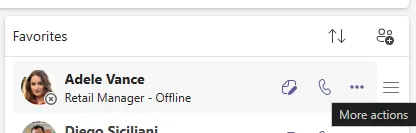
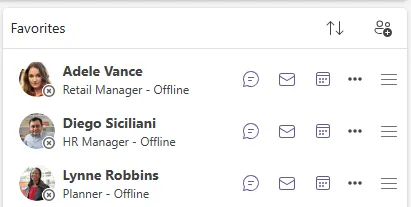
Depending on your activities in the app (whether you’re focused on calling or messaging) certain actions may seem unnecessary. In those cases, you can customize your shortcut actions by selecting which exactly buttons should be visible next to person’s name.

Press ellipsis button (More actions) next to a contact’s name to open window listing all actions:
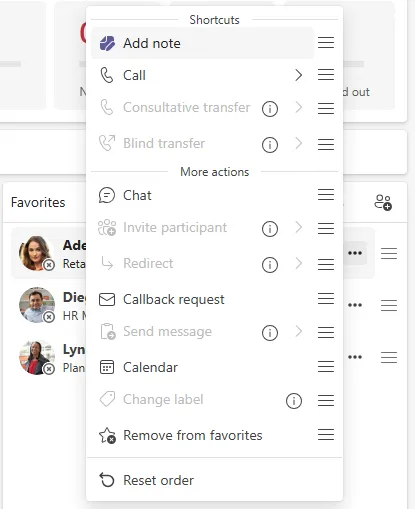
To set selected actions as the shortcut, drag & drop specific action from the More action section via ≡ icon into the Shortcuts. The informational icon next to grayed out action explains the reason behind unability to use this specific action.
Dynamic application scaling

The Agent page of the Contact Center application adjusts its user interface based on the current screen resolution. Whether you’re using a laptop, working with monitors that have high scaling, or simply prefer a smaller screen, this feature ensures that agents have a seamless experience without sacrificing functionality.
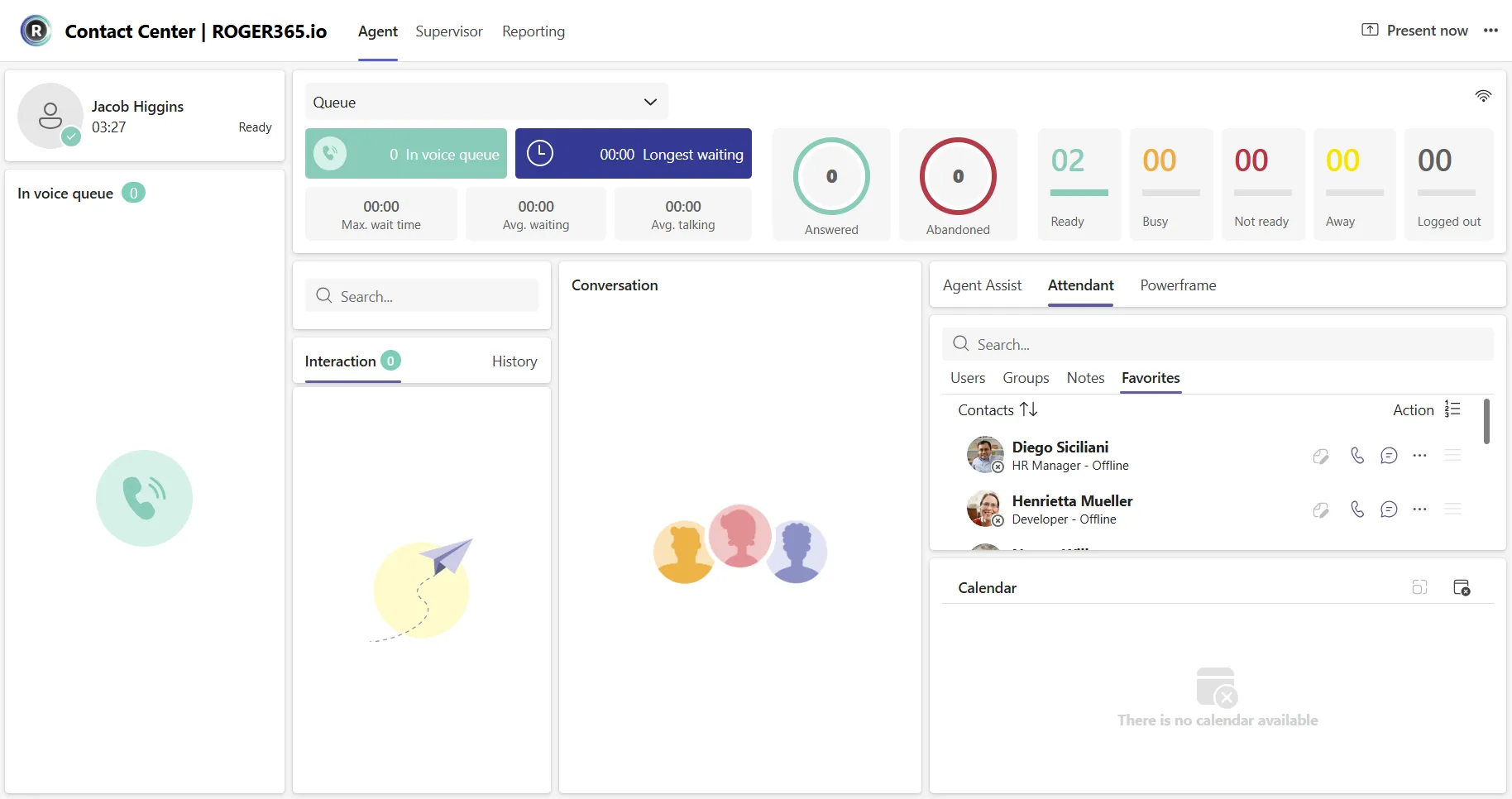
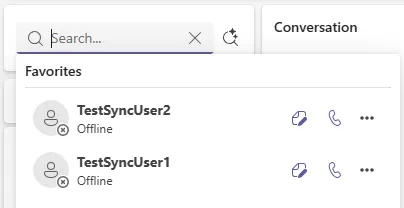
Note: The Favorites section of the Attendant Console is now located next to the “Users”, “Groups”, and “Notes” sections. When the “Favorites” section is focused and a search is performed, the agent will search within the Favorites list.

Collapsible left panel

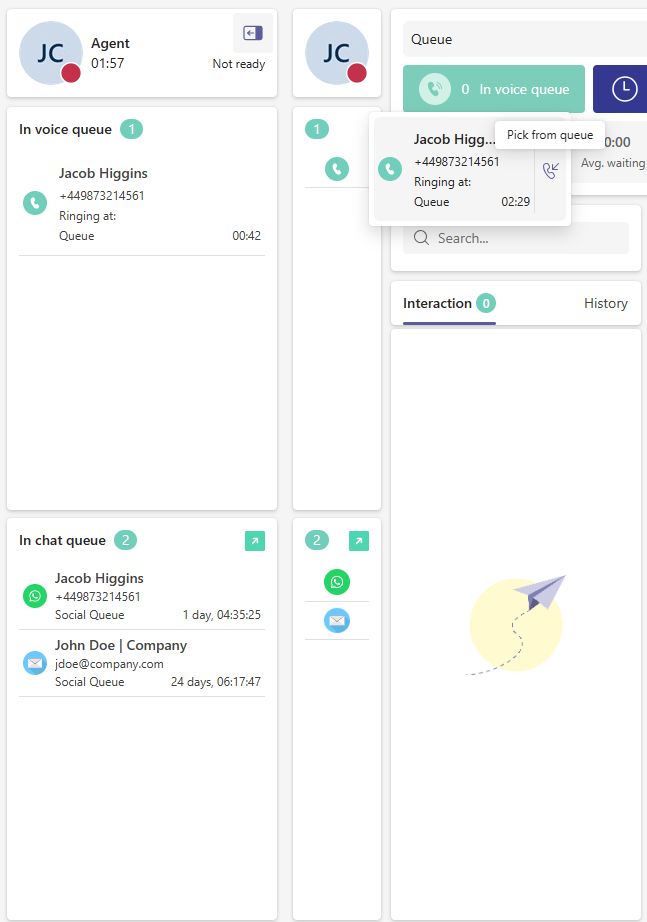
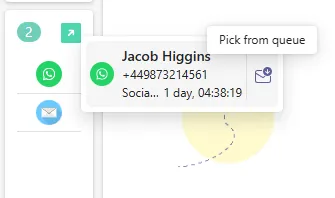
An agent is able to enlarge its working space by collapsing the left side of an application which is responsible for seeing incoming calls or waiting for response conversations. This can be done by pressing on the icon in the top left corner of Agent information. When left panel is collapsed, to answer incoming call or accept conversation, press using left mouse button on the record. Now you can use either “Pickup from the queue” button (visible after hovering mouse over the record), or by pressing right mouse button on the record.

In the screenshot example this button was avaiable to an Agent while having Not ready status. This is possible due to Cherrypicking option.
Group as Favorite

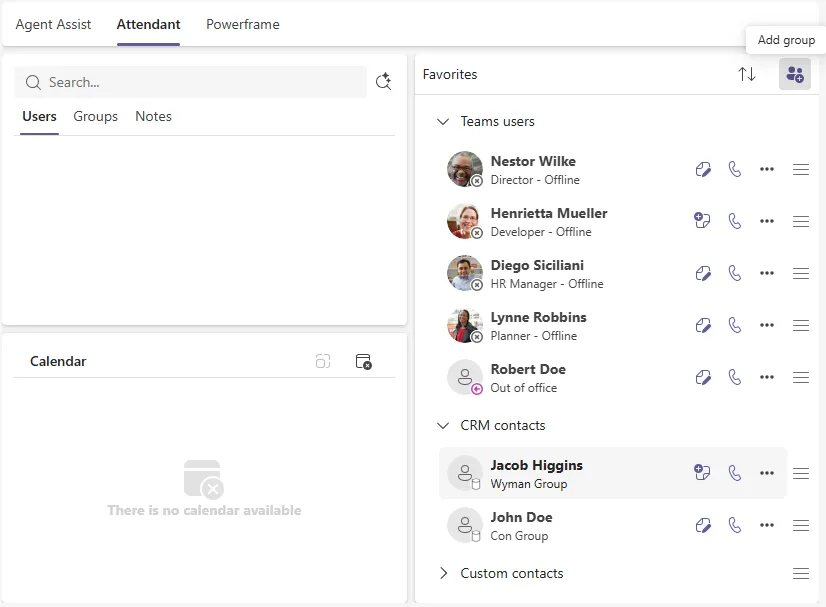
The Attendant Console feature for Agent page of Contact Center application allows to create groups of favorite contacts. This feature is really helpful to organize contacts in defined manner. Favorite contacts which are not part of any group can be dragged into one by using ☰ icon (drag & drop action). Groups can be collapsed and opened using > or ˅ signs. When certain group is collapsed it is possible to change its name, rearrange order or remove entire group.
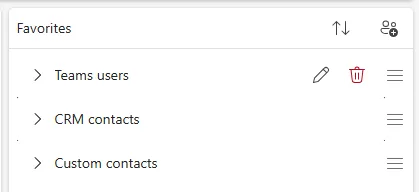
Note: When removing group as favorite, all of the contacts inside are removed from Favorites section of Attendant Console and shall be added again if needed.

Copy group members to Favorites

An agent is able to copy all group members with one simple action which greatly saves up time spent on manual adding each person using ellipsis button (“More actions”).

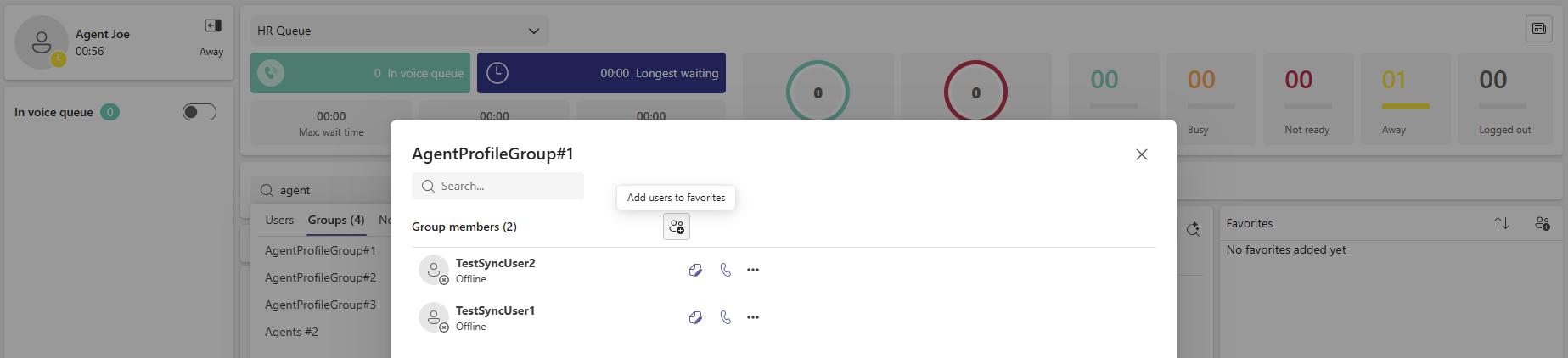
Once the group has been found in Contact Center application via any search field, the “Add users to favorites” button will be available to an agent:
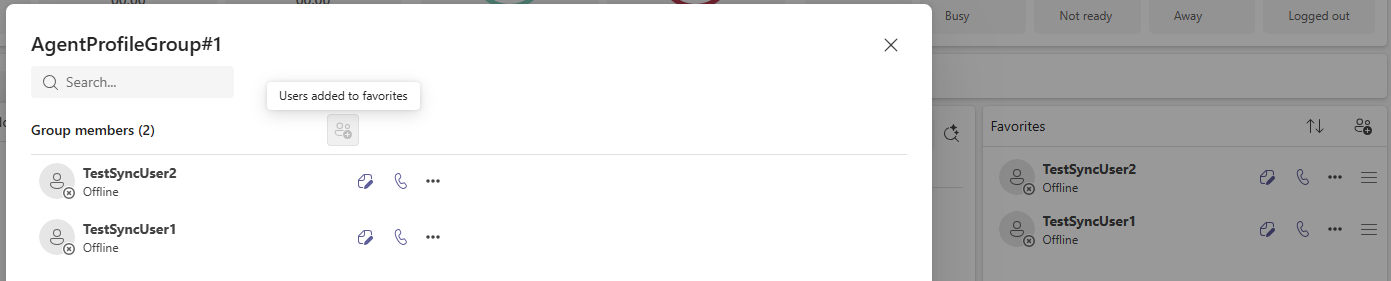
Upon pressing, listed group members will be added to the Favorites section – unless they are already there, in such case nothing will happen.
Filter logged-in queues

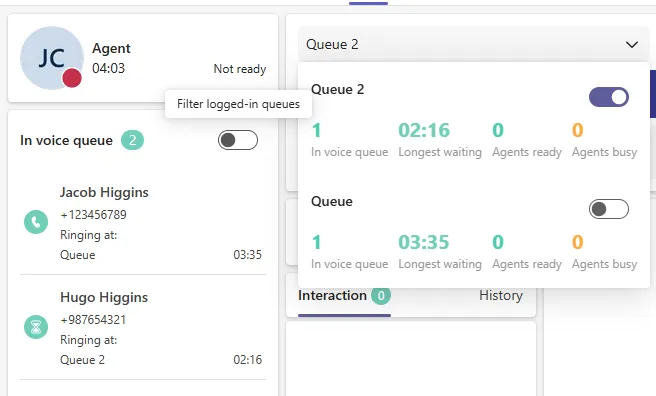
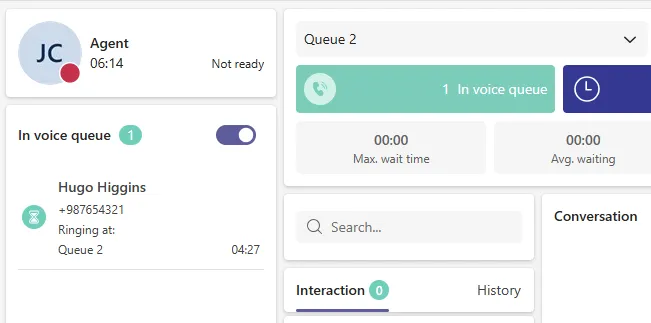
The Agent page does offer a functionality which allows an agent to hide calls that are waiting in Queues from which the agent is currently logged out. It helps provide a clearer overview of which calls should be handled by the agent currently logged into a certain Queue.

At the Agent page of Contact Center application next to a “In voice queue” label you can find switch with the tooltip description “Filter logged-in queues”.
Advanced search

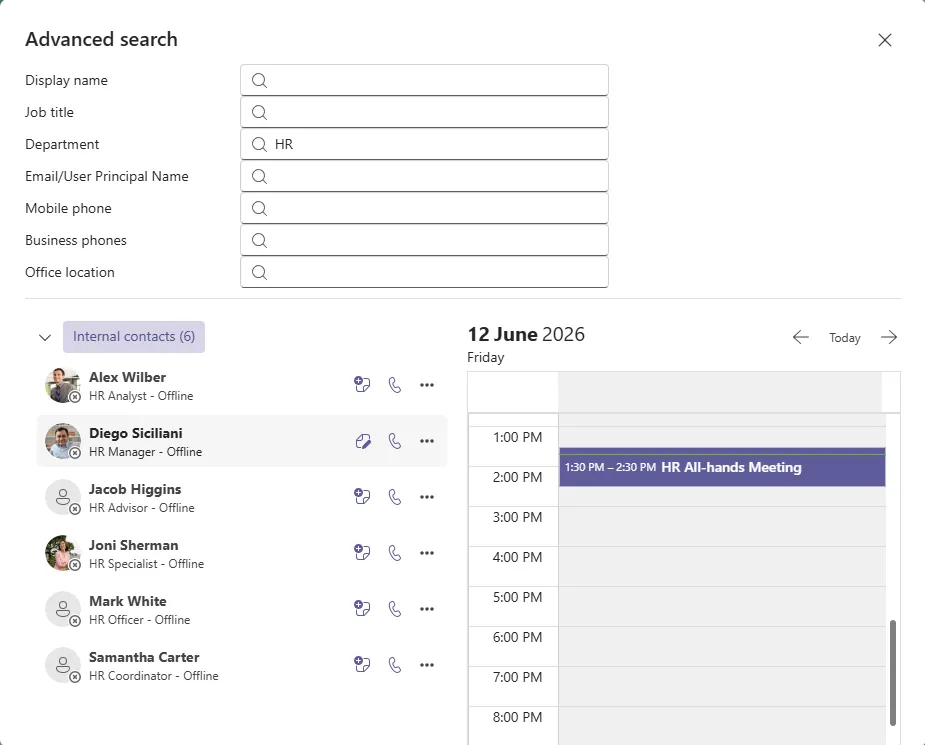
The Advanced Search feature enhances standard contact search by allowing more specific search criteria, helping users find the right information faster and with greater accuracy. This feature must be first enabled at either Agents or Agent Profiles admin pages.

After enabling the Advanced Search feature, in Contact Center application the new magnifying glass icon will appear:
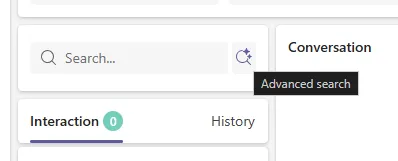
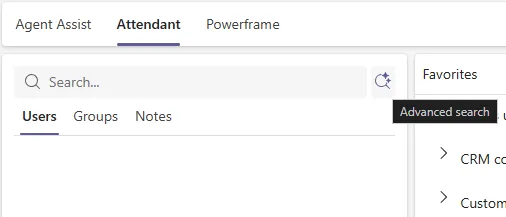
Upon pressing, new Advanced search window will appear where you can search for desired contacts based on enabled properties (Display name, Department, Job title etc).
Peers

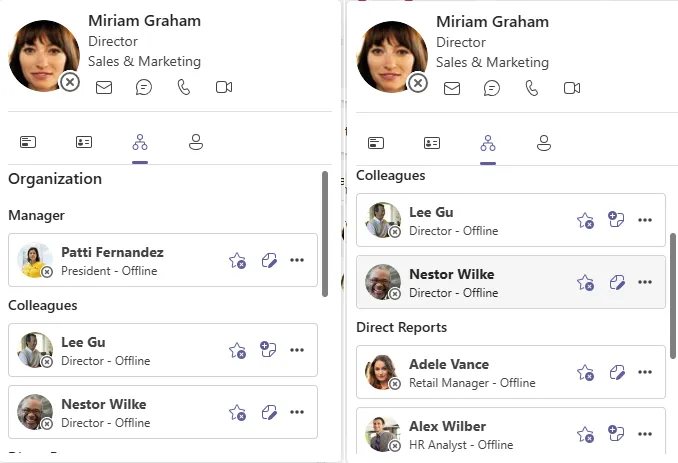
Hovering over a contact’s avatar opens their Contact Card. For Microsoft Entra ID users, the Contact Card includes an Organization view showing their manager, colleagues, and direct reports. Clicking on any of these people opens that person’s Contact Card in turn, showing their own manager, colleagues, and direct reports. This gives agents a quick way to explore a contact’s wider organization.
On this page