


Search
Callback request
Setup - Contact Center
General
Callback request
Read more
Force terminate
How to use
Agent page functionalities
Force terminate
Read more
Supervisor Assist
How to use
Agent page functionalities
Supervisor Assist
Read more
Redirect
How to use
Agent page functionalities
Redirect
Read more
Virtual wait
How to use
Agent page functionalities
Virtual wait
Read more
Conference call
How to use
Agent page functionalities
Conference call
Read more
Outbound DTMF
How to use
Agent page functionalities
Outbound DTMF
Read more
Cancel consultative transfer
How to use
Agent page functionalities
Cancel consultative transfer
Read more
Call Park
How to use
Agent page functionalities
Call Park
Read more
Features
How to use
Social Messaging
Features
Read more
Smart Chatbot
How to use
Social Messaging
Smart Chatbot
Read more
Microsoft Power Automate
How to use
Social Messaging
Microsoft Power Automate
Read more
Phonebook
How to use
Social Messaging
Phonebook
Read more
Sentiment Analytics
How to use
Social Messaging
Sentiment Analytics
Read more
TouchPoint
How to use
Social Messaging
TouchPoint
Read more
Agent
How to use
Social Messaging
Agent
Read more
Reporting
How to use
Contact Center
Reporting
Read more
Supervisor
How to use
Contact Center
Supervisor
Read more
Agent
How to use
Contact Center
Agent
Read more
Obtaining a WhatsApp number
Getting Started
Support & Assistance
Obtaining a WhatsApp number
Read more
What to do next?
Getting Started
Getting Started
What to do next?
Read more
Signup & Enrollment
Getting Started
Getting Started
Signup & Enrollment
Read more
Summary Export
API
Social Messaging
Summary Export
Read more
ReplicatorConfig
API
Social Messaging
ReplicatorConfig
Read more
ReplicatorJobStatus
API
Social Messaging
ReplicatorJobStatus
Read more
TouchPoints
API
Social Messaging
TouchPoints
Read more
Chatbot Languages
API
Social Messaging
Chatbot Languages
Read more
Chatbot Knowledgebases
API
Social Messaging
Chatbot Knowledgebases
Read more
Tenant Information
API
Social Messaging
Tenant Information
Read more
Subscription
API
Social Messaging
Subscription
Read more
Conversation Packs
API
Social Messaging
Conversation Packs
Read more
Conversations
API
Social Messaging
Conversations
Read more
Messages
API
Social Messaging
Messages
Read more
Toastar Users
API
Social Messaging
Toastar Users
Read more
Toastar Conversations
API
Social Messaging
Toastar Conversations
Read more
Teams
API
Social Messaging
Teams
Read more
WhatsAppConsent
API
Social Messaging
WhatsAppConsent
Read more
API TouchPoint
API
Social Messaging
API TouchPoint
Read more
Campaign API
API
Social Messaging
Campaign API
Read more
Transcript
API
Social Messaging
Transcript
Read more
FeedbackExport
API
Contact Center
FeedbackExport
Read more
Outbound Call Campaign
API
Contact Center
Outbound Call Campaign
Read more
Webhooks
API
Contact Center
Webhooks
Read more
Agent EventLog
API
Contact Center
Agent EventLog
Read more
Agent workEntry
API
Contact Center
Agent workEntry
Read more
Call Stream Change
API
Contact Center
Call Stream Change
Read more
Execution Results
API
Contact Center
Execution Results
Read more
Request
API
Contact Center
Request
Read more
Queues
API
Contact Center
Queues
Read more
Calls
API
Contact Center
Calls
Read more
Agent Export
API
Contact Center
Agent Export
Read more
CallParticipants
API
Contact Center
CallParticipants
Read more
API Documentation
API
Contact Center
API Documentation
Read more
ToastarForTeams
API
General
ToastarForTeams
Read more
Callback Requests
API
General
Callback Requests
Read more
Conversation API
API
General
Conversation API
Read more
Classification API
API
General
Classification API
Read more
General Prerequisites
Getting Started
Getting Started
General Prerequisites
Read more
Contact Center
How to use
Contact Center
Read more
Setup Access & Security
Setup - General
Setup Access & Security
Read more
Schedules
Setup - Contact Center
Schedules
Read more
Resource Accounts
Setup - Contact Center
Resource Accounts
Read more
Queues
Setup - Contact Center
Queues
Read more
Callflows
Setup - Contact Center
Callflows
Read more
Audio Files
Setup - Contact Center
Audio Files
Read more
Agents
Setup - Contact Center
Agents
Read more
Logging
How to use
Logging
Read more
Audit
Setup - General
Audit
Read more
CRM
Setup - General
CRM
Read more
Languages
Setup - General
Languages
Read more
Create Tenant App
Setup - General
Create Tenant App
Read more
Getting started
Getting started
Getting started
Read more
Subscriptions
How to use
Subscriptions
Read more
Call Flows
Setup - Contact Center
Call Flows
Read more
AI Flow
API
AI Flow
Read more
Copilot Touchpoint
Setup - Social Messaging
Copilot Touchpoint
Read more
Insights & Analytics
Setup - General
Insights & Analytics
Read more
Wallboard
Setup - General
Wallboard
Read more
Permissions
Setup - General
Permissions
Read more
Logging
Setup - General
Logging
Read more
CRM Calling Integration (Toastar)
Setup - General
CRM Calling Integration (Toastar)
Read more
Custom CRM Connector
Setup - General
Custom CRM Connector
Read more
Default CRM Connectors
Setup - General
Default CRM Connectors
Read more
CRM Replicator
Setup - General
CRM Replicator
Read more
Email Configuration
Setup - General
Email Configuration
Read more
Schedules
Setup - General
Schedules
Read more
Agent Assist
Setup - General
Agent Assist
Read more
Setup Access & Security
Setup - General
Setup Access & Security
Read more
Malicious File Blocking
Setup - Social Messaging
Malicious File Blocking
Read more
Wallboard
Setup - Social Messaging
Wallboard
Read more
Reporting
Setup - Social Messaging
Reporting
Read more
Messages
Setup - Social Messaging
Messages
Read more
Examples
Setup - Social Messaging
Examples
Read more
Graphical Designer
Setup - Social Messaging
Graphical Designer
Read more
Using the library
Setup - Social Messaging
Using the library
Read more
Email Touchpoint
Setup - Social Messaging
Email Touchpoint
Read more
API TouchPoint
Setup - Social Messaging
API TouchPoint
Read more
Facebook TouchPoint
Setup - Social Messaging
Facebook TouchPoint
Read more
SMS TouchPoint
Setup - Social Messaging
SMS TouchPoint
Read more
WhatsApp for Business TouchPoint
Setup - Social Messaging
WhatsApp for Business TouchPoint
Read more
Webchat TouchPoint
Setup - Social Messaging
Webchat TouchPoint
Read more
Microsoft Teams
Setup - Social Messaging
Microsoft Teams
Read more
Queues
Setup - Social Messaging
Queues
Read more
AI Flow (Beta)
Setup - Contact Center
AI Flow (Beta)
Read more
Classification
Setup - Contact Center
Classification
Read more
Skill Based Routing
Setup - Contact Center
Skill Based Routing
Read more
Reason Codes
Setup - Contact Center
Reason Codes
Read more
Audio Prompts
Setup - Contact Center
Audio Prompts
Read more
Agent Profiles
Setup - Contact Center
Agent Profiles
Read more
Agents
Setup - Contact Center
Agents
Read more
Call Park
Setup - General
Call Park
Read more
Resource Accounts
Setup - Contact Center
Resource Accounts
Read more
Graphical Designer
Setup - Contact Center
Graphical Designer
Read more
Form Based callflow
Setup - Contact Center
Form Based callflow
Read more
Using the library
Setup - Contact Center
Using the library
Read more
Queues
Setup - Contact Center
Queues
Read more
General
Setup - Contact Center
General
Read more
Agent page functionalities
How to use
Agent page functionalities
Read more
Social Messaging
How to use
Social Messaging
Read more
Contact Center
How to use
Contact Center
Read more
Support & Assistance
Getting Started
Support & Assistance
Read more
Compliance by design
Getting Started
Compliance by design
Read more
Social Messaging
API
Social Messaging
Read more
Contact Center
API
Contact Center
Read more
Getting Started
Getting Started
Getting Started
Read more
General
API
General
Read more
No results
Try a different search query
Menu
Thank you! Your submission has been received!
Oops! Something went wrong while submitting the form.
What are you looking for?

MCP Server Setup

The MCP integration relies on API Key based authentication, API keys are available from the Business subscription and above.

Prerequisites:

  • A Copilot Agent already set up in Microsoft Copilot Studio.
  • API Key with scope “Conversations” (created earlier in ROGER365.io admin portal)

Disclaimers:

  • The ROGER365.io does not supply the Copilot Agent configuration and is not responsible for unexpected results or being flagged as a violator of Terms of Use.
  • Please be aware of the cost-aspect for utilizing your Copilot Agent configuration used in this integration – Pricing.

Overview

The Model Context Protocol (MCP) Integration is an open standard for connecting AI agents to external tools and data sources through a consistent, secure interface. Instead of building a separate integration for every action you want an agent to perform, the agent talks to an MCP server, which exposes a ready-made set of tools.

ROGER365.io provides such an MCP server. When you connect it to a Copilot Agent, the server’s available tools, their descriptions, and their input requirements are pulled in automatically – there is no per-action wiring to maintain. If ROGER365.io adds or updates a tool on the server, your agent picks up the change without extra configuration.

Once connected, a Copilot Agent can answer questions and take actions against your Contact Center using the tools the server exposes – for example retrieving call summaries, looking up queue statistics, or checking an agent’s current status. The agent decides which tool (or sequence of tools) best matches each request and calls it through the MCP server.

Authentication of the Copilot Agent

Before connecting the MCP server, configure your Copilot Agent’s authentication.
Navigate to its settings, then open the “Security” section followed by “Authentication”:
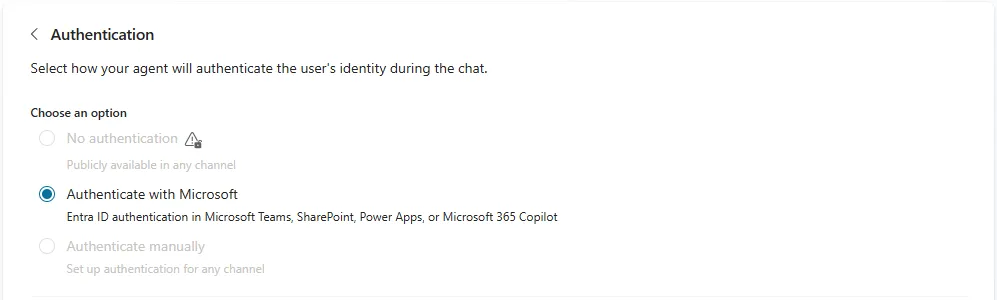
Set the authentication option to ‘Authenticate with Microsoft’.

Since the MCP server exposes tools that can retrieve Contact Center data, access must be restricted to identified users rather than left open. Authenticate with Microsoft applies Entra ID sign-in automatically across the Teams, Power Apps, and Microsoft 365 Copilot channels, so no separate authentication setup is required. Each user still completes a one-time sign-in to authorize the MCP server connection itself, covered later in First-time sign-in.

Connecting the MCP server in the Copilot Studio portal

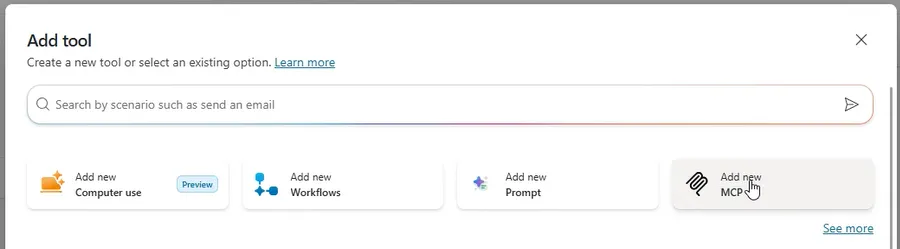
In the Copilot Studio portal, open your Agent configuration and go to the Tools tab. Select “+ Add a tool“, then choose “Add new MCP“:
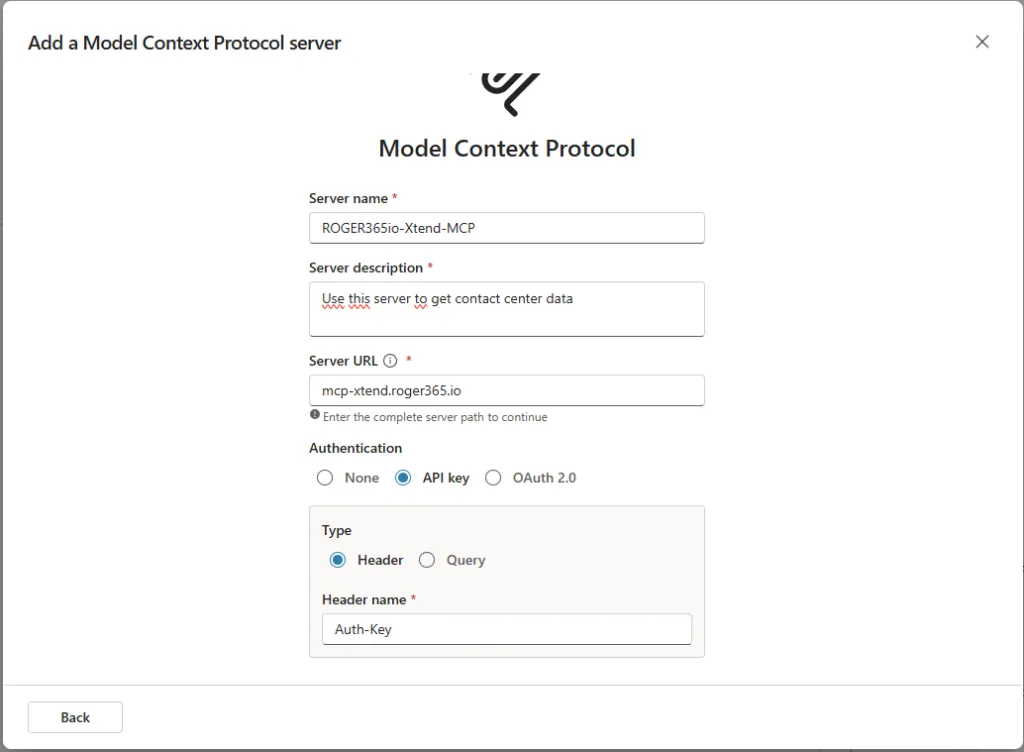
Server name A descriptive name for the server (this is how it appears in your connection list).
Server description A short note about what the server provides.
Server URL mcp-xtend.roger365.io
Authentication API Key
Type Header
Header name Auth-Key

After entering the required information for the MCP Server, press Create.In the “Connection” drop-down list, choose Create new connection. You will be prompted to provide an API key from the ROGER365.io admin portal to authenticate your user account with the newly created MCP server.
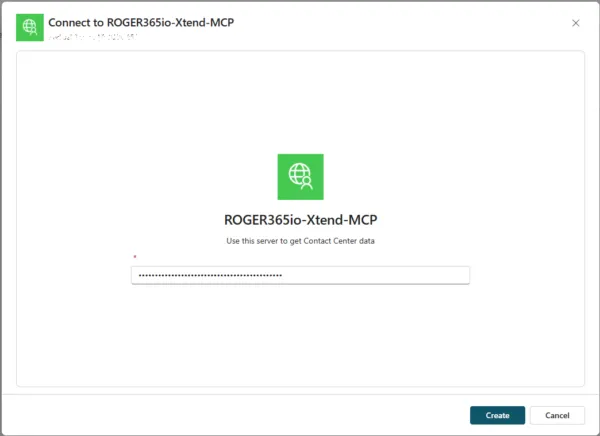
Enter an API key, then select Create, followed by Add and configure.

Once configured, the MCP server becomes available as a tool within Microsoft Copilot Studio. Administrators can use the configured MCP server when creating new agents and can reuse the same connection across multiple agents as needed.

First-time sign-in

The first time a Copilot Agent uses the MCP server, Copilot Studio asks each user to verify their credentials. This is a one-time sign-in that authorizes the connection on that user’s behalf; afterwards the agent reuses it without prompting again. Each new user is asked to sign in once before their first conversation.

To complete it, open the Test pane and send a message to the agent. If a sign-in is required, you’ll see a prompt with an Open connection manager link.
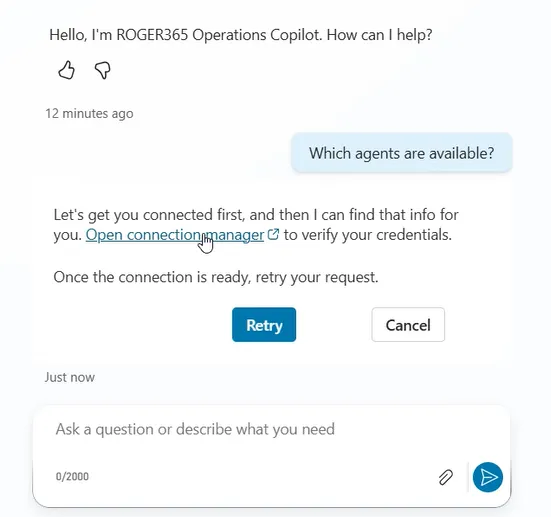
Press on the “Open connection manager” link, locate the created MCP server (by its name) and press “Connect”:

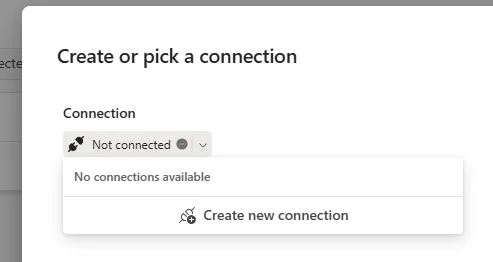
From the drop-down list, press “Create new connection” and authenticate your user account to MCP server using API Key from ROGER365.io admin portal. Afterwards, press “Create” followed by “Submit”.

Once the status becomes Connected, the user account ready for the first conversation with the Copilot Agent (with MCP server as its tool)!
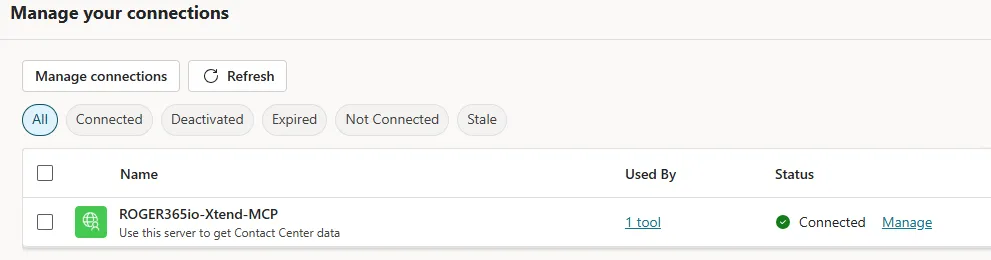
MCP Server Tools

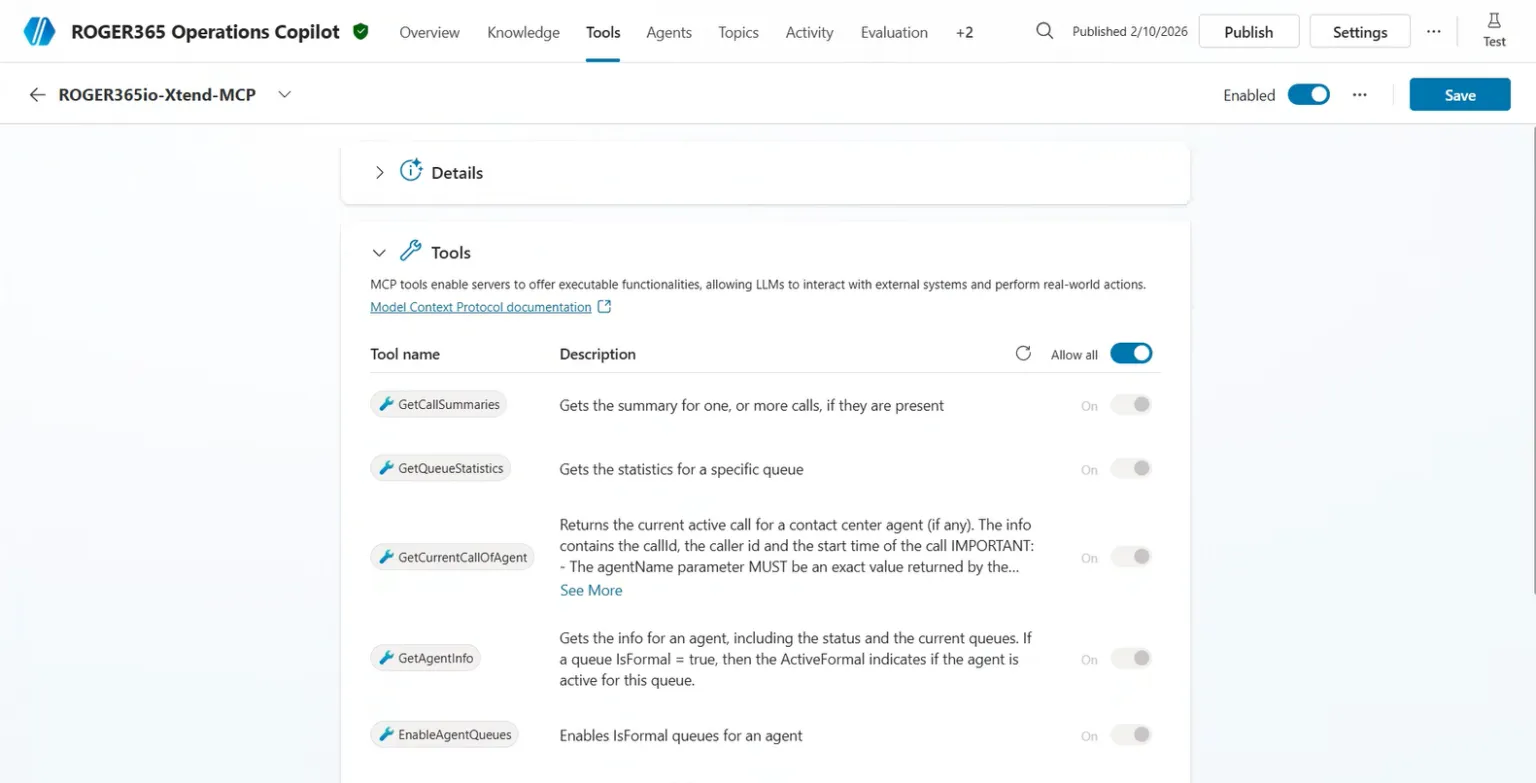
At the Tools tab of the Copilot Agent, you can find list of all existing at the moment tools that the MCP Server provides. Based on the user’s question or request, the Copilot Agent selects the most appropriate tool (or chain of tools) and invokes it through the MCP Server, which executes the action and returns the result.

If ROGER365.io adds or updates a tool on the server, your agent picks up the change without extra configuration.

Depending on the use case, there’s possibility to disable the “Allow all” switch and selectively enable or disable individual Tools that a given Copilot Agent does not need. This allows for maintaining multiple Copilot Agent configurations, each tailored to a specific task or scenario.
On this page