


Graphical Designer

Not available in the UnifAI Attendant license.
The Callflow Designer lets you design a calling scenario graphically: you add actions to a canvas and link them to build advanced routing flows, without writing code.
Designer
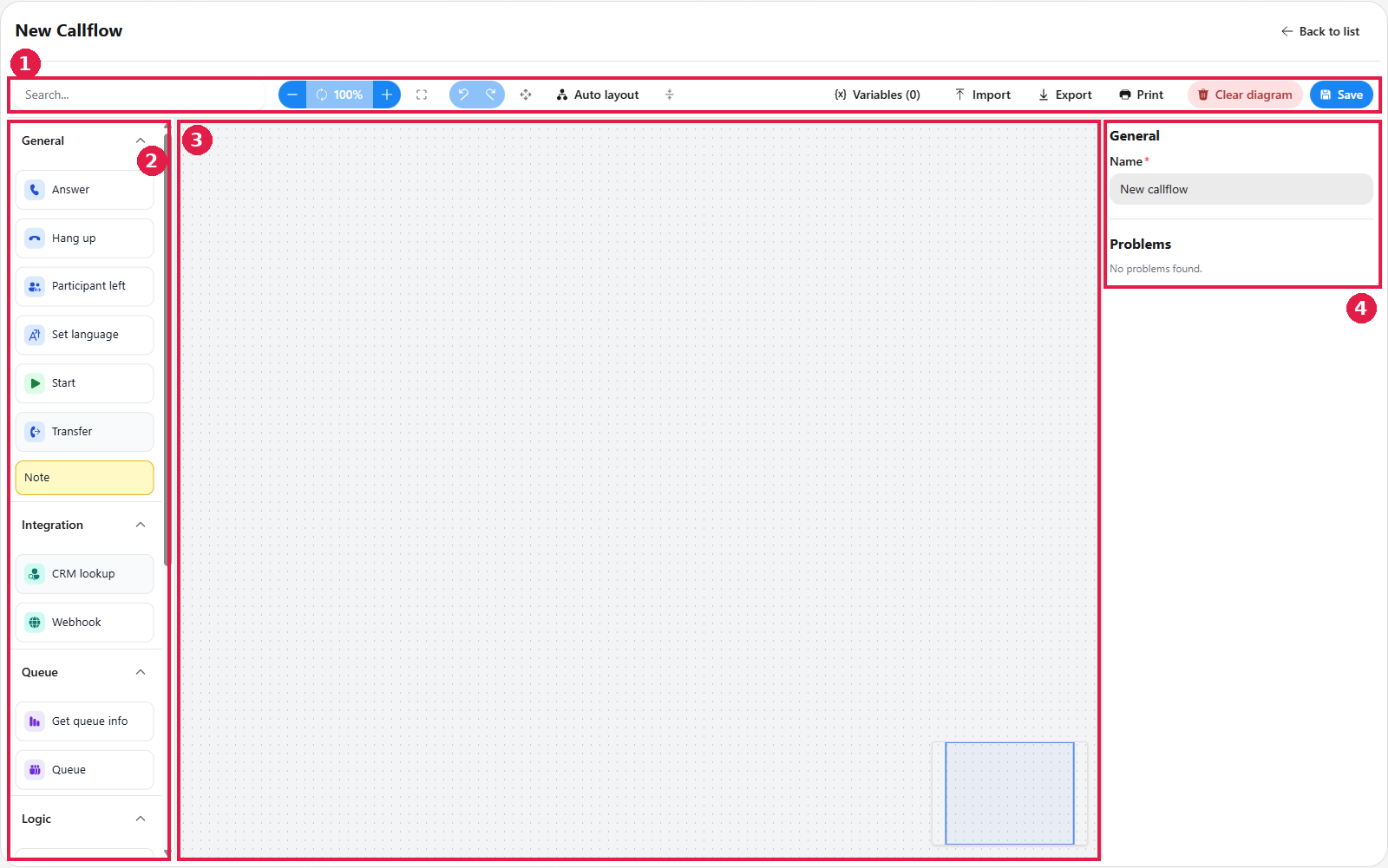
The designer is split into four areas:
- Toolbar (top): general actions such as Search, Zoom, Undo/Redo, Auto layout, Variables, Import, Export, Print, Clear diagram and Save.
- Actions panel (left): the available actions, grouped by category (General, Integration, Queue, Logic).
- Flow area (middle): the canvas where you build the flow. A minimap in the bottom-right corner shows your position in larger flows.
- Properties panel (right): the settings of the selected action. With nothing selected it shows the callflow's name and a Problems list that reports issues found in the flow.
To build a flow, drag actions from the left panel onto the flow area and link them together. Each action has its own properties, which you configure in the panel on the right.
Each callflow action is described on its own page.
The Basics
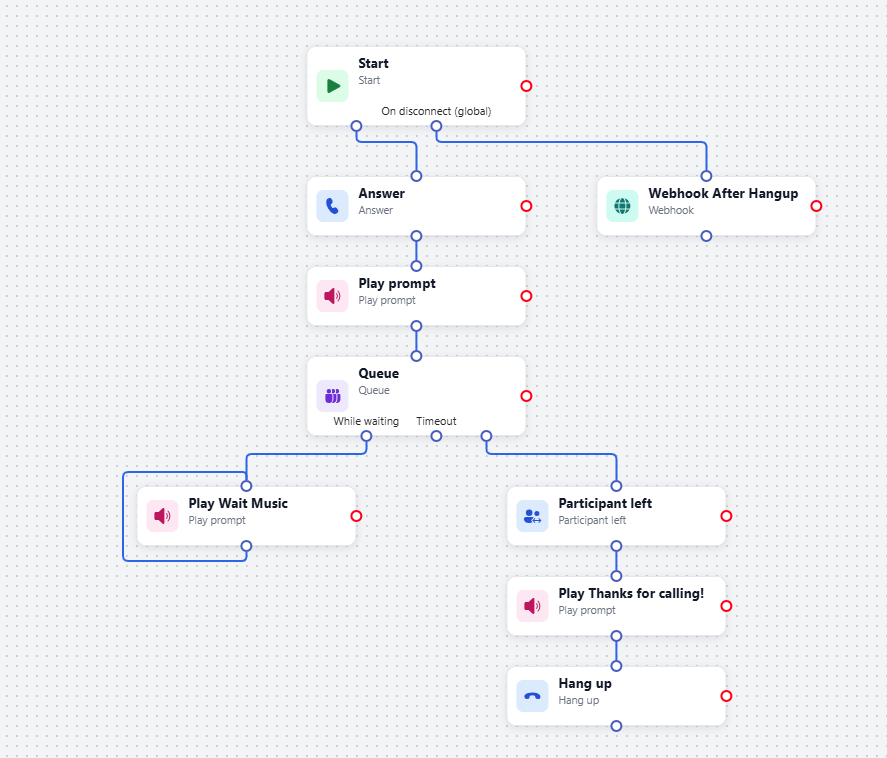
A callflow contains many types of actions, plus a few basic elements that every flow needs or can use. They are described below using an example.
Start
Every callflow begins with the Start action, which marks where the flow begins. This action is mandatory. Its On disconnect (global) output runs when the call ends, wherever the caller is in the flow.
Ending the call
A call is completed when the caller disconnects, and that is also when the Hang up action is triggered. To continue the flow once the caller has left, use Participant left.
Answer
Answer makes the platform pick up the call. The flow needs it before it can do anything with the call, such as playing an audio prompt. It is a separate action so you can place other steps, such as a webhook, before the call is answered.
Connections
To see what a connection does, click it. The properties panel then shows a Transition view with the action the connection starts from, its label and the action it leads to. In the example above, selecting the connection between Queue and Play Wait Music shows that it is labelled Loop.
Toolbar and editing tools
- Search: finds actions in the flow from the search box on the left of the toolbar.
- Zoom and fit: zoom the canvas in or out, or fit the whole flow on screen.
- Undo & Redo: step backwards or forwards through your changes. Editing the flow after undoing removes the ability to redo.
- Copy & Paste: copy highlighted actions and paste them within the same flow. Rename copied actions, since their details are duplicated.
- Auto layout: arranges the actions on the canvas automatically.
- Variables: define the variables used in the flow. The toolbar button shows how many are defined, for example Variables (0).
- Import / Export: export a flow's configuration to a file, or import one. Useful for templates and for sharing a flow with customers or other engineers.
- Print: opens a print view of the flow's configuration, which you can print or save as a PDF.
- Clear diagram: removes every action from the canvas.
- Save: saves the callflow. Check the Problems list in the properties panel before saving.
Related pages
- Callflows – how to create, open, clone and delete callflows from the callflow list.