



Disclaimer: Before you continue, make sure you have a good understanding of your own Microsoft Office 365 and Entra ID situation.
The Email configuration page lets you add your own email address (for instance a shared mailbox) to the ROGER365 system. The feature uses an Azure App Registration that can authenticate and send emails from the configured address. The main benefits are control over the sent emails and their limits, and the option to use the mailbox as the default for sending callback requests (Email type).
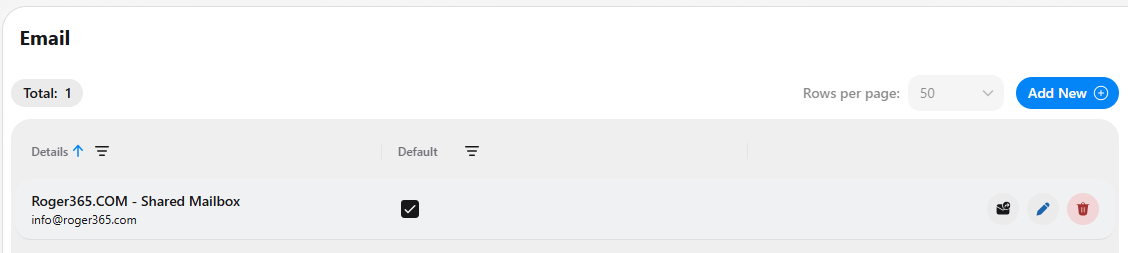
Mailbox list
The page header shows the Total number of configured mailboxes. Use Rows per page to change how many entries are shown at once. Each row in the list shows:
- Details: the name of the mailbox and its email address (for example, Roger365.COM - Shared Mailbox, info@roger365.com). The list is sorted by this column, and you can change the sort order or filter the column using the controls next to the header.
- Default: a checkmark shows which mailbox is the default. The callback request feature uses the default email configuration. The column can also be filtered.
- Actions: the buttons at the end of each row (see below).
Actions per mailbox
- Send test email (envelope icon): sends a test email from the mailbox so you can check that it is set up correctly. You are asked to enter the recipient’s email address, which is prepopulated with the address of the logged-in user.
- Edit (pencil icon): change the settings of the mailbox.
- Delete (red trash icon): remove the mailbox
Creating the Email App Registration
To enable the Email integration, first create an App Registration in the Azure Portal.
Automated method (preferred)
Download the PowerShell script and run it as a Global Admin.
Manual method
- Create an App Registration in your Entra ID environment with the following API permissions:
- Mail.ReadWrite (Application)
- Mail.Send (Application)
- MailboxSettings.ReadWrite (Application)
- User.Read (Delegated)
- Create a secret for the App Registration.
- Configure an application access policy to limit the scope of the application permissions to your environment’s needs. See the Microsoft documentation.
Important: If you skip step 3, the App Registration has access to every mailbox in your tenant, which is a potential security risk.
Adding a mailbox
Select Add New in the top right to open the Create Email Configuration form. Fill in the following fields (all are required unless stated otherwise):
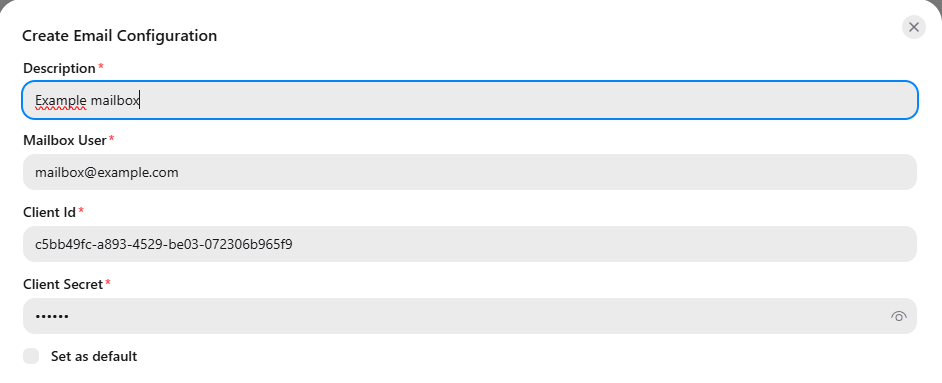
- Description: a name to recognize the mailbox in the list, for example Example mailbox.
- Mailbox User: the email address of the mailbox, for example mailbox@example.com.
- Client Id: the client ID used to authenticate the mailbox.
- Client Secret: the client secret that belongs to the client ID. The value is hidden by default. Select the eye icon to show or hide it.
- Set as default (optional): makes this mailbox the default email configuration.
Select Save to create the mailbox. Use the X in the top right of the form to close it without saving.