


Search
Shift Synchronization
Example PowerShell script
Statistics
Supervisor
Agent
SocialConversationParticipant Export
SocialConversationInfo Export
SocialQueue Export
Virtual Call Info
Quality Assurance
Sentiment
Summary
Transcript
MCP Server Setup
Customer data
General
Create App Registration for Email TouchPoint
Module settings
Examples
Setup Access
Configure Teams client to enable Toastar
Enable users
Webhook & Postback URL
Add TOASTAR App to Teams
Create Teams Virtual User
Register Azure BOT Channel
Example PowerShell script
Phonebook
Webchat to Teams
WhatsApp to Teams
Recognize customer by email
Use webchat form to recognize customer
Start voice call (Beta)
CRM
AddTranscript
Translate
OpenAI
GetFormInput
HttpAction
Go to
Convert Image
SetAction
GetPageVisits
Sentiment
Powerhook
SendEmailAction
Chatbot
Get Transcript
Set Participant
Schedule
Merge
Choice
WaitInput
SendMessageTo
The basics
Webhooks for SMS Provider
Sandbox cm.com
WhatsApp OUT
Adding templates
Webhooks for WhatsApp Providers
Customize Layout
Add status message
Webchat Parameters
Create adaptive card
Connect Teams Channel
Add ROGER365 app to Teams
AI Endpoints
Classification Action Configurations
Quality Assurance Forms
Audio Providers
Flows
Last Conversation Data
Call to SMS (Beta)
Store feedback
Call to WhatsApp (Beta)
Cancel Virtual Call
Get Virtual Call Info
Make Call Virtual
OpenAI
Last agent
Text to Speech
Speech to Text
VoiceRecording
Switch
Subflow
Set Variable
Send Webhook
HTTPAction
Wait Timer
CRM
Cancel Task
Cancel all Tasks
Queue
Get Queue Info
WaitForEnd
Set language
Safe Transfer
Schedule
Call Park
Api Keys
Email
Contact Center
Setup Access & Security
Schedules
Resource Accounts
Queues
Callflows
Audio Files
Agents
Logging
Audit
CRM
Languages
Create Tenant App
Getting started
Subscriptions
Call Flows
AI Flow
Copilot Touchpoint
Insights & Analytics
Wallboard
Permissions
Logging
CRM Calling Integration (Toastar)
Custom CRM Connector
Default CRM Connectors
CRM Replicator
Email Configuration
Schedules
Agent Assist
Setup Access & Security
Malicious File Blocking
Wallboard
Reporting
Messages
Examples
Graphical Designer
Using the library
Email Touchpoint
API TouchPoint
Facebook TouchPoint
SMS TouchPoint
WhatsApp for Business TouchPoint
Webchat TouchPoint
Microsoft Teams
Queues
AI Flow (Beta)
Classification
Skill Based Routing
Reason Codes
Audio Prompts
Agent Profiles
Agents
Call Park
Resource Accounts
Graphical Designer
Form Based callflow
Using the library
Queues
General
Agent page functionalities
Social Messaging
Contact Center
Support & Assistance
Compliance by design
Social Messaging
Contact Center
Getting Started
General
No results
Try a different search query
Api Keys

The API Keys screen lets administrators manage the API keys used to authenticate external applications and integrations with ROGER365. Each key is limited to one or more scopes, which determine what the key is allowed to access.
API key list
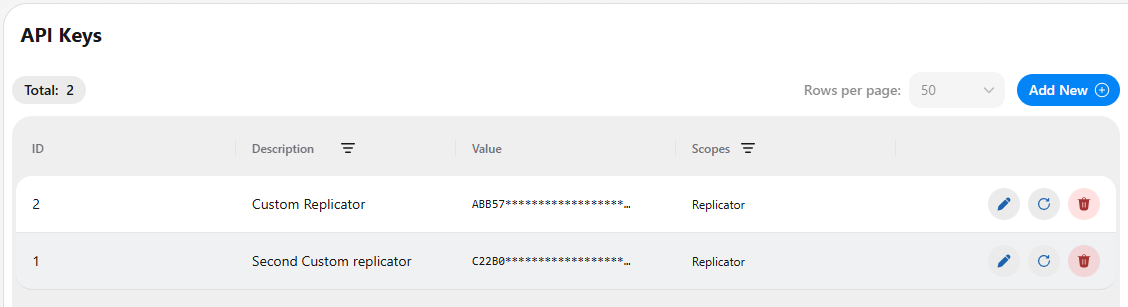
The page header shows the Total number of configured API keys. Use Rows per page to change how many entries are shown at once. Each row shows:
- ID: the unique number of the API key.
- Description: a name that helps you recognize what the key is used for, for example Custom Replicator. The column can be filtered.
- Value: the API key itself. Only the first characters are shown, and the rest is masked for security.
- Scopes: the scope(s) the key is allowed to use, for example Replicator. The column can be filtered.
- Actions: the buttons at the end of each row (see below).
Actions per API key
- Edit (pencil icon): change the settings of the API key.
- Regenerate (circular arrow icon): generates a new value for the key. As with a new key, the full value is only shown once. Applications that still use the old value can no longer authenticate until they are updated with the new value.
- Delete (red trash icon): remove the API key. Applications that use this key lose access.
Adding an API key
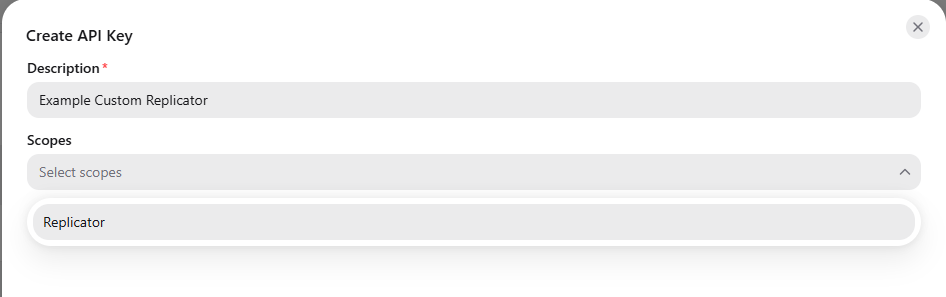
Select Add New in the top right to open the Create API Key form. Fill in the following fields:
- Description (required): a name that helps you recognize what the key is used for, for example Example Custom Replicator.
- Scopes: select one or more scopes from the drop-down list to define what the key is allowed to access.
Select Save to create the API key. Use the X in the top right to close the form without saving.
Important: The full value of the API key is only shown once, when you create it. Copy it immediately and store it securely, as it cannot be viewed again later. If you lose the value, use the regenerate action to get a new one.