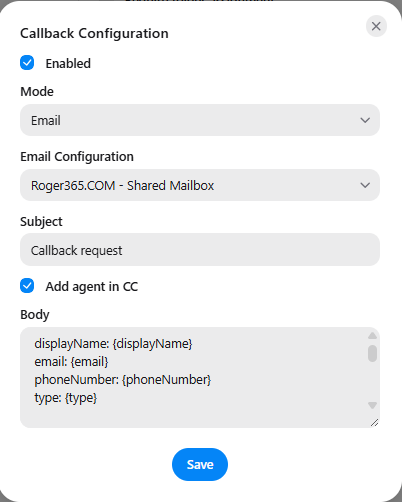
Callback configuration defines what happens when a caller asks to be called back instead of waiting in the queue. When a callback request is made, the platform sends a notification with the caller’s details, so the request can be followed up. In the current configuration, this notification is sent by email.
This setting can only be configured by users with the UnifAI-Admin role. It is part of General settings.
Callback Configuration
Field
Description
Enabled
Turns the callback notification on or off. When it is off, no notification is sent for callback requests.
Mode
The way the callback request is delivered. Email will use the configured mailbox, the mailto will use the agents mail client.
Email Configuration
The mailbox used to send the notification, selected from the email configurations that are set up in the portal (for example Roger365.COM - Shared Mailbox).
Subject
The subject line of the email, for example Callback request.
Add agent in CC
When selected, the agent who is related to the callback request is added in CC of the email.
Body
The text of the email. You can use variables to insert the details of the request (see below).
Click Save to store the configuration.
Variables in the email body
Variables are written between curly brackets {}. When the email is sent, each variable is replaced by the actual value of the callback request
There are two sources for the values:
The call itself: the phone number of the caller. This is always available.
The CRM replicator: the details of the contact that was found for the caller. These fields are only filled if the caller is recognized in the CRM. If the caller is not found, all fields from the CRM are empty and only the phone number of the caller is filled.
If a field has no value, the variable is replaced by an empty value.
Everything outside the curly brackets is sent as normal text. You can add your own text around the variables, for example a short instruction for the person who handles the request.
Tips
Enter the variable names exactly as shown, including the capitals. A variable with a spelling mistake is not replaced.
Use a shared mailbox as the sender, so notifications do not depend on one person’s account.
Send a test callback request after you change the configuration to check the email.
Available variables
From the call
Variable
Is replaced by
{phoneNumber}
The phone number of the caller. This value does not come from the CRM.
From the CRM replicator
Variable
Is replaced by
{displayName}
The full display name of the contact.
{firstName}
The first name of the contact.
{lastName}
The last name of the contact.
{company}
The company name of the contact.
{email}
The email address of the contact.
{sipAddress}
The SIP address of the contact.
{phoneNumber0} to {phoneNumber5}
The phone numbers of the contact in the CRM, up to six.
{street}
The street of the contact.
{zip}
The postal code of the contact.
{city}
The city of the contact.
{country}
The country of the contact.
{type}
The type of the contact, as set in the CRM replicator.
{custom0} to {custom2}
Custom fields of the contact, for information that is not covered by the standard fields.
{mobileData0} to {mobileData2}
Mobile data fields of the contact.
{contactIdentifier}
The identifier of the contact.
{replicatorId}
The ID of the replicator that supplied the contact.